
How to Sideload Apps on Firestick (Developer Guide)
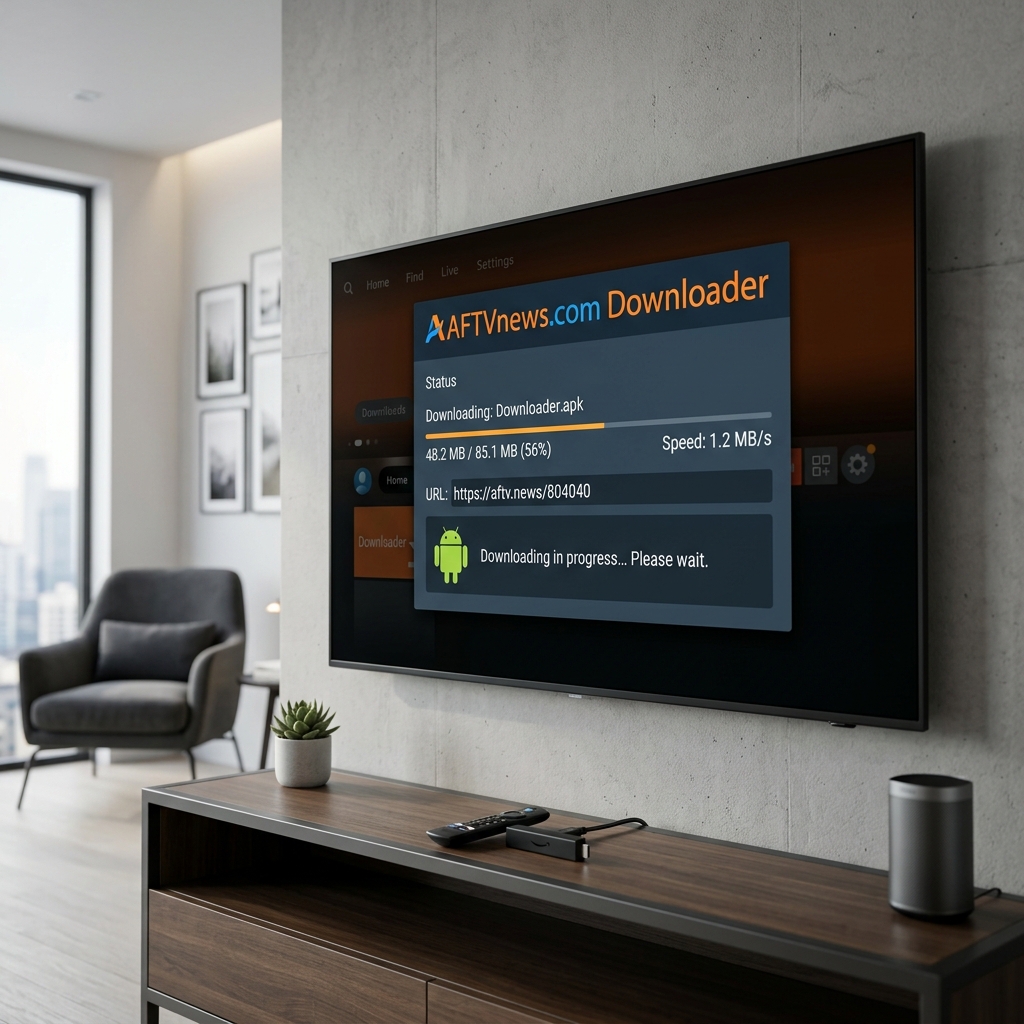
Sideloading on Firestick involves three core stages: unhiding developer menus, downloading the APK, and installing it. First, navigate to Settings > My Fire TV > About and click your device name 7 times to unhide the Developer Options. Enter Developer Options > Install Unknown Apps and toggle **Downloader** to **Allowed**. Open Downloader, enter the direct URL of the APK, click **Go**, and select **Install** once downloaded.
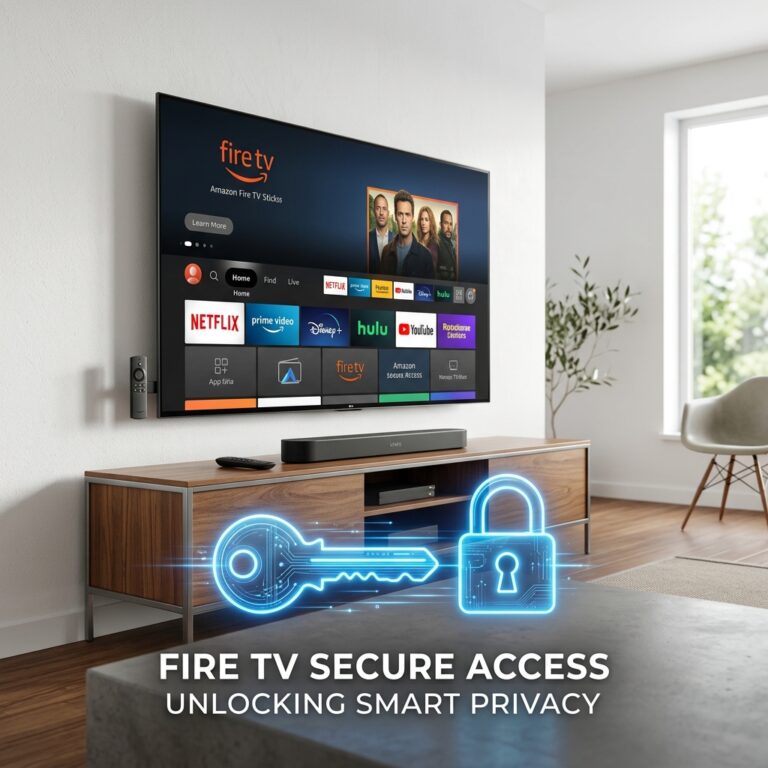
The Amazon Fire TV stick is one of the most flexible media players on the market because it is built on the Android operating system. This allows users to look beyond the pre-installed Amazon Appstore and install custom application files, a process known as sideloading. Whether you want to configure the Kodi media player, a custom web browser, file utility applications, or private streaming clients, sideloading is the gateway to unlocking your hardware’s full potential.
When searching for how to sideload apps on firestick instructions, following a secure developer-focused protocol is essential to protect your device from malicious software. As a smart TV systems developer and network security architect with over 5 years of experience configuring Fire OS platforms, I have built and side-loaded numerous custom APK packages. In this guide, we will detail how to unhide developer controls, configure the Downloader utility, download verified packages safely, and maintain clean storage blocks on your Fire TV device.
What is Sideloading and Why Do Users Do It?
Sideloading is the process of transferring an Android Application Package (APK) installer file onto your device and installing it manually, bypassing the official distributor store. Sideloading is highly popular in the UK streaming community for several reasons:
- Access Custom Media Players: Install media aggregators like Kodi or custom smart players like TiviMate and IPTV Smarters Pro to run subscription live streams.
- Ad-Free YouTube Interfaces: Sideload clients (such as SmartTube) that block sponsor segments and home advertisements on video feeds.
- Advanced Utility Tools: Run local file managers (like X-plore), button re-mappers, and network diagnostic tools that are not allow-listed on the Amazon store.
- Bypass Region Restrictive apps: Install foreign catch-up tools or web browsers that are geoblocked on the local UK Appstore registry.
Top Sideloading Methods for Firestick
There are multiple channels to sideload packages onto Fire OS. Refer to this comparative review of the top UK methods:
Tired of APK Updates breaking and Sideload Locks?
Sideloaded players and APKs require regular manual updates, manual directory cleaning, and are prone to security vulnerabilities. If you want a robust, pre-configured live television and sports configuration that bypasses geoblocking checks and works seamlessly out of the box, consider upgrading to GuardianTV. GuardianTV delivers stable, high-bandwidth streams directly to your TV with maximum uptime.
Step-by-Step App Sideloading Guide
Step 1: Activate Developer Mode
To secure their devices from unauthorized APK installations, Amazon has hidden the developer controls. We must unhide them before installing third-party apps.
- Go to **Settings** (gear icon) on the main Firestick navigation bar.
- Scroll down and click on **My Fire TV**.
- Select **About**.
- Hover over your device model name (e.g., **Fire TV Stick 4K Max**).
- Press the **Select** button on your remote control repeatedly **7 times** in rapid succession.
- A popup notification will display reading “No need, you are already a developer.”
Press the Back button, and you will see the **Developer Options** menu visible in the My Fire TV dashboard list.
Step 2: Download and Authorize Downloader App
Downloader is a verified utility app available in the Amazon Appstore that allows you to download files from web URLs.
Go to the Appstore search bar, type in **Downloader**, and download the app. Once installed, navigate to **Settings > My Fire TV > Developer Options > Install Unknown Apps**. Locate **Downloader** in the list and toggle its status to **Allowed**. This whitelists Downloader, bypassing security locks when installing APK files.
Step 3: Connect Your Security VPN
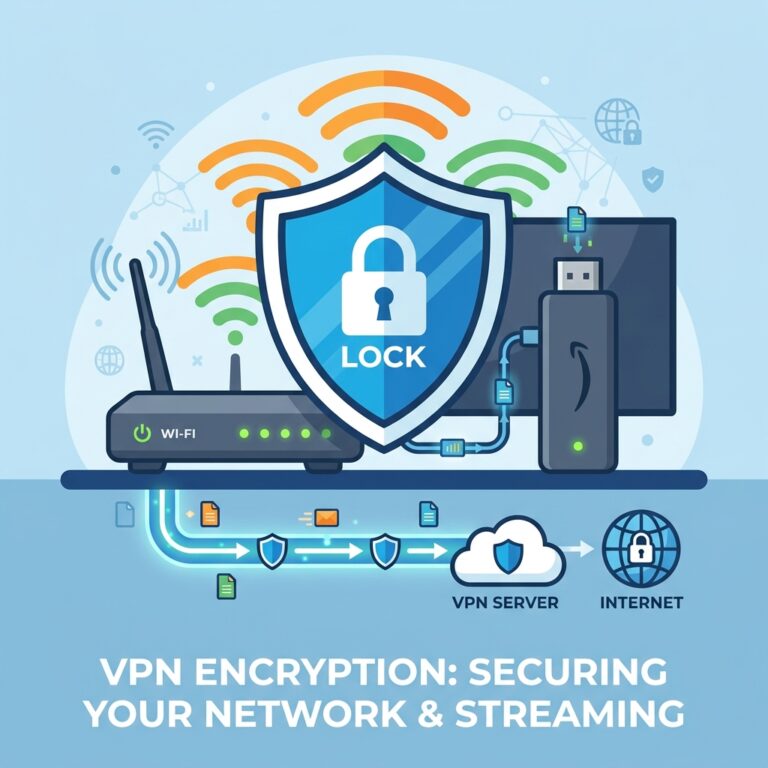
Sideloaded applications establish connections to third-party databases that can log your IP address. Additionally, UK ISPs monitor data packets and throttle connections when streaming via unverified apps. Before downloading any third-party app, launch your VPN and connect to a secure UK server to encrypt your device’s connection tunnel.
Step 4: Download and Install the APK
Launch the **Downloader** app. In the central URL address bar, enter the direct download link of the APK package (e.g., the direct download link for TiviMate or Kodi from a trusted site). Click **Go**. The file will download to your Firestick. Once complete, an installation prompt will appear automatically. Click **Install**, confirm the permissions list, and select **Done** once complete.
Step 5: Clean Up Installation Packages
Firesticks have very limited internal storage (8GB total capacity). Sideloaded APK packages remain stored in the download folder after installation, occupying valuable storage blocks.
When the installation completes, Downloader will display a prompt asking what to do with the installer file. Click the **Delete** button, and confirm by clicking **Delete** again. Wiping these installer packages will keep your device storage clean and prevent memory lag.
Recommended Video Guide
For a detailed visual guide showing how to activate developer settings, download APK files securely, and manage installation blocks on your Amazon Fire TV Stick, watch this tutorial guide:
Safe Sideloading Practices in the UK
To protect your home network, only download APK installer packages from verified, reputable sources. Avoid downloading modified “cracked” versions of premium applications, as these often contain malware or spyware scripts that run silent background threads. Ensure your Firestick has at least 1.5GB of free space to allow catch-up buffers to build without crashing. For viewers looking for a secure, hassle-free UK television experience with zero restrictions, sports packages, and Catch-Up features, upgrading to a dedicated TV system with a high-speed line like GuardianTV is the ideal setup.
Häufig gestellte Fragen (FAQ)
Amazon hides the developer menu by default in recent updates. You can restore it by clicking your device model name 7 times under Settings > My Fire TV > About.
It grants a specific application (such as Downloader) administrative permissions to execute APK installer files and install apps on the Fire OS system.
No, sideloaded apps must be updated manually. Download the newer APK version using Downloader and install it. The new file will overwrite the old app while keeping your settings intact.
Yes, always select the delete option to wipe the temporary installer package to free up internal storage space on your device.
Fazit
Sideloading applications on your Amazon Fire TV Stick is a simple and effective way to expand your entertainment options. By unhiding developer options, whitelisting Downloader, connecting to a secure VPN, and cleaning up installer packages, you can customize your setup safely. For further device optimization, refer to our guide on fixing Firestick freezing issues. To enjoy high-definition television without ecosystem restrictions or buffer constraints, visit GuardianTV today.
 English (UK)
  العربية
  Deutsch
  Ελληνικά
  Suomi
Suomi  Magyar
  Italiano
  Українська
  Svenska
  Română