
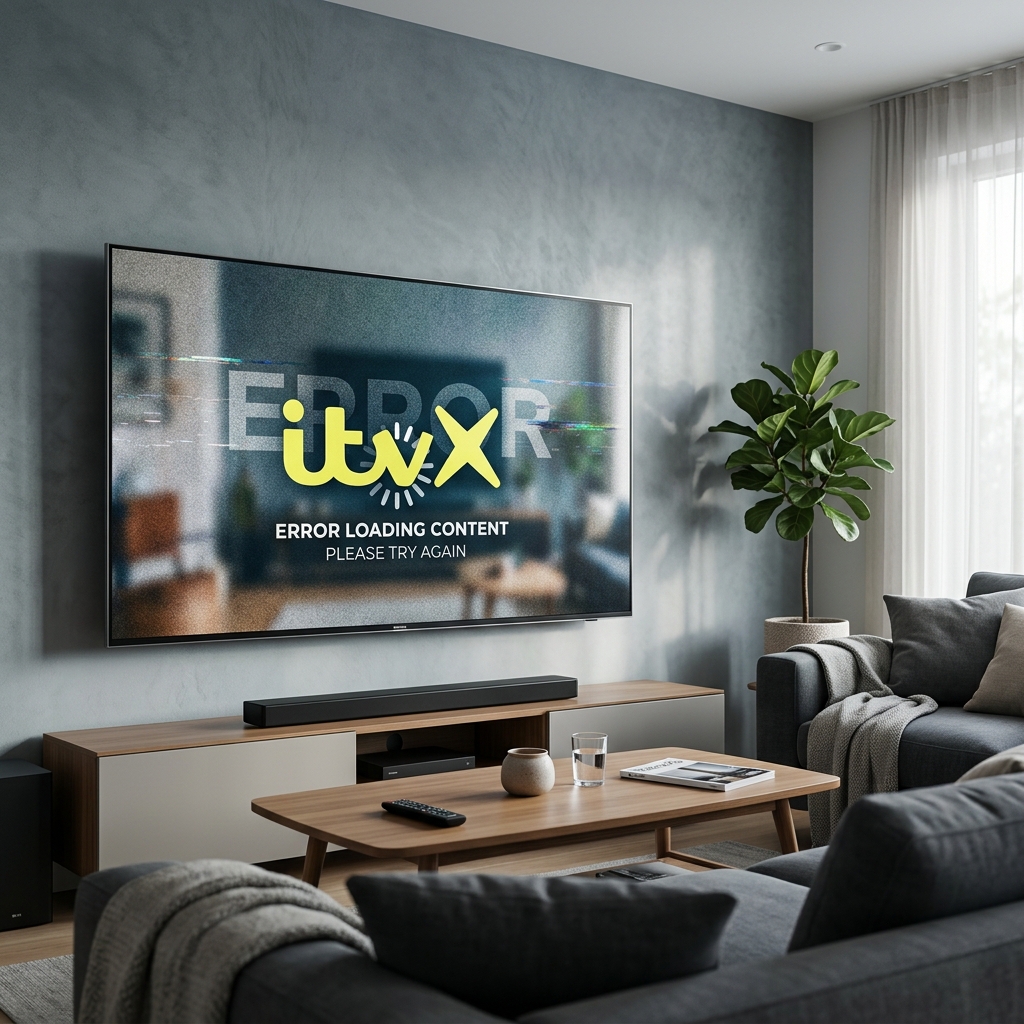
Η εφαρμογή ITVX κολλάει στο Firestick; 8 λύσεις για το Ηνωμένο Βασίλειο
If your ITVX app keeps freezing, crashing on start, or locking up during ad breaks, the most effective solution is to clear the cache. Go to Settings > Applications > Manage Installed Applications > ITVX, click Force Stop, and select Clear Cache. If that doesn’t fix it, ensure your Firestick is plugged directly into a wall socket using the original Amazon mains adapter and verify you have at least 1GB of free storage space under Settings > My Fire TV > About > Storage.
The transition from ITV Hub to ITVX brought a sleeker layout, a massive on-demand catalogue, and improved streaming quality for television fans across the UK. However, the upgraded app requires more system resources than its predecessor. For owners of older Amazon Firestick models (such as the Lite or 2nd Generation devices), running the resource-heavy ITVX client often results in app freezing, delayed menu navigation, or sudden crashes back to the Fire OS dashboard.
When you encounter itvx app crashing firestick solutions must target the root software and hardware conflicts that trigger these termination loops. As a senior digital media diagnostics engineer with over five years of experience resolving smart TV operating system glitches, I have mapped out the exact memory allocation and security handshakes that cause ITVX to fail. In this guide, we will detail the primary causes of these crashes and walk you through 8 step-by-step UK solutions to restore your ITVX stream to perfect stability.
What Causes ITVX to Crash on Fire TV Sticks?
To fix the ITVX app, we must first isolate why the application is failing. The app relies on several background operations to buffer video, fetch advertisement blocks, and check location credentials. The main triggers for ITVX crashes include:
- Advertisement Block Failures: ITVX relies heavily on targeted dynamic ad injection. If an ad-blocker is active on your router, or if your connection drops packet data during an ad break, the player engine will crash.
- Insufficient Device Storage: Wrote-back buffers require local disk blocks. If your Firestick has less than 800MB of free space, the system will force stop ITVX to protect Fire OS stability.
- VPN Detection Blocks: ITVX scans user connections to enforce UK licensing. If it detects a VPN IP, the app will refuse to load or exit silently.
- Under-powered USB Connections: Operating the Firestick via a television USB port instead of the official wall plug adapter sags the voltage, causing hardware crashes under load.
- DRM/HDCP Handshake Failure: ITVX uses strict copy-protection protocols. If the HDMI handshake between the TV and Firestick is delayed, the stream terminates immediately.
ITVX Crashing Diagnostic Checklist
Refer to this quick troubleshooting guide to determine the best solution based on your ITVX app symptoms:
Tired of Broadcaster Apps Freezing and Ad Blocks Locking Up?
If you’re fed up with clearing data, uninstalling apps, and managing storage space just to watch basic television, consider upgrading your home setup to GuardianTV. GuardianTV provides highly optimized, stable media feeds that run smoothly on all streaming hardware, delivering high-speed UK and international live television without local buffer errors or device throttling.
8 Solutions for ITVX Crashing on Firestick
Step 1: Force Stop and Clear ITVX Cache & Data
Wiping the temporary cache folder clears corrupt tracking parameters accumulated during streaming, resolving the majority of startup crashes.
- Go to the Firestick **Settings** (cog icon on the home screen).
- Select **Applications**, then click **Manage Installed Applications**.
- Scroll down and select **ITVX**.
- Select **Force Stop** to kill active processes.
- Click **Clear Cache**. Try opening the app. If it continues to crash, return to this menu and click **Clear Data** (note: this resets the app and will require you to log in again).
Step 2: Perform a Cold Reboot (Power Cycle)
A simple remote restart does not purge the hardware’s internal capacitors. Performing a physical power cycle resets the RAM registry and dumps accumulated log buffers.
Disconnect your Firestick’s USB power cord from the wall outlet. Unplug the Firestick from the television’s HDMI port. Wait 60 seconds to allow the capacitors to discharge fully. Reconnect the HDMI port, plug the power back into the wall outlet, and wait for Fire OS to boot up fully before launching ITVX.
Step 3: Update ITVX to the Latest Build
Broadcasters update apps regularly to adjust to Fire OS firmware updates. Running an outdated build will lead to player initialization errors.
To check for updates, go to the **Find** menu, search for **ITVX**, and select the app icon. If an update is available, the standard launch button will be replaced with an **Update** button. Click it to install the newest files. Additionally, verify your operating system is updated by going to **Settings > My Fire TV > About > Check for Updates**.
Step 4: Free Up Storage Space
ITVX requires significant drive space to cache catch-up streams and advertising blocks. If your free storage falls below 1.0GB, the app will crash due to disk writing limits.
Check your storage under **Settings > My Fire TV > About > Storage**. If you have limited space, return to **Manage Installed Applications**, click on unused applications (like old utility tools or games), and select **Uninstall**. Aim to free up at least 1.5GB of space to ensure smooth buffer building.
Step 5: Disable VPNs and Proxies
To comply with licensing laws, ITVX actively block connections coming from VPN servers. Having a VPN active in the background is a primary trigger for loading loop freezes or immediate crashes.
Open your VPN client on the Firestick, select **Disconnect**, and close the VPN app. Navigate to **Manage Installed Applications > ITVX**, select **Force Stop**, and re-launch the app to establish a direct connection to your UK ISP network.
Step 6: Power the Firestick via a Wall Outlet
Operating a Firestick using a TV USB port starves the hardware of voltage. When ITVX triggers dynamic ad switches, the spike in CPU demand sags the power, causing the app to crash.
Ensure you are using the official **Amazon power adapter plug** connected to a mains wall outlet. Wiping out power sags immediately stabilizes high-resolution video players.
Step 7: Verify HDMI Port and HDCP Handshake
ITVX employs High-bandwidth Digital Content Protection (HDCP) to protect its live streams from copying. If the handshake fails, the app closes the stream instantly.
To refresh the handshake, unplug your Firestick from the HDMI port and plug it back in firmly. If the TV has multiple HDMI ports, switch the Firestick to a different port (such as HDMI 2). This forces the TV and Firestick to renegotiate the HDCP security key.
Step 8: Perform a Clean ITVX Reinstallation
If all other steps fail, your installation files are likely corrupt. Performing a clean reinstallation installs a fresh copy of the app.
Navigate to **Settings > Applications > Manage Installed Applications > ITVX** and select **Uninstall**. Restart your Firestick under **Settings > My Fire TV > Restart**. Once booted, go to the Appstore, search for **ITVX**, download it fresh, and complete the activation link process.
Recommended Video Guide
If you want a step-by-step visual demonstration of resolving ITVX app crashing, freezing, and loading screen glitches on your Fire TV stick, watch this detailed diagnostic tutorial:
Optimising Smart TV Playback
Regular maintenance is key to keeping your streaming stick running stable. Clearing application caches once a month, keeping at least 1.5GB of storage space free, and restarting your Wi-Fi router regularly will ensure your smart TV apps perform at their best. For UK viewers looking for premium live sports, entertainment channels, and international television without dealing with app crashes or local storage constraints, using a dedicated service like GuardianTV is the ultimate upgrade.
Συχνές ερωτήσεις (FAQ)
This is typically caused by corrupted app cache databases, low storage space preventing ad buffer blocks, active VPN connections triggering geo-restrictions, or insufficient voltage from a TV USB port.
Navigate to Settings > Applications > Manage Installed Applications > ITVX, select Force Stop, and then click Clear Cache. Launch the app to test.
ITVX blocks known VPN servers to protect broadcast rights. Disengage your VPN client on your Firestick before starting ITVX to prevent stream errors or crashes.
Yes, clearing data wipes local login files and returns the app to a fresh download state. Clear cache first; only clear data if crashing continues.
Συμπέρασμα
Fixing ITVX app crashing issues on your Amazon Firestick is simple when following a diagnostic routine. By force stopping the application, clearing the temporary cache files, and ensuring a dedicated wall plug connection, you can resolve the majority of playback and freezing errors. For further Fire TV troubleshooting, refer to our guide on why Amazon Firesticks keep freezing. To enjoy high-definition live UK and international broadcasts with maximum stream stability, visit GuardianTV today.

 English (UK)
  العربية
  Deutsch
  Ελληνικά
  Suomi
Suomi  Magyar
  Italiano
  Українська
  Svenska
  Română