
Why is the app not available on Firestick?
If an application displays as “Unavailable” on your Amazon Firestick, the issue is typically caused by **geographical Appstore filtering**, **1-Click billing address mismatches**, or **device compatibility specs**. Fix this immediately by changing your Amazon account Country/Region settings under “Manage Your Content and Devices” to the target country, enabling “Apps from Unknown Sources” in Developer Options, and sideloading the application’s APK file using the Downloader app.
Few things are more frustrating than finding a new streaming application or utility on the web, turning on your Amazon Firestick to download it, and being met with a grey, non-responsive button that reads: “Unavailable”. You are blocked from downloading the app, and the system offers no explanation as to why. For UK users attempting to install international apps or third-party tools, this “App Unavailable” block is a common issue.
Because the Amazon Appstore filters applications based on your account billing country and device specifications, bypassing this block requires adjusting your digital account settings or bypassing the Appstore entirely. As an Android systems and streaming diagnostics expert with over 5 years of experience, I have resolved countless storefront blockages. In this comprehensive UK guide, we will analyze why apps display as unavailable on your Firestick and detail 7 step-by-step methods to bypass these blocks and download any app you want.
What Causes an App to Show as Unavailable on Firestick?
To bypass the storefront filter, we must first understand why the Amazon Appstore displays the “Unavailable” label. When you navigate to an app page, the Appstore client runs background audits on your account and hardware. The primary reasons for an app showing as unavailable are:
- Geographical Storefront Filtering: Many applications are only licensed for distribution in specific countries (e.g., Hulu or YouTube TV in the US; BBC iPlayer or ITVX in the UK). If your Amazon account is registered in the wrong country, the storefront blocks the download.
- 1-Click Billing Address Mismatch: Amazon’s Appstore requires a valid 1-Click billing address linked to the storefront’s target country to verify licensing compliance, even for free apps. If your billing address is set in the UK, US-only apps will display as unavailable.
- Hardware and OS Compatibility Specs: Newer applications require advanced APIs found only in recent Fire OS versions (Fire OS 7 or 8). If you are using an older Firestick (such as the 1st or 2nd Generation), the Appstore will restrict the app due to hardware limitations.
- Storefront Cache Desynchronization: Corrupted cache data in the Appstore client can desynchronize your account region settings, causing the store to display false compatibility flags.
App Availability Diagnostic Checklist
Refer to this checklist table to prioritize your troubleshooting actions based on complexity and success rate:
7 Ways to Fix App Not Available on Firestick
Step 1: Change Your Amazon Account Region Settings
If an app is licensed only in another country (such as the US), you must register your Amazon account to that region to download it. Open a web browser on your computer or smartphone, visit the local Amazon website, and log in to your account.
Go to Manage Your Content and Devices > Preferences. Under Country/Region Settings, click Change. Set your address to the target country (e.g., United States) and enter a valid local address and zip code (using a hotel address is a common workaround). Save the changes. On your Firestick, navigate to Settings > My Account, sync your content, or click Deregister and register again to load the updated storefront.
Diagram: Adjusting regional settings on the Amazon dashboard resolves storefront licensing blocks.
Step 2: Sideload the App APK File
If you prefer not to change your Amazon account region, you can bypass the Appstore entirely by sideloading the application. This involves manually downloading the raw Android installation package (APK) and running it on Fire OS.
First, enable developer options. Navigate to Settings > My Fire TV > About. Click on the main **Fire TV** title 7 times to reveal the hidden developer menu. Go back to My Fire TV > Developer Options and toggle **Apps from Unknown Sources** to **ON**. Download the **Downloader** app from the Appstore. Launch Downloader, enter the APK download URL from a trusted source (like APKMirror), download the file, and click **Install**.
Step 3: Update Your Amazon 1-Click Payment Details
Even for free applications, the Amazon Appstore requires a verified 1-Click billing address to complete the licensing transaction. If you have changed your region but haven’t updated your 1-Click billing address, the Appstore will restrict the app, displaying the “Unavailable” label.
Log in to Amazon, go to your Account settings, and click on **Your Payments**. Under the Settings tab, select **1-Click settings**. Ensure your primary billing address matches the target region of your storefront (e.g., a US address for US storefronts). Once updated, restart your Firestick to sync the billing verification node.
Step 4: Force Close and Clear Cache on Amazon Appstore
If you have modified your region and updated your billing details but the app still shows as unavailable, the Appstore client on your Firestick is likely reading cached data. You must clear the Appstore’s cache to force it to sync with Amazon’s servers.
Go to Settings > Applications > Manage Installed Applications > Amazon Appstore. Click Force Stop, then click Clear Cache and Clear Data. Relaunch the Appstore to download the updated regional database, which will reveal the download button.
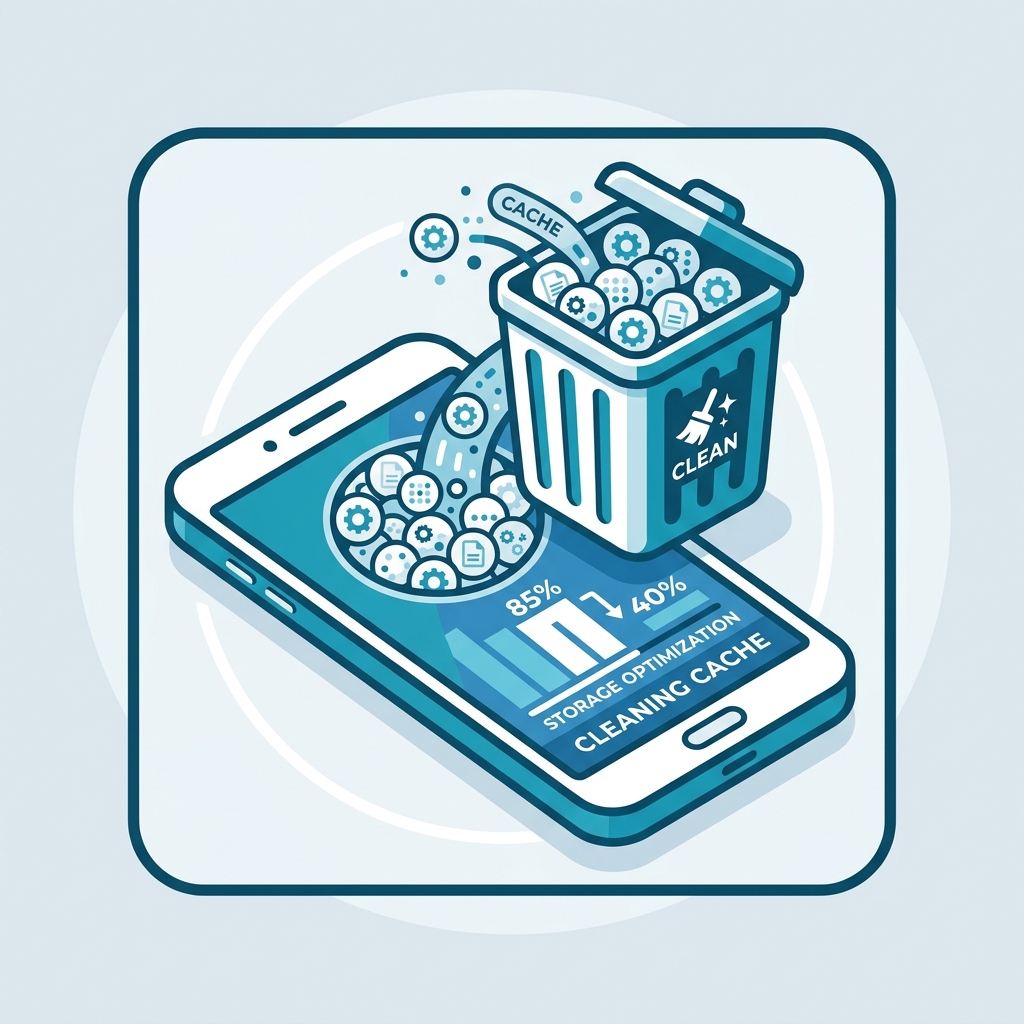
Diagram: Wiping the cached data of the Appstore client to update regional databases.
Step 5: Verify Hardware and OS Version Compatibility
Some modern applications require advanced processor instruction sets or APIs found only in newer Fire OS versions. If an app requires Fire OS 7 or 8 but your device is running Fire OS 5, the storefront will display the app as unavailable due to hardware limitations.
Go to Settings > My Fire TV > About and inspect your Fire OS version. Click Check for System Update to install the latest firmware. If your device is a 1st or 2nd Generation stick, it cannot be updated past Fire OS 5, and you may need to upgrade your streaming hardware or sideload an older version of the app.
Step 6: Deregister and Re-register Your Firestick
If the Appstore client fails to sync after clearing cache data, your Amazon account token may be stuck. Deregistering the device from your Amazon account clears all local profile details, forcing a clean synchronization upon sign-in.
Go to Settings > My Account, select your Amazon account, and click Deregister. Confirm the prompt. Once deregistered, click Register, enter your Amazon credentials, and allow the device to sync. This will update your storefront database to match your account settings.
Step 7: Perform a Mains Power Cycle
If you encounter a network verification error when attempting to download, execute a mains power cycle. Unplug the Firestick and router from the wall mains sockets for 60 seconds, reconnect the power, and attempt the download again.
Deep Dive: Sideloading vs. Appstore Region Shifts
When dealing with unavailable applications, you have two primary workarounds: changing your Amazon account region or sideloading the APK file. While changing your region is clean and allows the app to update automatically, it resets your local UK apps (like BBC iPlayer) which will then show as unavailable. This makes region shifting inconvenient if you regularly switch between UK and international services.
Sideloading, on the other hand, allows you to run UK and US apps side-by-side without altering your Amazon account settings. The only drawback is that sideloaded apps do not update automatically; you must manually download the updated APK when a version expires. Furthermore, some sideloaded apps will still block access if they detect a UK IP address. Routing your traffic through a high-speed service like GuardianTV ensures high bandwidth, low latency, and stable connection routing, preventing location verification audits.
Tired of Regional Blocks and Storefront Restrictions?
Once you have bypassed the Appstore blocks, upgrade your entertainment setup with GuardianTV. GuardianTV delivers ultra-fast, stable streaming feeds that bypass local ISP bandwidth throttling and DNS blocks, ensuring your favourite high-definition shows and sports streams play smoothly with zero buffering.
Frequently Asked Questions (FAQs)
This occurs due to geographical storefront filters (the app is not licensed in the UK), billing address mismatches, or device hardware incompatibilities on older Firestick models.
Go to Settings > Applications > Manage Installed Applications > Amazon Appstore. Select Force Stop, then click Clear Cache to wipe cached databases.
If you see a grey ‘Unavailable’ button, your Amazon account lacks a 1-Click payment method linked to a valid address in the storefront’s target country. Update your payment settings to fix this.
Log in to Amazon, go to Manage Your Content and Devices > Preferences > Country/Region Settings. Change your country to the target region (e.g., US) with a local address, and sync your Firestick in Account settings.
Official installation downloads files from Amazon’s verified servers. Sideloading downloads the Android APK file manually from third-party sites, bypassing storefront filters entirely.
Fire OS is a modified version of Android designed for TVs. If an app requires touch-screen inputs, GPS hardware, or mobile data APIs, developers will flag it as incompatible with Fire TV.
Yes. If the app is available to download but blocks server connections upon launch, running a premium VPN allows you to bypass these server-side geo-restrictions.
Conclusion
Bypassing the “App Unavailable” error on your Firestick is a straightforward matter of adjusting your Amazon account region or sideloading the APK manually. By resolving storefront configuration conflicts, you can access any application and optimize your entertainment library. If your Firestick continues to experience lags or crashes, consult our guide on why your Firestick keeps freezing to optimize performance. To secure stable, buffer-free connectivity for all your streaming applications, try upgrading to GuardianTV to secure your home entertainment setup.

 English (UK)
  العربية
  Deutsch
  Ελληνικά
  Suomi
Suomi  Magyar
  Italiano
  Українська
  Svenska
  Română