
Why is my Amazon Firestick screen zoomed in?
If your Amazon Firestick screen is suddenly zoomed in or cut off at the edges, it is usually because the built-in accessibility feature called **Screen Magnifier** has been accidentally enabled. You can disable it instantly by holding down the **Back** and **Fast Forward** buttons simultaneously on your remote control for **5 seconds**. If this shortcut does not work, navigate to Settings > Accessibility > Screen Magnifier and turn it OFF, or adjust your screen edges in Settings > Display & Audio > Display > Calibrate Display.
Have you turned on your television only to find that your Amazon Firestick screen is suddenly zoomed in? When this happens, icons look giant, text is cut off at the edges of the display, and it feels impossible to navigate to your settings menu or select your favourite streaming apps like BBC iPlayer, Netflix, or Prime Video. This screen zoom issue is very common and can occur on any model, from the standard Fire TV Stick Lite to the premium Fire TV Stick 4K Max and Fire TV Cube.
Fortunately, you do not need to buy a new device or factory reset your television. As a home streaming hardware specialist with over 5 years of experience diagnostics, I have helped hundreds of users resolve display and calibration errors. In this comprehensive UK troubleshooting guide, we will explore why your Firestick display is cut off and outline 5 quick, step-by-step methods to zoom out your screen and return your TV to its normal resolution.
What Causes the Firestick Screen to Zoom In?
There are three primary reasons why your Fire TV Stick’s image might appear zoomed in or cropped:
- The Screen Magnifier Accessibility Tool: This is a built-in Fire OS feature designed for visually impaired users. It allows you to zoom in on specific parts of the screen. It is easily activated by an accidental remote button combination (usually when children play with the remote control or when it is sat on).
- Television Overscan: Older high-definition televisions (particularly models from LG, Samsung, Panasonic, and Sony) have a setting called overscan. Overscan crops the outer 5% of the input signal, making the image look slightly zoomed in and cutting off top-level menus and text lines.
- HDCP Handshake Failures: High-bandwidth Digital Content Protection (HDCP) is the copy-protection protocol used over HDMI. If the handshake between your Firestick and the TV’s HDMI port fails or encounters latency, the Firestick may fall back into a safe-mode display resolution. This safe-mode setting drops the resolution to 480p or 576p, which forces the Fire OS layout into a giant, blocky, zoomed-in look.
Firestick Display Troubleshooting Checklist
Use this reference table to identify the correct solution based on your display’s symptoms:
5 Ways to Zoom Out Your Firestick Screen
1. Use the Remote Magnifier Button Shortcut
If the Screen Magnifier has been enabled, you will see a thin orange border surrounding your TV display. You can turn this off instantly without digging through menus by using Amazon’s official remote control shortcut:
The Zoom Out Shortcut:
Press and hold the Back button (curved arrow) and the Fast Forward button (two arrows pointing right) simultaneously for exactly 5 seconds.
You should see a notification on the screen saying “Screen Magnifier Disabled,” and the display will return to normal. If you accidentally zoom in again, pressing the same button combination will toggle it back on. To use the magnifier control while active:
- Press Menu + Play/Pause to turn panning mode on or off (allows you to scroll around the zoomed image using the D-pad).
- Press Menu + Fast Forward to zoom in further.
- Press Menu + Rewind to zoom out.
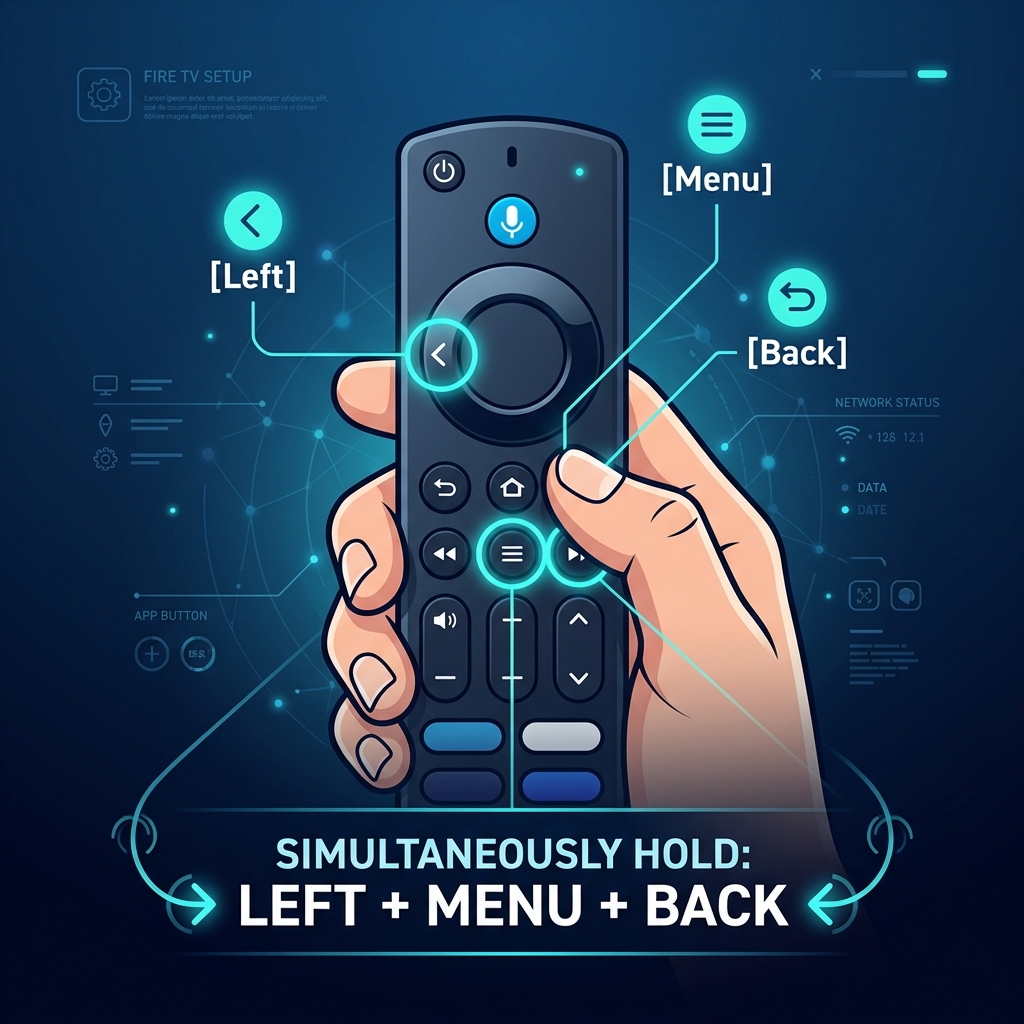
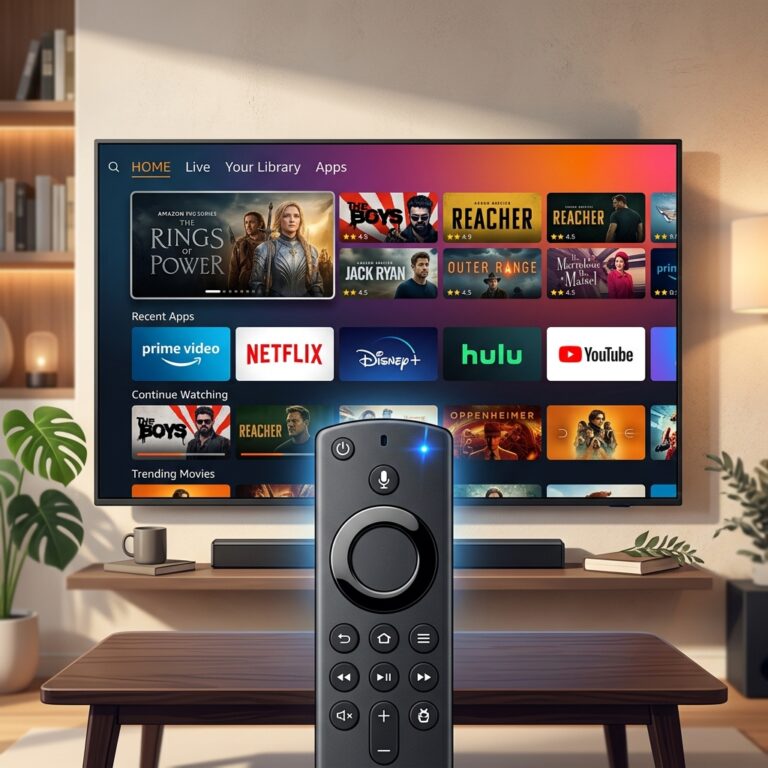
Interface: Locating remote control buttons for magnifier shortcuts.
2. Manually Disable Screen Magnifier in Settings
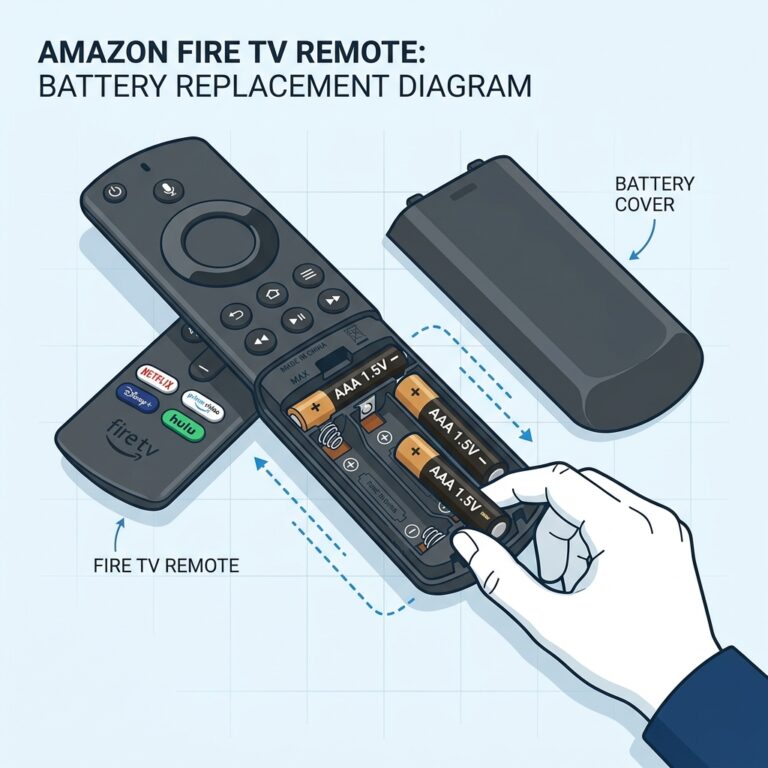
If the remote shortcut does not respond (which can happen if your remote batteries are low or the remote has pairing faults), you can navigate the menus to turn it off. Even if the screen is zoomed in, you can still scroll around to reveal the settings gear icon:
- Navigate to the **Settings** cog on the far right of the Firestick home menu.
- Scroll down and select the **Accessibility** menu. In this accessibility submenu, you will find options for VoiceView (screen reader), Text Banner, Closed Captions, and Screen Magnifier.
- Find **Screen Magnifier** in the list.
- Toggle the switch to **OFF**.
3. Calibrate Your Display Boundaries to Bypass TV Overscan
If your Firestick display is only slightly cut off at the edges (for example, you cannot see the clock or the edge of app icons), the Screen Magnifier is not the issue. Instead, your television is running an overscan configuration. To adjust this in Fire OS:
- Go to **Settings** and select **Display & Audio**.
- Click on **Display** and choose **Calibrate Display**.
- You will see a calibration screen with four grey arrows pointing at the edges of your display.
- If the tips of the arrows are cut off, use the Up and Down keys on your remote control’s D-pad to scale down the display area until the arrows sit exactly on the edge of your TV screen.
- Press **Accept** or **OK** to save the calibration.
This ensures that Fire OS scales its output resolution to fit inside your television’s display panel borders. Note that if you are using an older HDMI port (such as HDMI 1.4) on an older display, you may also need to adjust the **Color Depth** settings to 8-bit to ensure the color map aligns correctly with the scaled image.
4. Power Cycle Your Firestick
In rare cases, a system update or cache overload can freeze the display driver, locking the screen in a zoomed state. Executing a cold reboot resets the system graphics memory and clears out HDCP handshake errors. Unplug the Firestick’s power adapter from the wall outlet or pull the USB cable out of the side of the dongle. Wait for 60 seconds to allow the capacitors to discharge fully, then plug it back in. Once the system loads, the display driver will boot fresh, resolving any temporary software bugs.
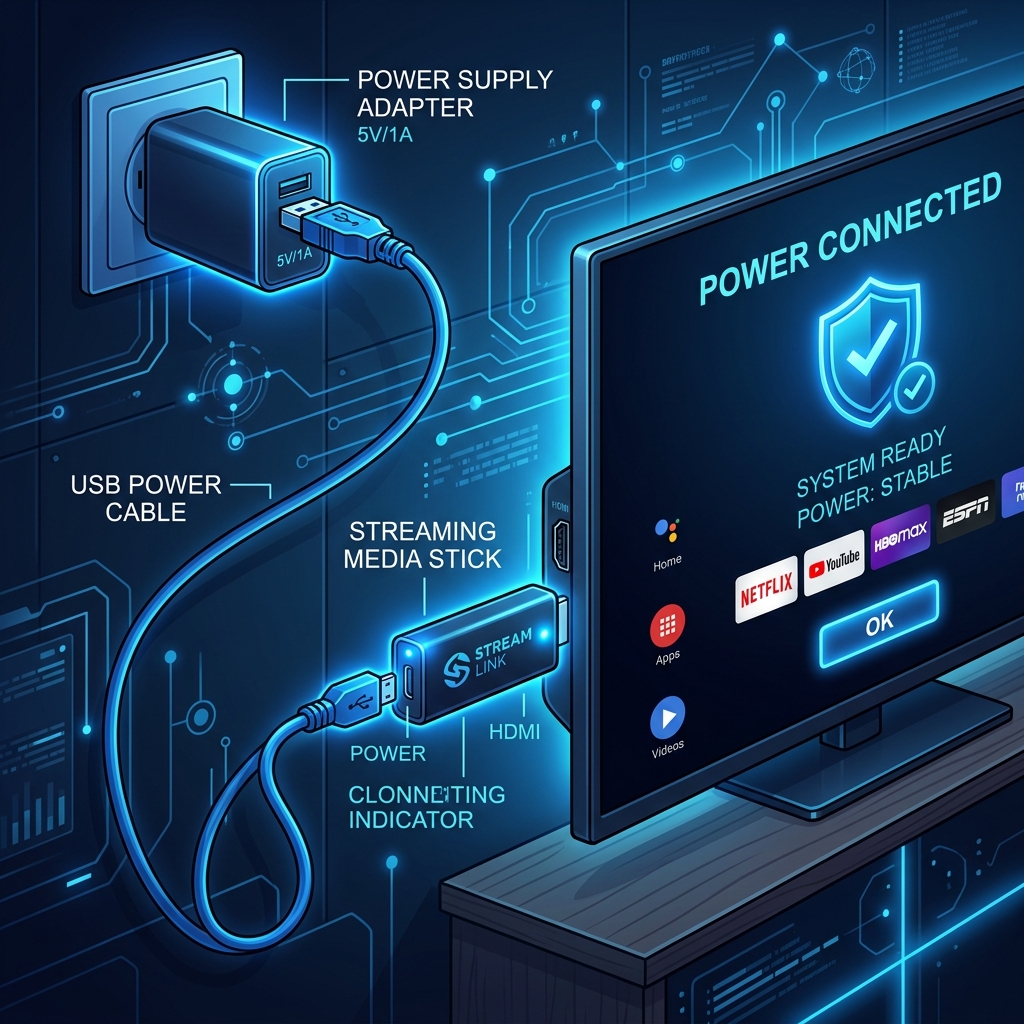
Diagram: Power cycling the Firestick to clear system graphics cache and HDCP lockups.
5. Cycle Screen Resolution via Remote Shortcut
If your Firestick has set its display output resolution to an unsupported setting, the TV may interpret the signal incorrectly, magnifying the display. You can force the Firestick to cycle through resolutions using a remote control shortcut:
- Press and hold the **Up** (navigation ring top) and **Rewind** buttons simultaneously for **5 seconds**.
- The Firestick will begin cycling through output resolutions (1080p 60Hz, 1080p 50Hz, 720p 60Hz, etc.), pausing for 10 seconds on each resolution.
- Wait until you see a clear, correctly sized image on your screen.
- Press the **Select** button on your remote (or click “Use Current Resolution” on screen) to lock in the correct resolution.
How to Adjust Overscan on Popular UK TV Brands
Adjusting the calibration settings on your Firestick is a great software workaround, but the best way to resolve overscan is to configure your television itself. This ensures you get a true pixel-to-pixel map of the input signal without any digital scaling blur. Here is how to disable overscan on popular UK TV brands:
- Samsung TVs: Press the Menu or Home button on your TV remote. Navigate to **Picture > Picture Size Settings**. Change the aspect ratio from 16:9 to **Fit to Screen** or **Just Scan**.
- LG TVs: Open Settings, go to **Picture > Aspect Ratio Settings**. Change the setting to **Original** or **Just Scan**.
- Sony Bravia TVs: Press Home, go to **Settings > Display > Screen**. Set the **Wide Mode** to Full, and change the **Auto Wide** option to ON. Change **Display Area** to **Full Pixel**.
- Panasonic TVs: Press Menu, select **Picture > Screen Settings**. Find **16:9 Overscan** and toggle it to **Off**.
Ready to Stream Buffer-Free? Check out GuardianTV
Once you have resolved your display issues and zoomed out your TV screen, get the absolute best out of your home cinema entertainment by upgrading to GuardianTV (guardiantv.net). GuardianTV is the premier IPTV provider in the UK, delivering thousands of FHD live channels, sports, and movies with zero buffering and ultimate stability.
Frequently Asked Questions (FAQs)
The most common cause is the accidental activation of the Screen Magnifier accessibility tool via remote button presses. It can also occur due to incorrect TV overscan ratios or output resolution mismatches.
Press and hold the **Back** and **Fast Forward** buttons simultaneously on your remote control for **5 seconds**. This will toggle the Screen Magnifier off and return the screen size to normal.
The thin orange border signifies that the Screen Magnifier is active and currently in pan mode. You can pan around using the remote ring, or toggle the orange box off by pressing **Menu + Play/Pause** or holding **Back + Fast Forward** for 5 seconds.
This is caused by overscan on your television. You can calibrate this setting under Settings > Display & Audio > Display > Calibrate Display in Fire OS, or change the aspect ratio settings on your TV remote (e.g. Just Scan, Full Pixel).
No. Calibrating the display, cycling output resolutions, or turning off the screen magnifier only changes display configurations. It does not affect your installed apps, accounts, logins, or personal data.
Yes, if you navigate to **Settings > Display & Audio > Display**, you can change **Video Resolution** back to **Auto**. This forces the Firestick to negotiate the optimal native display settings directly with the television’s EDID firmware profile, resetting any forced resolutions.
Some older 4K televisions support Ultra HD resolution only on specific HDMI ports (usually labelled HDMI 1 or HDMI MHL). If you plug the Firestick into a non-4K port and play UHD content, the television may scale and crop the frame. Make sure the Firestick is plugged into a port supporting HDCP 2.2 and 4K at 60Hz.
Conclusion
A zoomed-in Firestick screen is easy to resolve once you know the remote shortcuts. By disabling the Screen Magnifier or adjusting overscan ratios, you can return your TV display to a crisp, correctly scaled image. If your Firestick displays other hardware or connection errors during setup, consult our comprehensive guide on why your Firestick keeps freezing to fully optimize your media setup.
 English (UK)
  العربية
  Deutsch
  Ελληνικά
  Suomi
Suomi  Magyar
  Italiano
  Українська
  Svenska
  Română