
Common issues with Beetv on Firestick and how to fix them
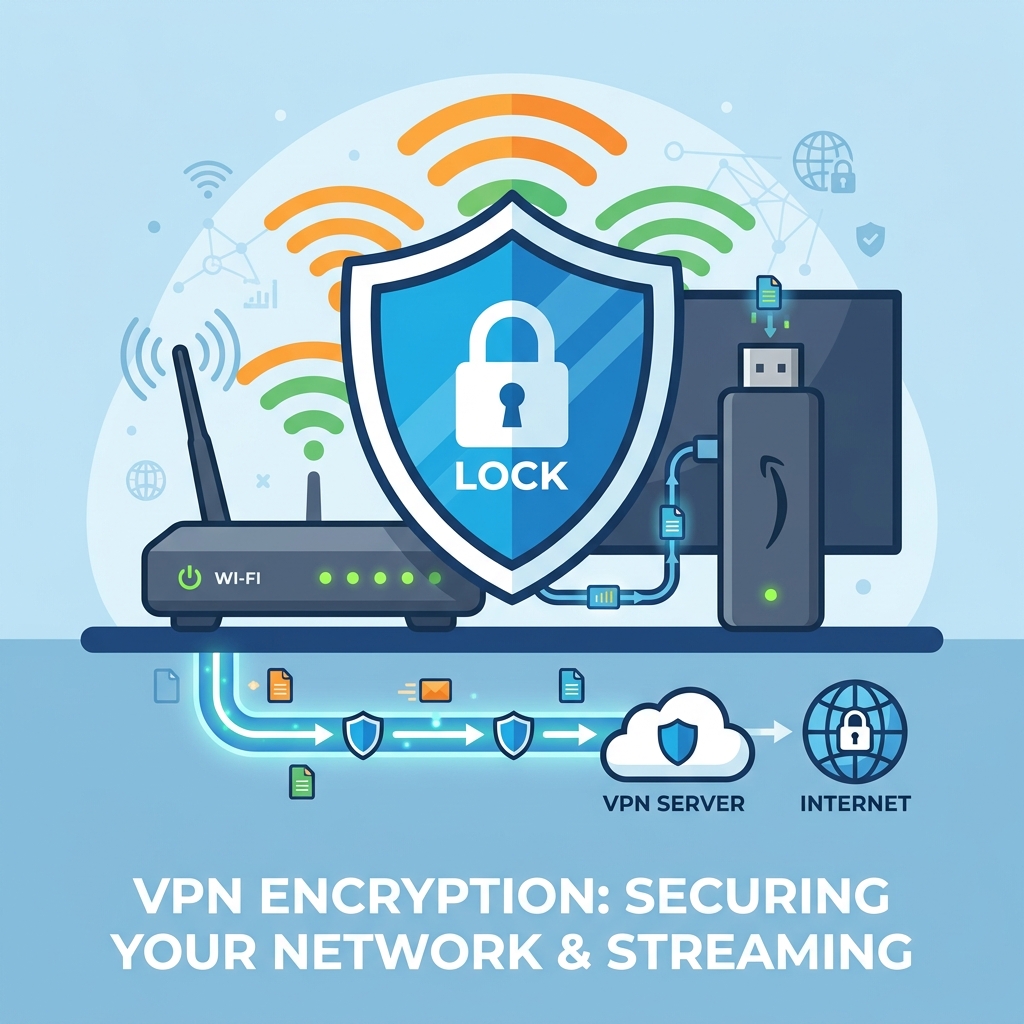
If BeeTV is not working on your Amazon Firestick—displaying the “No Links Available” error, buffering constantly, or crashing on launch—the issue is typically caused by **ISP-level streaming blocks**, **corrupted application cache**, or **outdated app versions**. Fix this immediately by installing a premium VPN to encrypt your connection and bypass UK broadband filters, force-stopping the BeeTV app and clearing its cache, integrating MX Player as the external player, or pairing a Real-Debrid account for premium private streams.
For UK streaming fans who prefer third-party applications to watch films and TV programmes, BeeTV is a popular choice. It functions as a directory search engine, scraping public hosting sites to deliver streaming links. However, it can be extremely frustrating when you select a title and are met with a blank screen, a persistent loading circle, or the dreaded message: “No Links Available”.
Because BeeTV is a third-party app that is not available on the official Amazon Appstore, troubleshooting its glitches requires different steps than standard applications. From ISP-level blocking to file path corruption, these errors are common on Fire TV devices. As a streaming diagnostics expert with over 5 years of experience, I have resolved countless third-party app playback bugs. In this comprehensive UK guide, we will analyze why BeeTV stops working and outline 7 step-by-step fixes to restore your streams.
What Causes BeeTV to Stop Working on Firestick?
To fix playback issues permanently, we must identify why the application is failing to find or run streams. Unlike official apps like Netflix, BeeTV does not host any content. Instead, it relies on scraping bots to search the internet for files. The primary causes of BeeTV failures in the UK are:
- UK Broadband Web Filters (ISP Blocks): UK internet service providers (such as BT, Virgin Media, Sky, and TalkTalk) block the public hosting domains that BeeTV scrapes. Without a VPN, the app’s requests are blocked, resulting in the “No Links Available” screen.
- Corrupted App Cache: The search queries and metadata cached by the app can accumulate and corrupt, slowing down search speeds and causing launch crashes.
- Internal Video Player Incompatibilities: BeeTV’s built-in player (HB Player) can conflict with the Firestick’s hardware decoding chips, causing crashes during video buffering.
- Outdated Application APK: If your version of BeeTV is outdated, its scraper scripts will fail to query updated file directories, yielding zero search results.
BeeTV Troubleshooting Checklist
Refer to this diagnostic table to prioritize your troubleshooting actions based on complexity and success rate:
7 Ways to Resolve BeeTV Issues on Firestick
Step 1: Set Up a Streaming VPN to Bypass ISP Web Filters
If you search for a movie and BeeTV displays the “No Links Available” screen, your UK broadband provider is likely blocking the connection. UK ISPs are required by court orders to block access to streaming file-hosts. When BeeTV queries these servers, the router blocks the request.
To bypass this, install a premium VPN on your Firestick. Open the VPN, connect to a server, and verify encryption is active. The VPN encrypts your network traffic, preventing your ISP from monitoring or blocking the domains you access. This allows BeeTV’s scrapers to query the file directories and retrieve the streams. For fast, secure streaming, consider using a specialized service like GuardianTV to avoid buffering.
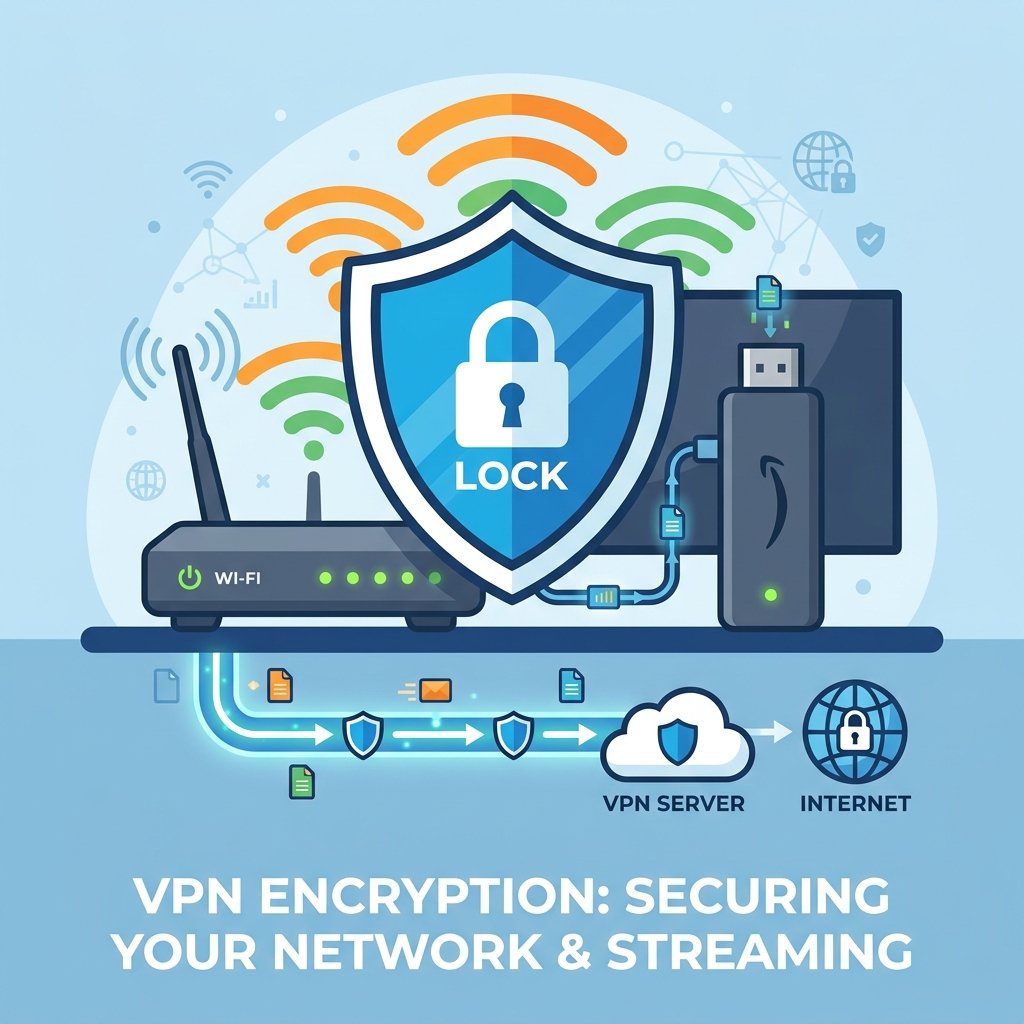
Diagram: Running a secure VPN connection on Fire OS to bypass web filters.
Step 2: Force Stop BeeTV and Clear App Cache
As you use BeeTV, the app caches index database logs and imagery. If these files become corrupted, the app will lag, fail to load links, or crash upon launch. Clearing the app cache is a quick way to restore stability.
Go to Settings > Applications > Manage Installed Applications > BeeTV. Click Force Stop to kill active background threads. Next, scroll down and click Clear Cache. Relaunch the app to test search results. Avoid clicking ‘Clear Data’ unless you want to reset all app preferences.
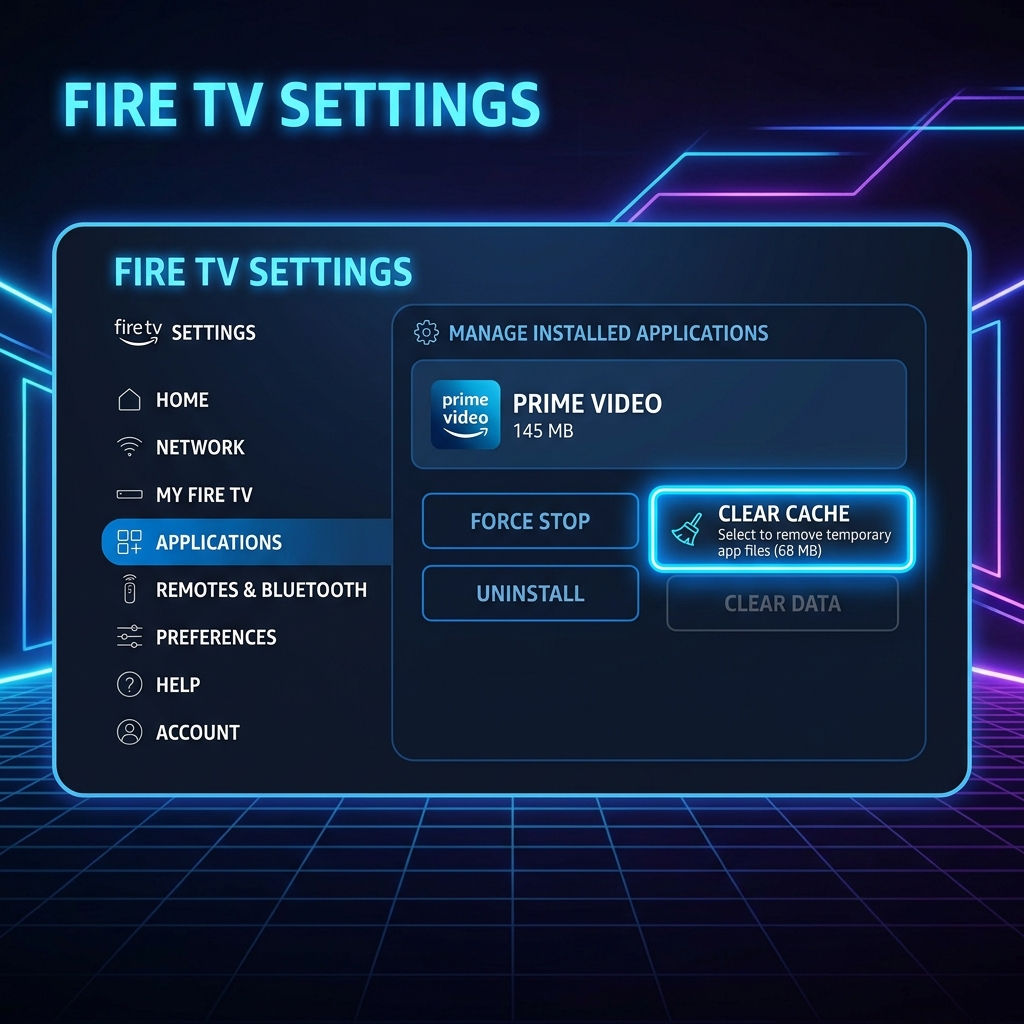
Diagram: Wiping the cached database of BeeTV to restore search results speed.
Step 3: Integrate a Real-Debrid Account
Free links found by public scrapers are hosted on slow, shared servers. When hundreds of users attempt to watch the same link, the hosting server runs out of bandwidth, causing buffering. Real-Debrid resolves this by providing private, high-speed download links.
Set up an account on the Real-Debrid website. Open BeeTV, navigate to the app settings, scroll down, and select Login to Real-Debrid. Input the 8-digit authorization code shown on your TV screen at real-debrid.com/device to pair the accounts. Once linked, BeeTV will display high-speed, private links (highlighted in yellow), offering buffer-free 1080p and 4K streams.
Step 4: Update BeeTV to the Latest Stable Build
Third-party scrapers regularly change their search protocols to bypass blockages. If you are running an outdated version of BeeTV, the app’s scraper bots will fail, yielding zero links. Manually updating the app is required.
Uninstall the outdated BeeTV app from the applications settings menu. Open the **Downloader** app on your Firestick. Enter a trusted APK repository web address (such as beetvapk.app), download the latest installation file, and click **Install**. Relaunch the app to test search paths.
Step 5: Switch Your Default Video Player to MX Player
BeeTV’s built-in media player can struggle to decode advanced video formats (like HEVC or 10-bit files), resulting in audio sync lag or playback crashes. Switching to a robust external player like MX Player or VLC resolves this.
Download **MX Player** or **VLC** from the official Amazon Appstore. Open BeeTV, navigate to the settings menu, scroll down, and click Choose Default Player. Change the selection from Play-in (internal) to your newly downloaded external player. When you click on a streaming link, BeeTV will launch the file in the external player, ensuring smooth decoding.
Step 6: Adjust App Storage Permissions
For BeeTV to download subtitle tracks or cache streams, it requires write permissions to the Firestick’s eMMC flash storage. If these permissions were denied during installation, the app will crash when loading a video.
Go to Settings > Applications > Manage Installed Applications > BeeTV. Select Permissions and verify that **Storage** is set to **Allowed**. This allows the video players to write temporary cache files without system blocks.
Step 7: Perform a Mains Power Cycle
If all software configurations fail, local network DNS caching tables can block connections. Perform a physical reboot by unplugging the Firestick and router from the mains wall sockets for 60 seconds. Reconnect the power and test BeeTV again.
Deep Dive: Optimising Third-Party App Streaming Speeds
To stream high-definition files via BeeTV without buffering, your Firestick requires a fast, stable internet connection. While a download speed of 10 Mbps is sufficient for HD content, 4K streams demand a minimum of 25 Mbps. In addition to bandwidth, routing plays a vital role. If your ISP throtlles your connection when it detects heavy video traffic, your streams will buffer.
To optimize performance, connect your Firestick to your router’s **5GHz Wi-Fi band** (or use an Ethernet adapter) to avoid wireless interference. Furthermore, running a premium VPN encrypts your streaming packets, preventing your ISP from monitoring or throttling your bandwidth. Routing your traffic through a high-speed service like GuardianTV ensures high bandwidth, low latency, and stable connection routing, preventing location verification audits.
Tired of Buffering and No Links Errors?
Once you have optimized your streaming settings, upgrade your entertainment setup with GuardianTV. GuardianTV delivers ultra-fast, stable streaming feeds that bypass local ISP bandwidth throttling and DNS blocks, ensuring your favourite high-definition shows and sports streams play smoothly with zero buffering.
Frequently Asked Questions (FAQs)
In the UK, major broadband providers block the public database domains that BeeTV scrapes. Running a VPN encrypts your traffic and bypasses these blocks, restoring the links list.
Go to Settings > Applications > Manage Installed Applications > BeeTV. Click Force Stop, and then select Clear Cache to wipe temporary database logs.
BeeTV is a third-party application. While the app is legal to install, streaming copyrighted material without authorisation violates local laws. Always run a secure VPN to protect your online privacy.
Uninstall your current build. Open the Downloader app, enter the latest BeeTV APK source URL, download the package file, and click Install.
Real-Debrid is a premium downloader service that generates high-speed, private links for streaming. Linking it to BeeTV provides buffer-free 1080p and 4K streams by bypassing slow, public hosting sites.
This occurs due to corrupted internal video player drivers. Installing an external media player like MX Player or VLC and selecting it as the default player in BeeTV settings will stop these crashes.
Yes, if your ISP throtlles your speed when detecting video streams, a VPN encrypts your traffic, preventing the ISP from throttling your connection.
Conclusion
Fixing BeeTV when it is not working on your Firestick is usually a simple matter of connecting to a premium VPN or clearing the cache. By bypassing ISP-level blocks and integrating external players like MX Player, you can resolve links errors and enjoy smooth playback. If your Firestick continues to crash or lag during playback, consult our guide on why your Firestick keeps freezing to optimize system performance. To eliminate buffering and connection blocks entirely, try upgrading to GuardianTV to secure your streaming setup.
 English (UK)
  العربية
  Deutsch
  Ελληνικά
  Suomi
Suomi  Magyar
  Italiano
  Українська
  Svenska
  Română