
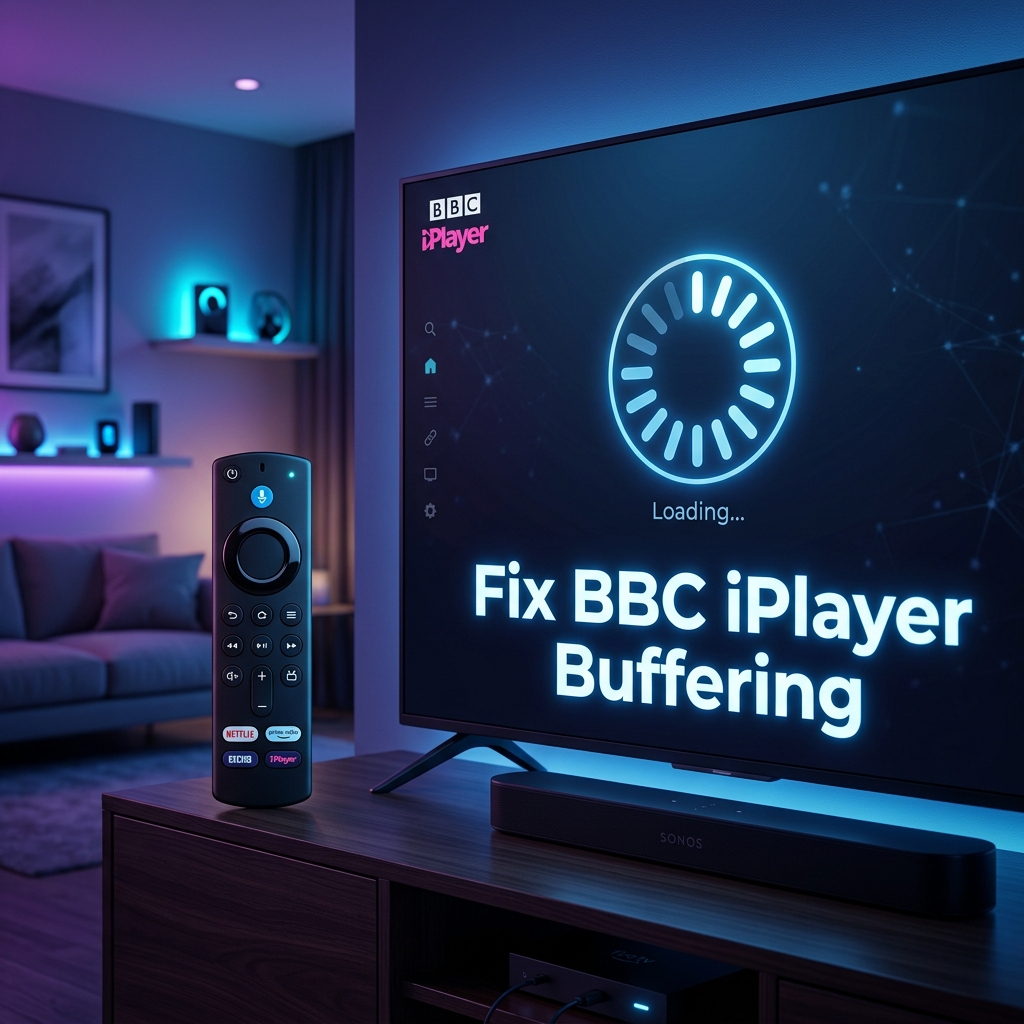
How to Fix BBC iPlayer Buffering on Firestick
To fix BBC iPlayer buffering on Firestick, restart the device, check internet speed, clear the app cache, update BBC iPlayer, update Firestick software, and restart your router. Most buffering issues are caused by network problems, outdated software, or insufficient device resources.
Is there anything more frustrating than settling down in your favourite armchair, cup of tea in hand, ready to watch the latest British drama or a live sporting event on BBC iPlayer, only to be met with a spinning loading circle? If you are experiencing BBC iPlayer freezing, lagging, or constant loading issues on your Amazon Fire TV Stick, you are not alone. Thousands of UK viewers face these annoying interruptions daily.
In this comprehensive troubleshooting guide, you will learn exactly how to fix bbc iplayer buffering on firestick. We will guide you through the root causes of these playback issues and provide step-by-step instructions to eliminate lag, stop freezes, and ensure your stream is completely smooth. Fortunately, most of these Firestick buffering problems can be resolved in just a few minutes without needing any technical expertise.
Why Does BBC iPlayer Keep Buffering on Firestick?
Before diving into the fixes, it helps to understand why your stream is struggling. Streaming high-definition video requires a continuous, uninterrupted flow of data from the BBC servers to your Fire TV Stick. If that flow is disrupted at any point, the app will pause the video to catch up, resulting in buffering. The most common causes of this behaviour include:
- Slow Internet Speeds: If your broadband connection falls below the minimum required speed, BBC iPlayer will struggle to load HD streams.
- Weak Wi-Fi Signal: Physical barriers, distance from the router, or network interference can weaken the Wi-Fi signal reaching your Firestick.
- Local Network Congestion: Too many devices downloading or streaming at the same time can exhaust your home bandwidth.
- Outdated BBC iPlayer App: Running an old version of the app can cause compatibility issues and slow performance.
- Outdated Firestick Software (Fire OS): System-level bugs in outdated Firestick software can impact memory allocation and network connectivity.
- Insufficient Device Storage: When your Firestick has less than 500MB of free space, it struggles to cache video files, leading to playback failures.
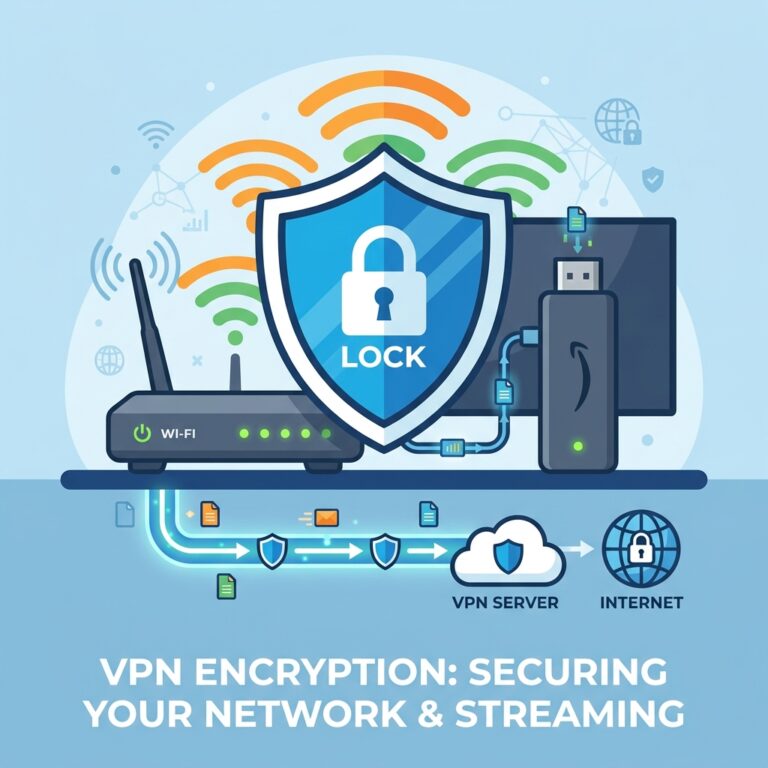
- VPN-Related Issues: Virtual Private Networks encrypt your traffic, which can slow down speeds. Furthermore, the BBC heavily blocks VPN IP addresses to protect licensing rules.
- BBC Server Problems: Occasionally, the issue lies on the BBC’s side, especially during high-demand live broadcasts like Glastonbury.
Quick Checklist Before Troubleshooting
If you want a fast way to check off the basics, use this rapid checklist. In our testing, performing just one or two of these quick steps resolves the issue in many cases:
Tired of Buffering and Device Setup Glitches?
If your Firestick hardware is lagging, or you want to safeguard your streaming experience in the UK from ISP throttling and buffering loops, we highly recommend upgrading to GuardianTV. Get ultra-fast, stable, and completely secure streams without device configuration headaches.
10 Steps to Fix a Firestick Remote Blue Light Flashing
Follow these step-by-step troubleshooting steps in order to diagnose and resolve the issue quickly.
Step 1: Check the Battery Level
Often, the flashing blue light indicates that the remote is struggling to obtain enough power. If your remote is still partially connected, go to Settings > Controllers & Bluetooth Devices > Amazon Fire TV Remotes to check the battery status. If it’s low or offline, you’ll need to address the power source.
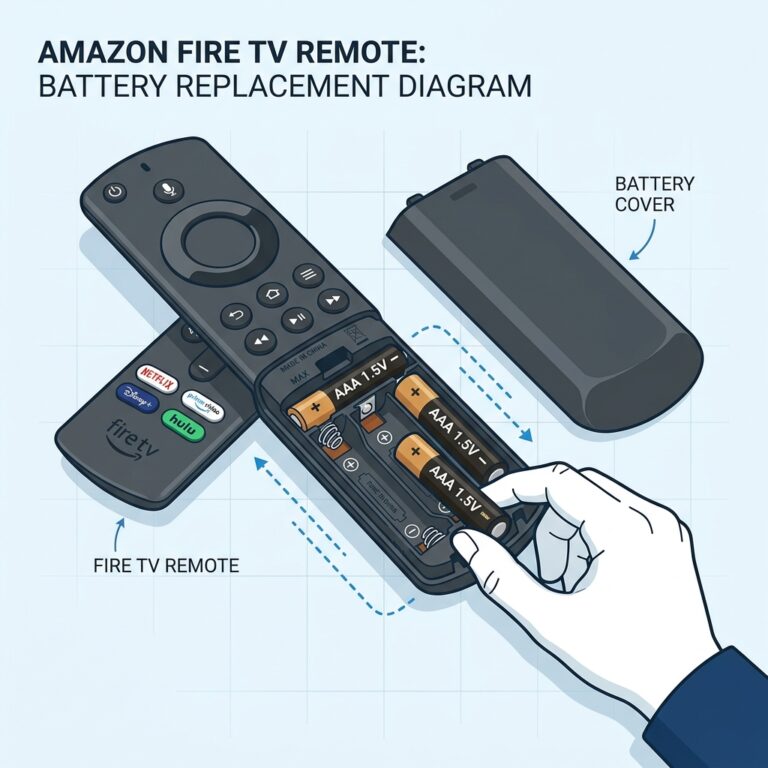
Step 2: Replace with Fresh Batteries
If you’re wondering why your Firestick remote is constantly losing battery, it could be due to cheap alkaline cells or an internal power drain. Replace them with high-quality, fresh AAA batteries. You can also read our guide on how to prolong the battery life of your Firestick remote to make your batteries last longer.
Step 3: Power Cycle Your Firestick
A simple reboot can clear temporary system memory bugs. Unplug your Firestick’s power adapter from the wall outlet, wait for 30 seconds, and plug it back in. If you find that your Firestick keeps requiring unplugging to work properly, there might be a deeper OS issue, but a power cycle is a great starting point here.
Step 4: Update the Firestick Software
Bugs in Fire OS can interfere with Bluetooth connections. Navigate to Settings > My Fire TV > About and select Check for Updates. Install any pending software updates, which often include Bluetooth stability fixes.
Step 5: Perform a Hard Reset on the Remote
Resetting the remote clears its paired memory and restarts its wireless search. To reset most Fire TV remotes:
- Unplug your Firestick from the power source.
- Press and hold the Left button, Menu button (three lines), and Back button simultaneously for 12 seconds.
- Release the buttons and wait 5 seconds.
- Remove the batteries from the remote.
- Plug your Firestick back in and wait for the Home screen to load.
- Reinsert the batteries into your remote and press the Home button.
Step 6: Re-pair the Remote Manually
If the remote doesn’t pair automatically after the reset, press and hold the Home button for 10 to 15 seconds until the light starts flashing rapidly. If you have another working remote or the Fire TV app on your phone, navigate to Settings > Controllers & Bluetooth Devices > Amazon Fire TV Remotes > Add New Remote to complete manual pairing.
Step 7: Verify Remote and Firestick Compatibility
If you recently purchased a replacement remote, ensure that it is compatible with your specific model of Firestick. Not all generations of Alexa Remotes work with older Fire TV devices.
Step 8: Minimise Bluetooth Interference
Keep your Firestick away from wireless routers, baby monitors, and other Bluetooth accessories, as they use the same 2.4GHz frequency. Ensure that the Firestick is not tucked too far behind the TV screen. Using the HDMI extender cable included with your Firestick can help position the antenna for better reception.
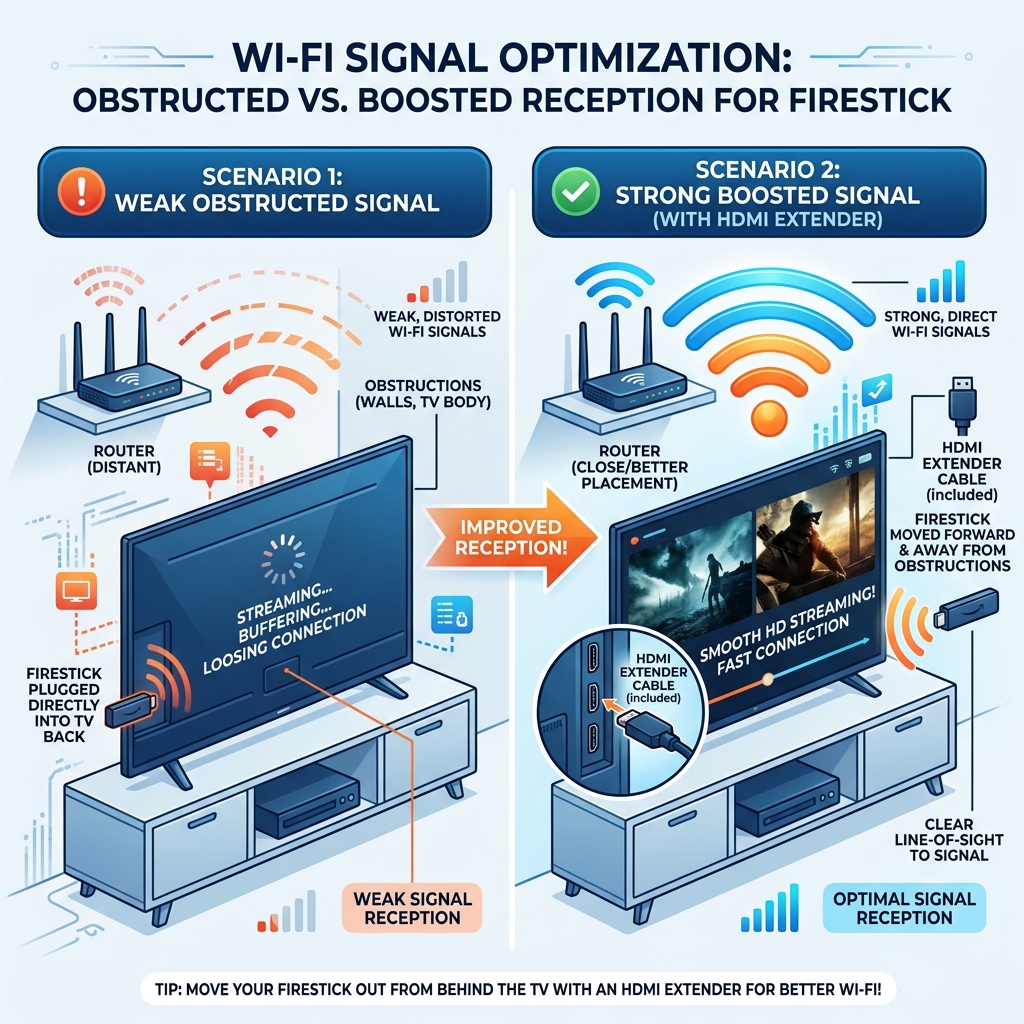
Infographic: Optimising Wi-Fi signals by using the HDMI extender.
Step 9: Inspect for Physical and Liquid Damage
Check the remote battery compartment for corrosion or loose springs. If the remote has been dropped or had liquid spilled on it, the internal circuit board may be damaged, which can result in continuous indicator light failures.
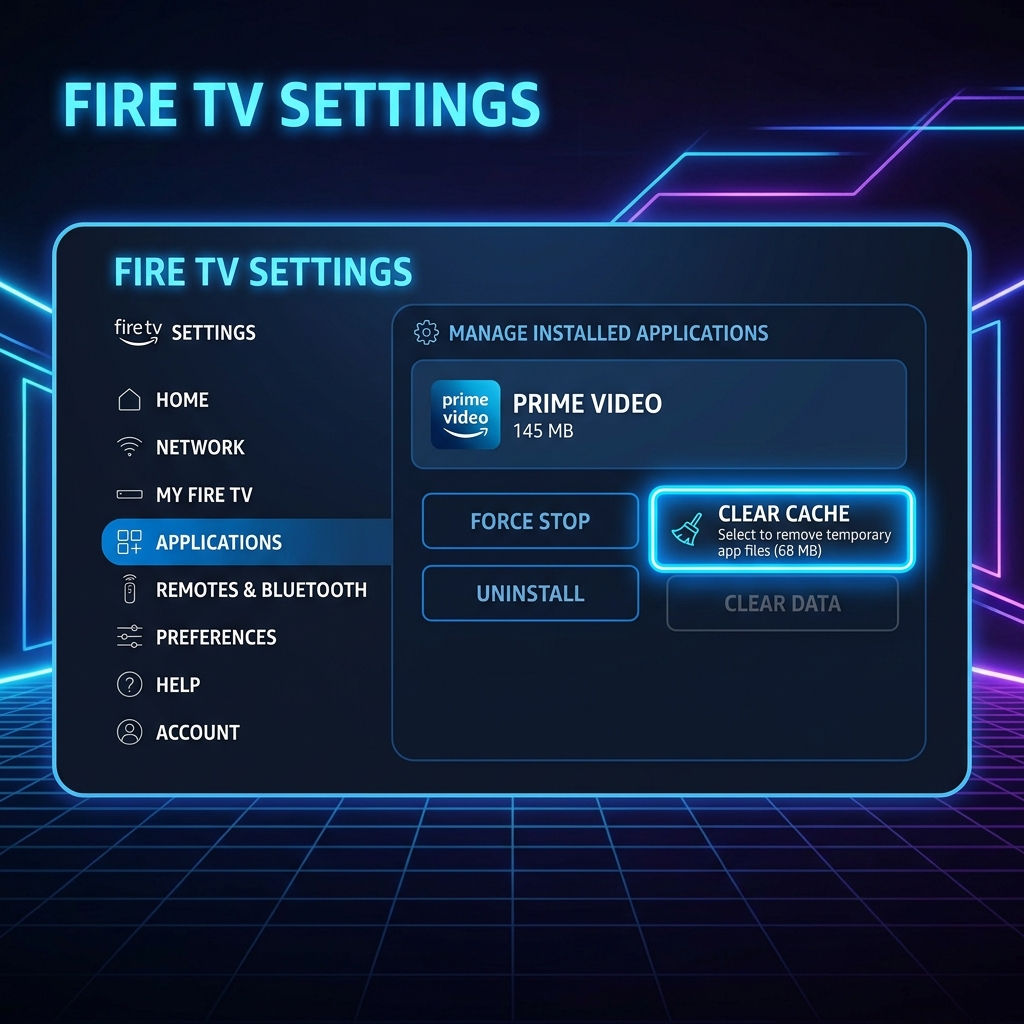
Interface: How to navigate to Clear Cache in Firestick Settings.
Step 10: Upgrade to a Premium Streaming Platform
If your Firestick hardware is aging, or you’re tired of dealing with constant device glitches, it might be time to optimise your setup. When streaming, reliability and speed are everything. We highly recommend checking out GuardianTV. GuardianTV is a top-tier service that delivers incredibly fast, stable, and secure streaming, ensuring you bypass typical device pairing and buffering frustrations altogether.
Frequently Asked Questions (FAQs)
Different streaming platforms use different video codecs, bitrates, and server infrastructures. Apps like Netflix and YouTube have highly advanced compression algorithms and local caching servers that allow them to stream on weaker connections. BBC iPlayer uses a higher bitrate for HD content and relies on central UK servers, meaning it requires a more stable, low-latency connection. If your Wi-Fi is experiencing packet loss or high latency, BBC iPlayer will buffer even if Netflix seems to load fine.
For a reliable, buffer-free experience, BBC iPlayer requires a minimum download speed of 1.5 Mbps for Standard Definition (SD) content, 5.0 Mbps for High Definition (HD) streams, and 24.0 Mbps for 4K Ultra HD content. If multiple people are using the same Wi-Fi connection, your overall broadband package speed needs to be higher to accommodate the extra traffic.
Yes, clearing the cache is one of the most effective quick fixes for buffering. It deletes temporary, potentially corrupted data files that accumulate over time. Clearing the cache allows the app to load video segments directly into clean system memory, which often solves loading loops and freezes.
Freezing is typically caused by a system overload where the Firestick runs out of available RAM or storage space. It can also occur if the app encounters a software bug or if the internet connection drops suddenly. Power cycling your Firestick and clearing the app cache are the best ways to resolve freezing issues.
Yes. Older models, such as the 1st and 2nd generation Fire TV Sticks, have slower processors (CPUs) and less RAM compared to newer models like the Fire TV Stick 4K Max. Over time, modern apps require more processing power, which can overwhelm older hardware and result in sluggish navigation, freezing, and buffering.
If your Firestick is located far from your wireless router or if your home is prone to Wi-Fi interference, using an Ethernet cable is highly recommended. You will need an Amazon Ethernet Adapter, but a hardwired connection is immune to wireless dropouts and provides a much more stable data stream for HD video playback.
Conclusion
Resolving the Firestick remote blue light flashing issue is typically a matter of replacing batteries or resetting connection settings. By following this troubleshooting guide, you can get back to streaming your favourite shows in no time. For a premium, secure, and hassle-free streaming experience in the UK, make sure to visit GuardianTV and discover their high-speed entertainment solution.

 English (UK)
  العربية
  Deutsch
  Ελληνικά
  Suomi
Suomi  Magyar
  Italiano
  Українська
  Svenska
  Română