
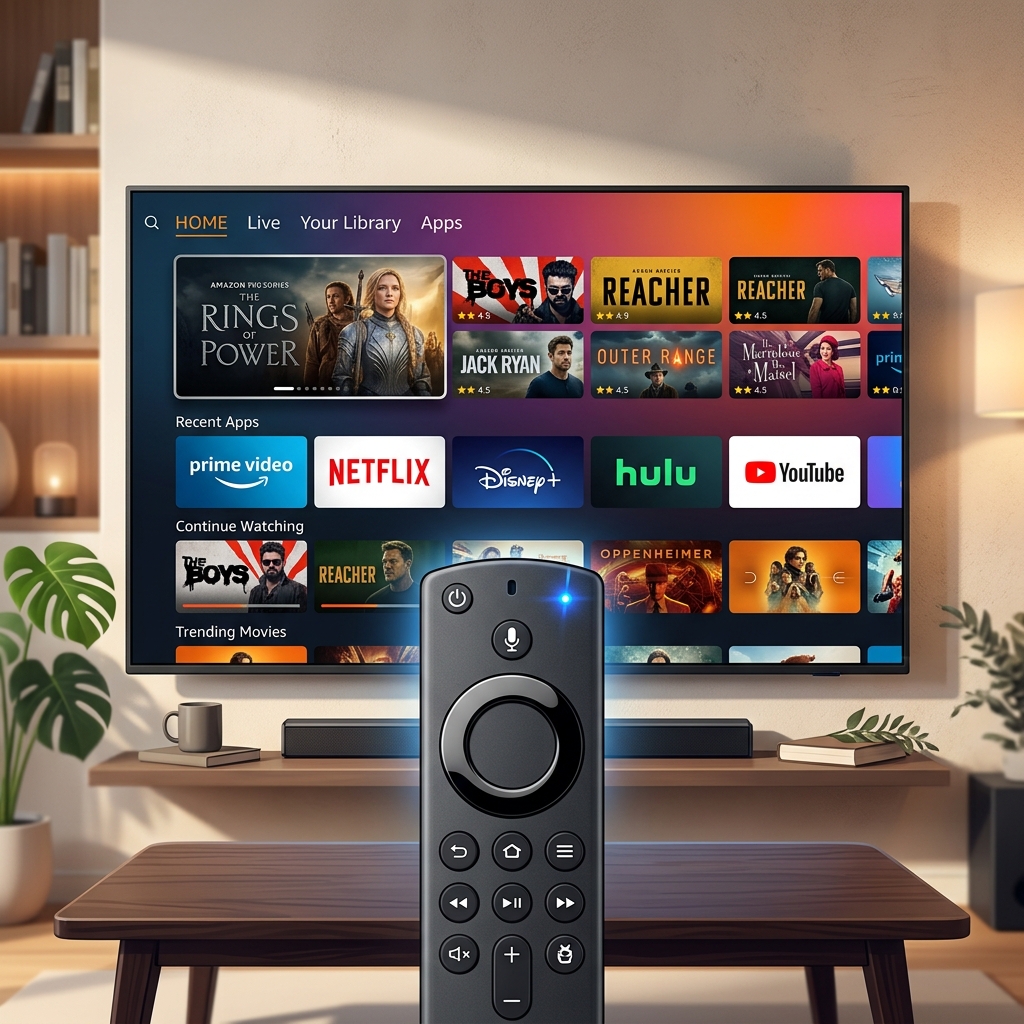
Firestick Remote Blue Light Flashing? 10 Ways to Fix It
If your Amazon Firestick remote is flashing a blue light, it is in **pairing mode** or has lost its Bluetooth connection to your Fire TV device. Fix this immediately by moving closer (within 10 metres/30 feet), replacing the batteries with fresh AAA alkaline cells, or performing a hard reset of the remote. To reset, hold down the **Left, Menu, and Back** buttons simultaneously for 12 seconds, remove the batteries, power cycle your Firestick, re-insert the batteries, and hold the **Home** button for 10 seconds to re-establish pairing.
Is your Amazon Firestick remote flashing a blue light and refusing to respond to your commands? That blinking blue LED indicator can be incredibly frustrating. It usually occurs right in the middle of a streaming session, locking you out of your favourite applications and programmes like BBC iPlayer, ITVX, or Prime Video. This flashing light is a direct signal that your remote is stuck in pairing mode or has lost communication with your Fire TV Stick.
Whether you are using a standard Alexa Voice Remote, a Fire TV 4K Max remote, or a smart remote control, this issue is usually solvable without buying a replacement. As a digital home entertainment and hardware support specialist with over 5 years of experience diagnostics, I have resolved countless connectivity issues with streaming peripherals. In this comprehensive UK troubleshooting guide, we will explore 10 easy, step-by-step solutions to fix a flashing blue light on your Firestick remote and restore your streaming setup.
Video Guide: How to pair and reset a stuck or unresponsive Amazon Fire TV remote control.
What Does the Flashing Blue Light Actually Mean?
Unlike traditional television remotes that rely on infrared (IR) light signals, the Amazon Firestick remote utilizes Bluetooth Low Energy (BLE) to transmit button presses to the dongle behind your TV. Bluetooth provides a much richer experience, allowing you to control the device without a direct line-of-sight and enabling Alexa voice command search features.
When you press the voice search button (the blue microphone or Alexa button at the top), the blue LED light should illuminate briefly while the microphone is listening, then switch off. If the blue light is flashing or blinking continuously, it signifies one of three things:
- Pairing Mode: The remote has lost its connection parameters and is broadcasting a signal to pair with any nearby Fire TV device.
- Connection Loop: The remote is attempting to reconnect with a previously paired Firestick but the connection handshake is failing.
- Hardware Failure: The Bluetooth transmitter on the remote’s internal circuit board is experiencing a power fluctuation or firmware crash.
Firestick Remote Troubleshooting Checklist
Before proceeding to the advanced troubleshooting steps, review this checklist to identify the severity of your remote connection issue:
10 Ways to Fix a Flashing Blue Light on Firestick Remote
1. Reduce the Range and Move Closer to the TV
Bluetooth has a theoretical range of 10 metres (30 feet), but real-world obstacles like smart routers, soundbars, thick walls, and television frames can significantly reduce this signal boundary. If your TV is enclosed in a wooden cabinet or if your Firestick is plugged directly into a port behind a large, wall-mounted display, the metal on the screen can shield the receiver. Step closer to your television (within 1-2 metres) and test the remote control buttons again.
2. Replace the Batteries with Fresh AAA Alkaline Cells
It is easy to assume that because the LED light is flashing blue, the remote has enough power. However, Bluetooth pairing requires a consistent, peak voltage of 1.5V per cell. As alkaline batteries drain, their voltage drops below 1.2V. While this is enough power to light up a tiny LED light bulb, it is insufficient to run the Bluetooth transmitter chip, causing it to fail the pairing handshake and blink continuously. Remove the battery cover and replace the cells with fresh, premium AAA alkaline batteries (avoid cheap zinc-carbon batteries or rechargeable ones, as they have lower nominal voltages). For more details, read our guide on why your Firestick remote constantly loses battery.
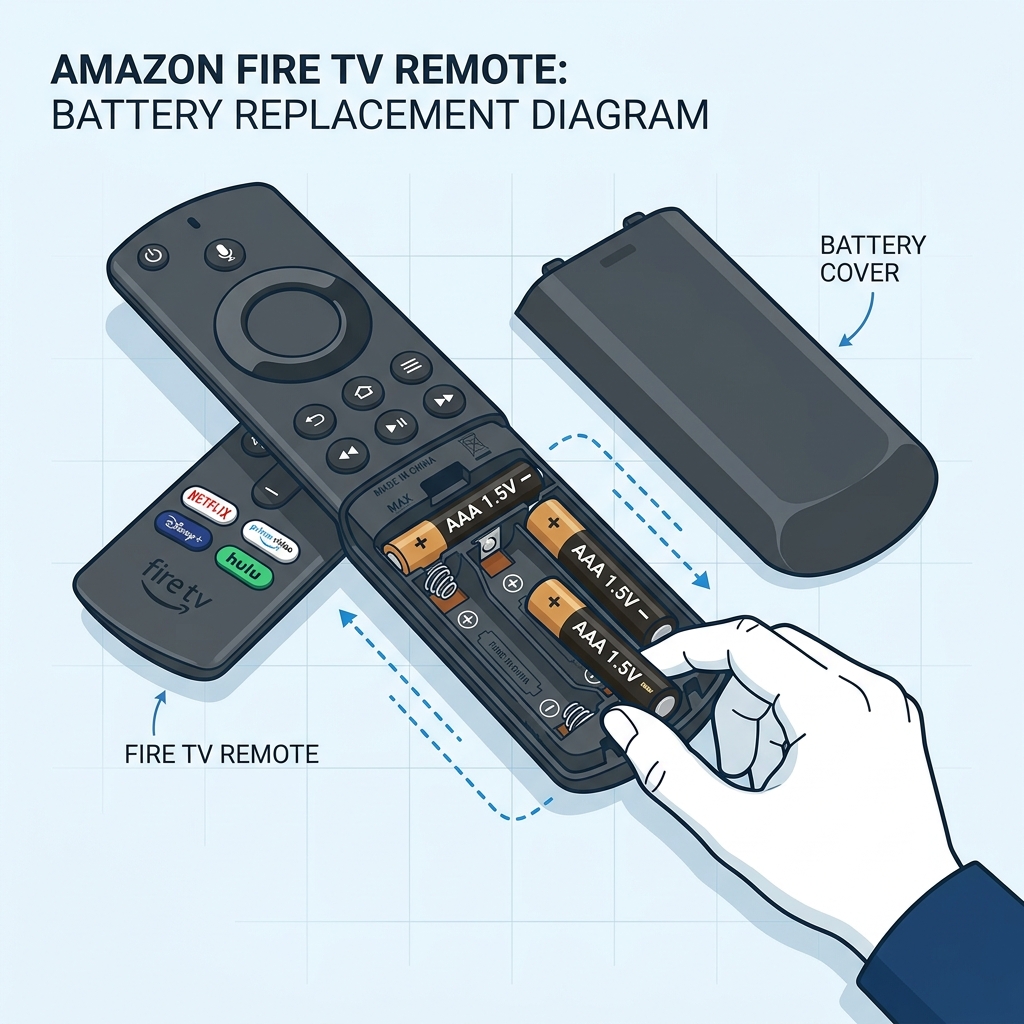
Diagram: Replacing low-voltage batteries with premium AAA alkaline cells.
3. Power Cycle the Firestick to Clear OS Glitches
Your Amazon Fire TV Stick is a mini-computer running Fire OS. Over time, system updates, running applications, and low memory can cause the Bluetooth stack in the OS to freeze or behave erratically. Simply unplugging the Firestick from the wall socket (or pulling the micro-USB cable out from the side of the stick) restarts the entire network card. Wait for 60 seconds to discharge the device’s internal capacitors completely, then plug it back in. Once the home screen loads, see if the blinking stops and pairing is restored.
4. Perform a Complete Hard Reset of the Remote Control
A hard reset clears the remote’s micro-controller configuration and restores its original factory settings, disconnecting it from any active loops. To perform a reset on most Alexa Voice Remotes:
- Press and hold the Left button, the Menu button (three horizontal lines), and the Back button (curved arrow) simultaneously for exactly 12 seconds.
- Release the buttons and wait 5 seconds.
- Slide off the battery cover and remove the batteries.
- Unplug your Firestick device from the power socket and wait for 60 seconds.
- Plug your Firestick back in. Wait until the main Fire TV home screen is displayed.
- Re-insert the batteries into the remote control.
- Press and hold the Home button on the remote for 10 seconds. The LED should stop flashing and pair successfully.
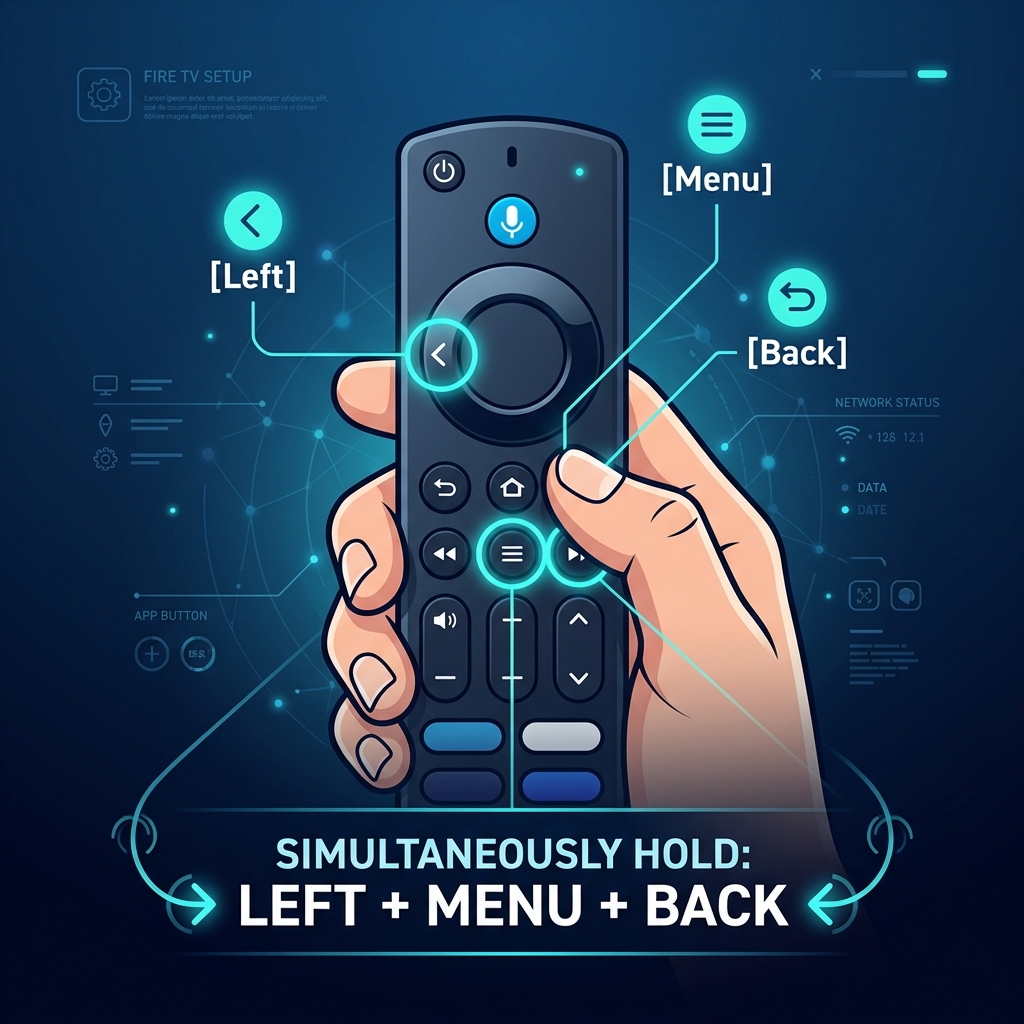
Instruction: Holding the Left, Menu, and Back buttons to clear remote memory.
5. Pair the Remote Manually via the Fire TV App
If the automatic pairing sequence fails, you can bypass it and bind the remote manually. To do this, you will need to control your Firestick screen. Download the official Amazon Fire TV App on your iPhone, iPad, or Android smartphone from the App Store or Google Play Store. Ensure your smartphone is connected to the exact same Wi-Fi network as your Firestick. Open the app, select your Firestick, and enter the 4-digit code displayed on your TV screen.
Once you are controlling the interface with your phone, navigate to: Settings > Controllers & Bluetooth Devices > Amazon Fire TV Remotes > Add New Remote. Hold down the Home button on your physical remote control for 10-15 seconds until it shows up in the scan list on screen, and click select on your phone app to pair it.
6. Clear the Bluetooth Cache on Fire OS
If your Firestick is paired with multiple headphones, game controllers, or keyboards, its Bluetooth configuration files may become corrupted or run out of memory addresses. Using your Fire TV mobile app, go to: Settings > Applications > Manage Installed Applications. Scroll down and set the filter to “Show All Applications”. Find the Bluetooth (or Bluetooth Share) application, select it, click Force Stop, and then select Clear Cache. Restart the Firestick to apply changes and attempt pairing.
7. Eliminate Wireless Signal and Radio Interference
Bluetooth operates on the 2.4GHz radio frequency spectrum, which is incredibly crowded. Household appliances like baby monitors, microwave ovens, cordless house phones, and even your own Wi-Fi router (if it is placed close to the TV) can emit wireless noise that disrupts the remote’s weak signals. Try moving your wireless router at least 1-2 metres away from your television, or log into your router’s admin panel to change your 2.4GHz Wi-Fi band channel to a less congested channel (like 1, 6, or 11).
8. Update the Fire TV OS Firmware
An outdated operating system can cause software conflicts between the Firestick firmware and the remote’s Bluetooth controller. Using your mobile app remote, check for system updates by navigating to Settings > My Fire TV > About > Check for Updates. Install any pending operating system patches. Once the device restarts, the updated Bluetooth drivers should resolve any handshake bugs.
9. Clean Sticky Buttons and Internal Contact Points
A button that is partially stuck down (even if it looks normal from the outside) can keep the remote’s micro-chip in an active transmitting loop, preventing it from entering pairing mode. Remove the batteries, and use a thin toothpick or a cotton swab lightly dipped in rubbing alcohol (isopropyl alcohol) to clean the edges of all buttons, particularly the Alexa voice search and Home buttons. Press each button firmly several times to work the alcohol into the contact switches and release any trapped dirt.
10. Use the Official HDMI Extender Cable
Almost all Amazon Firesticks sold in the UK include a short, flexible HDMI extender cable in the box. Many users discard this cable and plug the stick directly into the TV’s HDMI port. However, plugging the stick directly puts it very close to the television’s internal electronics and metal shielding, blocking the remote’s antenna. Using the HDMI extender allows the Firestick to hang slightly away from the TV chassis, significantly improving Bluetooth reception and eliminating signal drop-offs.
Alternative Control Methods if Your Remote is Damaged
If you have tried all the steps and the blue light continues to blink endlessly, the Bluetooth chip inside your remote control may have failed due to drop impacts, liquid spills, or electrical fatigue. While you consider buying a replacement Alexa Voice Remote from Amazon or Currys, you can use these alternative control methods:
- HDMI-CEC: Many modern TVs allow you to control connected HDMI devices using your standard television remote. Enable **HDMI-CEC** (or Anynet+, Bravia Sync, Simplink) in both your TV settings and Firestick settings to navigate the menus.
- Wireless Keyboard/Mouse: Plug a compatible USB receiver into an OTG (On-The-Go) cable adapter connected to your Firestick power port to control it with a mouse or keyboard.
- Game Controllers: Connect a Bluetooth Xbox or PlayStation controller via the Fire TV app settings screen.
Frequently Asked Questions (FAQs)
A flashing blue light means the remote has lost its paired connection to your Firestick and is actively looking to connect. This is usually caused by low battery voltage, wireless signal interference, or temporary device freezes.
No. Resetting the remote only clears the remote control’s temporary Bluetooth memory and configuration. It does not affect the applications, programmes, logins, or files saved on your Firestick device.
If the LED indicator light flashes yellow or red, it means the batteries are dangerously low and must be replaced immediately. A flashing blue light indicates pairing activity, while green indicates the voice command microphone is active.
Yes. By downloading the official Amazon Fire TV app on your smartphone, you can use it to navigate settings and manually pair the flashing physical remote under the “Controllers & Bluetooth Devices” menu.
With standard daily usage, a fresh set of premium AAA alkaline batteries should last between 3 to 6 months. Voice search features and Bluetooth connections drain batteries much faster than standard infrared remotes.
Conclusion
Fixing a flashing blue light on your Firestick remote is usually a quick process of resetting its connection memory or replacing old batteries. By understanding how the Bluetooth communication works and systematically clearing its loops, you can restore your entertainment setup in a few minutes. If you have recently upgraded your remote or set up a new system and notice audio sync issues, consult our expert guide on how to fix Firestick audio sync issues to perfect your viewing experience.
 English (UK)
  العربية
  Deutsch
  Ελληνικά
  Suomi
Suomi  Magyar
  Italiano
  Українська
  Svenska
  Română