
Firestick Remote Losing Battery? 8 Expert UK Fixes
If your Amazon Firestick remote is constantly losing battery power, the most common causes are **cheap zinc-carbon batteries**, a **stuck button** keeping the Bluetooth transmitter active, or **signal obstruction** forcing the remote to increase its transmission voltage. Fix this immediately by cleaning the metal battery terminals with isopropyl alcohol, installing premium AAA alkaline batteries, re-pairing the remote, and using the HDMI extender cable to improve signal propagation and reduce power output.
Is your Amazon Firestick remote draining brand new batteries in just a few days or weeks? A standard Fire TV remote control should easily last between 3 to 6 months on a single pair of AAA batteries. If your remote is constantly losing battery charge, it is a clear indicator of a hardware conflict, a Bluetooth pairing loop, or electrical resistance within the battery compartment.
Constantly buying replacements from your local UK supermarket or hardware shop is expensive and frustrating. As a digital home entertainment and device diagnostics specialist with over 5 years of experience troubleshooting media players, I have analyzed dozens of remote failures. In this comprehensive, consolidated guide, we will investigate why your Firestick remote loses battery power so rapidly and outline 8 easy, practical fixes to extend your remote control’s battery life.
Video Guide: Troubleshooting techniques to extend and fix Firestick remote battery issues.
Why Does the Firestick Remote Consume So Much Power?
Traditional television remote controls use simple Infrared (IR) light bulbs to send commands. These bulbs only draw power for a fraction of a second when a button is physically pressed. Because of this, traditional remote batteries can last for years.
In contrast, the Amazon Firestick remote (including the Alexa Voice Remote) uses a **Bluetooth Low Energy (BLE)** wireless connection to communicate with the Fire TV dongle plugged into the back of your television. Bluetooth offers many advantages, such as voice search commands and control from another room. However, it requires a continuous power supply. If your remote gets stuck in a pairing search loop, or if signal interference blocks the connection, the remote’s internal chip will continuously broadcast at maximum power, draining your AAA batteries in less than 48 hours.
The BLE Advertising State and Standby Loops
When your Firestick remote control is idle, it should enter a low-power “standby” sleep state. In this mode, the power consumption drops to micro-amps. However, if the remote loses its secure cryptographic binding keys with the Firestick, or if the Firestick’s Bluetooth receiver stops responding, the remote enters an active “advertising” loop. During this state, it continuously broadcasts radio packets searching for the parent device. This active radio transmission prevents the processor from sleeping, leading to a massive spike in power consumption that drains even high-capacity batteries in a matter of days.
Firestick Remote Battery Troubleshooting Checklist
Use this reference table to evaluate the common fixes for a rapidly draining Firestick remote:
8 Ways to Fix Rapid Battery Loss on Firestick Remote
1. Clean the Battery Terminals and Contact Springs
Over time, battery leakage, skin oils, dust, or condensation can coat the metal battery terminals inside the remote. This residue creates electrical resistance. Because the electrical current has difficulty flowing through this coating, the remote’s internal voltage regulator is forced to draw more current to maintain a stable Bluetooth connection. This accelerated draw drains the batteries. Slide off the battery cover and inspect the contact springs. Clean them gently using a cotton swab dipped in a small amount of isopropyl alcohol (rubbing alcohol) or white vinegar. Ensure the terminals are completely dry before inserting new batteries.
2. Avoid Cheap Zinc-Carbon and Rechargeable Batteries
Many UK users purchase cheap packs of zinc-carbon batteries from discount shops. While these batteries are fine for wall clocks or kitchen scales, they lack the capacity to power an active Bluetooth device like the Alexa Voice Remote, draining in a matter of days. Zinc-carbon cells are dry cells with high internal resistance and a steep voltage discharge slope. Once the voltage drop occurs, the Bluetooth chip begins to fail.
Always use high-quality **alkaline** AAA batteries from reputable brands (such as Duracell, Energizer, or GP). Alkaline batteries use a potassium hydroxide electrolyte which provides a much flatter discharge slope, keeping the nominal cell voltage above the 1.2V Bluetooth drop-off threshold for several months.
Furthermore, standard NiMH rechargeable batteries are not recommended. Rechargeable batteries output a nominal voltage of 1.2V, whereas standard alkaline batteries output 1.5V. Since Bluetooth chips require a steady 1.5V to execute connection commands, rechargeable batteries will trigger the remote’s “low battery” warnings almost immediately, forcing it into high-power search loops.
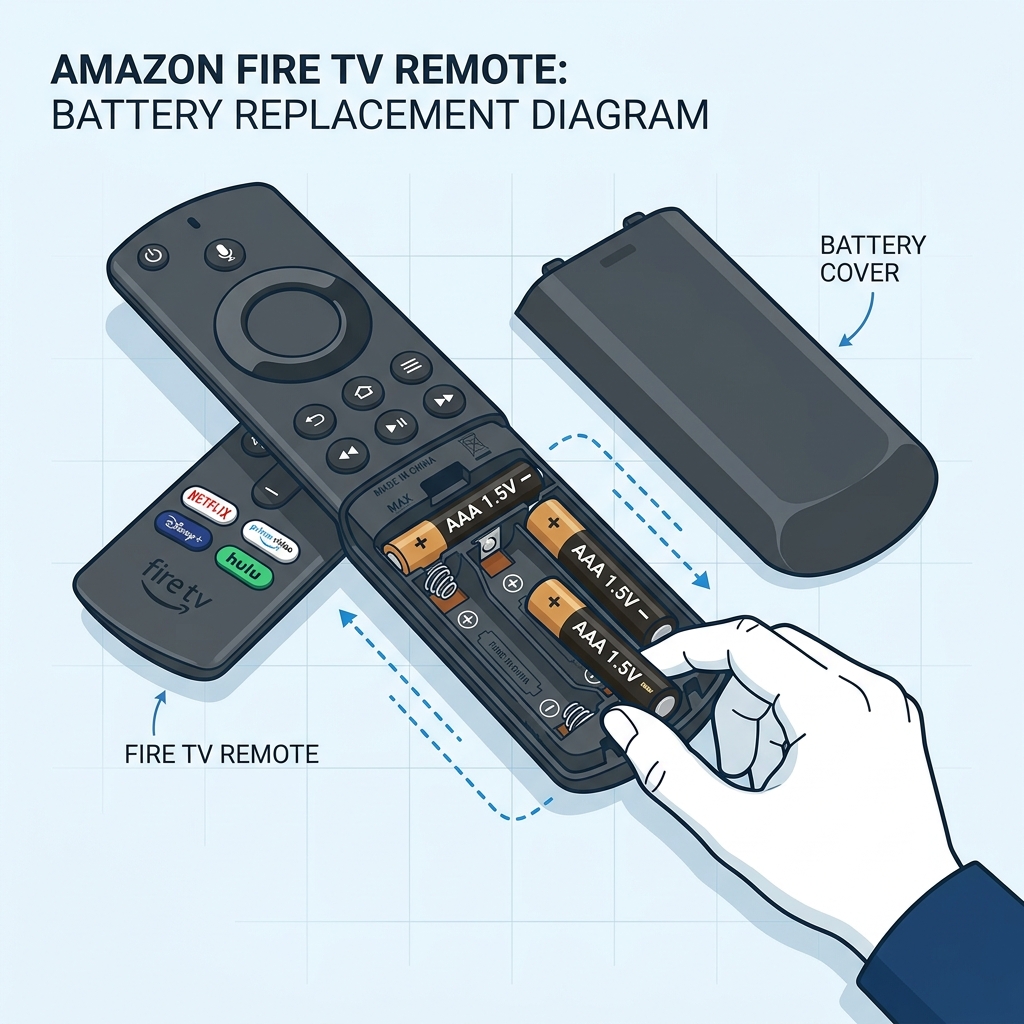
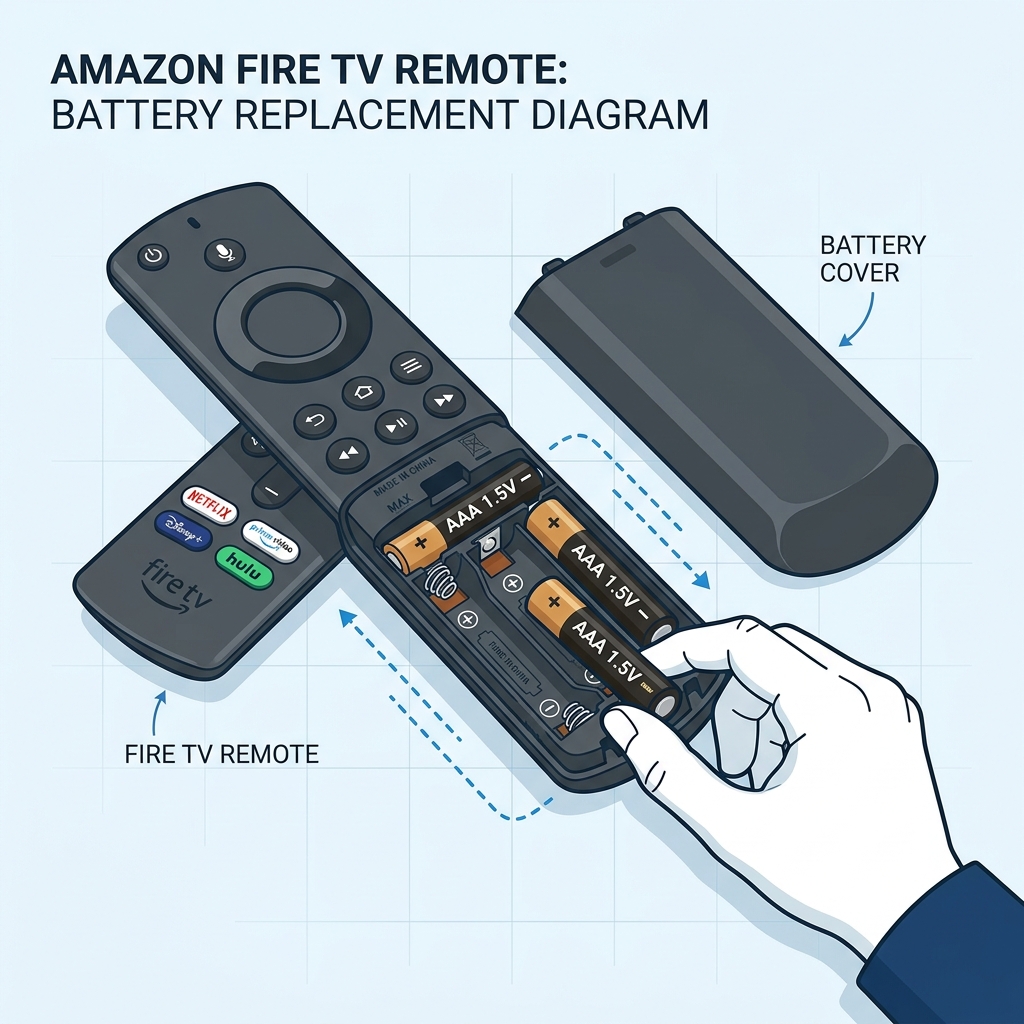
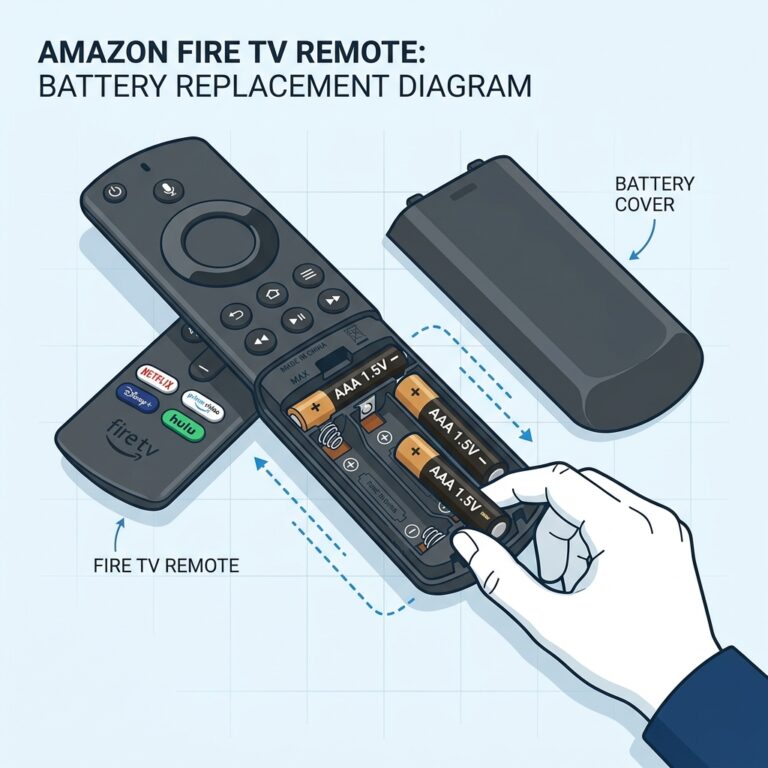
Diagram: Replacing low-voltage batteries with premium AAA alkaline cells.
3. Unpair and Re-pair the Remote (Reset the BLE Handshake)
Sometimes, a software glitch in Fire OS causes the Bluetooth handshake between the Firestick and the remote control to corrupt. Even when you are not using the remote, it remains in a hyperactive search state, communicating continuously with the stick and draining the batteries. Unpairing and pairing the remote clears this glitch. Using the Fire TV mobile app, go to: Settings > Controllers & Bluetooth Devices > Amazon Fire TV Remotes, highlight your remote, press the Menu button to unpair it, and then pair it again by holding down the Home button for 10 seconds.
4. Perform a Hard Factory Reset of the Remote
If unpairing the remote does not resolve the issue, you should execute a hard factory reset to clear the remote’s processor cache. To do this:
- Press and hold the Left button, the Menu button (three lines), and the Back button (arrow) simultaneously for 12 seconds.
- Release the buttons and wait 5 seconds.
- Remove the AAA batteries from the compartment.
- Unplug your Amazon Fire TV Stick from its power source for 60 seconds to restart the receiver.
- Plug the Fire TV Stick back in and wait for the home screen to load.
- Re-insert the batteries into the remote control.
- Press and hold the Home button for 10 seconds to establish a clean connection.
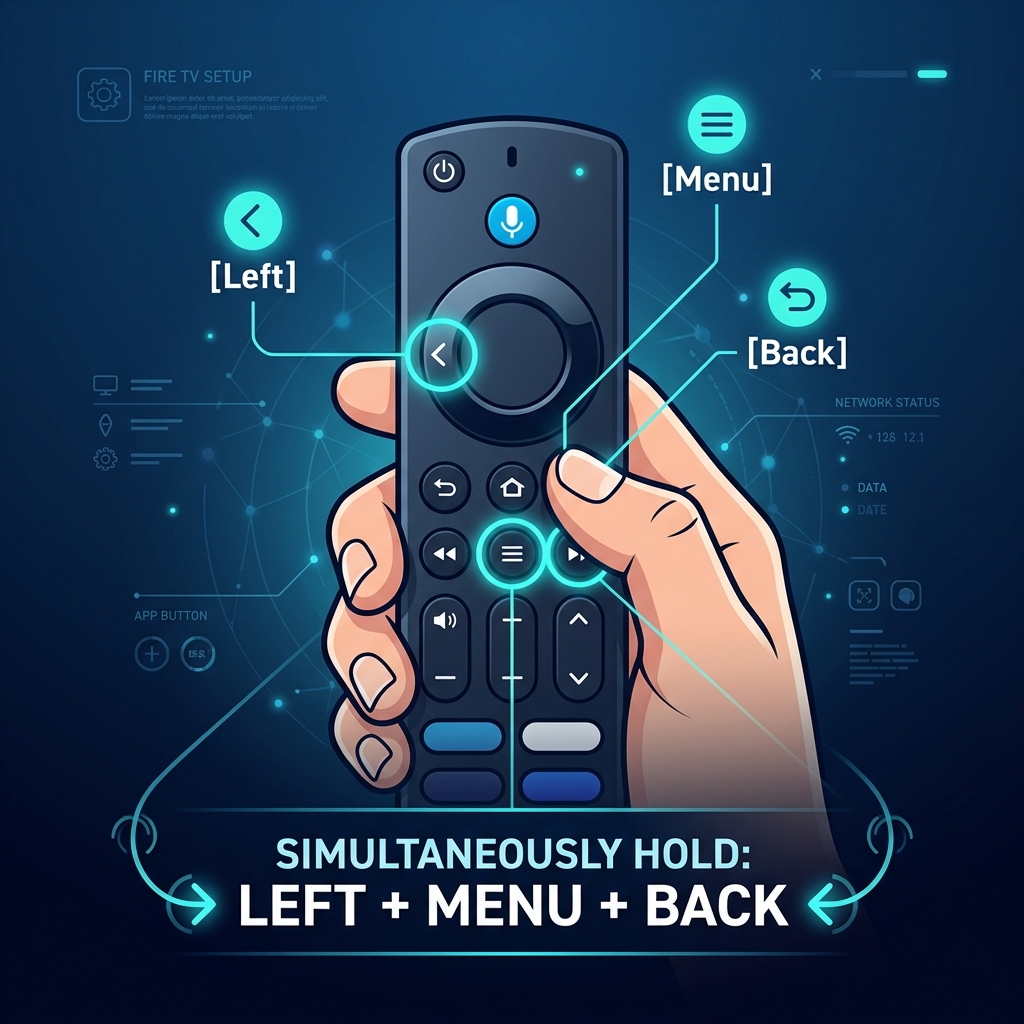
Instruction: Holding the Left, Menu, and Back buttons to clear remote memory.
5. Inspect and Release Stuck Remote Buttons
If a button is sticky or physically jammed (even slightly), the remote control will continuously transmit a command signal to the Firestick. This keeps the Bluetooth transmitter active 24/7, discharging the batteries in less than 48 hours. Remove the batteries, and use a toothpick or a clean cotton swab dipped in rubbing alcohol to clear away dirt around the D-pad, select button, and the Alexa voice key. Press all buttons repeatedly to ensure they bounce back cleanly.
6. Position the Firestick with the HDMI Extender Cable
Plugging your Firestick directly into an HDMI port on the back of your television blocks the Bluetooth antenna. The television’s chassis acts as a metal shield, weakening the remote control signal. To compensate for this weak signal, the remote must increase its radio transmission power, consuming significantly more battery capacity. Using the flexible HDMI extender cable included in your Firestick box allows the dongle to hang away from the TV body, improving range, stabilizing the connection, and saving battery power.
7. Update Fire TV OS and Remote Firmware
Amazon regularly updates the drivers for its hardware peripherals. If there is a power management bug in your remote’s firmware, updating it will resolve the drain. Go to Settings > My Fire TV > About > Check for Updates and install any pending updates. Once the Firestick is updated, keep the remote close to the screen; if a remote update is available, it will install automatically in the background.
To verify if your remote controller’s firmware has successfully updated, navigate to Settings > Controllers & Bluetooth Devices > Amazon Fire TV Remotes and select your remote. The screen will display the current firmware version. If it lists an update in progress, do not touch the remote buttons until the process completes.
8. Keep Your Firestick Remote in a Cool, Dry Place
Extreme temperatures drain batteries quickly. Avoid leaving your remote control in direct sunlight, on top of hot electronics (like AV receivers or game consoles), or in damp areas. Store the remote in a drawer or on a cool coffee table when not in use to preserve the chemical lifespan of the alkaline cells.
Alternative Control Methods if Your Remote is Damaged
If you have tried all the steps and the batteries continue to drain in a few days, the remote’s internal circuit board may have suffered a minor short-circuit or chip damage due to drops or spills. While you arrange for a replacement Alexa Voice Remote from UK retailers like Currys, Argos, or Amazon UK, you can use these alternative control methods to bypass the remote completely:
- Use the Fire TV App: Download the official control app on your iOS or Android device. It uses Wi-Fi and requires no batteries.
- HDMI-CEC Controller: Enable HDMI-CEC in your television settings (Bravia Sync, Anynet+, Simplink) to control Fire OS using your standard TV remote.
- OTG Cable Adapter with USB Input: Use an OTG cable adapter connected to the Firestick power port to plug in a standard wireless PC mouse or keyboard receiver.
Frequently Asked Questions (FAQs)
Under standard household usage, high-quality AAA alkaline batteries should last between 3 to 6 months. If your batteries are draining in a week or less, there is a connection loop or hardware fault.
Rechargeable NiMH batteries are not recommended for Fire TV remotes. They output a nominal voltage of 1.2V, which is lower than the 1.5V output of standard alkaline cells. This lower voltage triggers low battery warnings and connection loops.
Yes. Voice control requires the remote to open an active audio recording channel and stream audio data over Bluetooth to the Firestick. Using voice search frequently will reduce battery life faster than standard button navigation.
Yes. You can download the official Amazon Fire TV app on any iOS or Android smartphone to control the interface over Wi-Fi, which is a perfect temporary solution while you resolve your physical remote’s power issues.
A blinking yellow light on your Amazon remote control is the system’s official warning that the battery charge is critical. Replace the AAA cells immediately to prevent connection drops.
If you insert a pair of premium Duracell or Energizer alkaline batteries, reset the pairing, and find the batteries are hot to the touch or drain within 24 hours, the internal motherboard has an electrical short. In this case, the remote control must be replaced.
Conclusion
Resolving Firestick remote battery drain is usually a matter of cleaning the contacts, installing premium alkaline batteries, and breaking pairing loops. By following these steps, you can avoid unnecessary replacement costs. If you notice that your streaming applications are lagging or freezing along with your remote problems, check out our guide on why your Firestick keeps freezing to fully optimize your television entertainment setup.

 English (UK)
  العربية
  Deutsch
  Ελληνικά
  Suomi
Suomi  Magyar
  Italiano
  Українська
  Svenska
  Română