
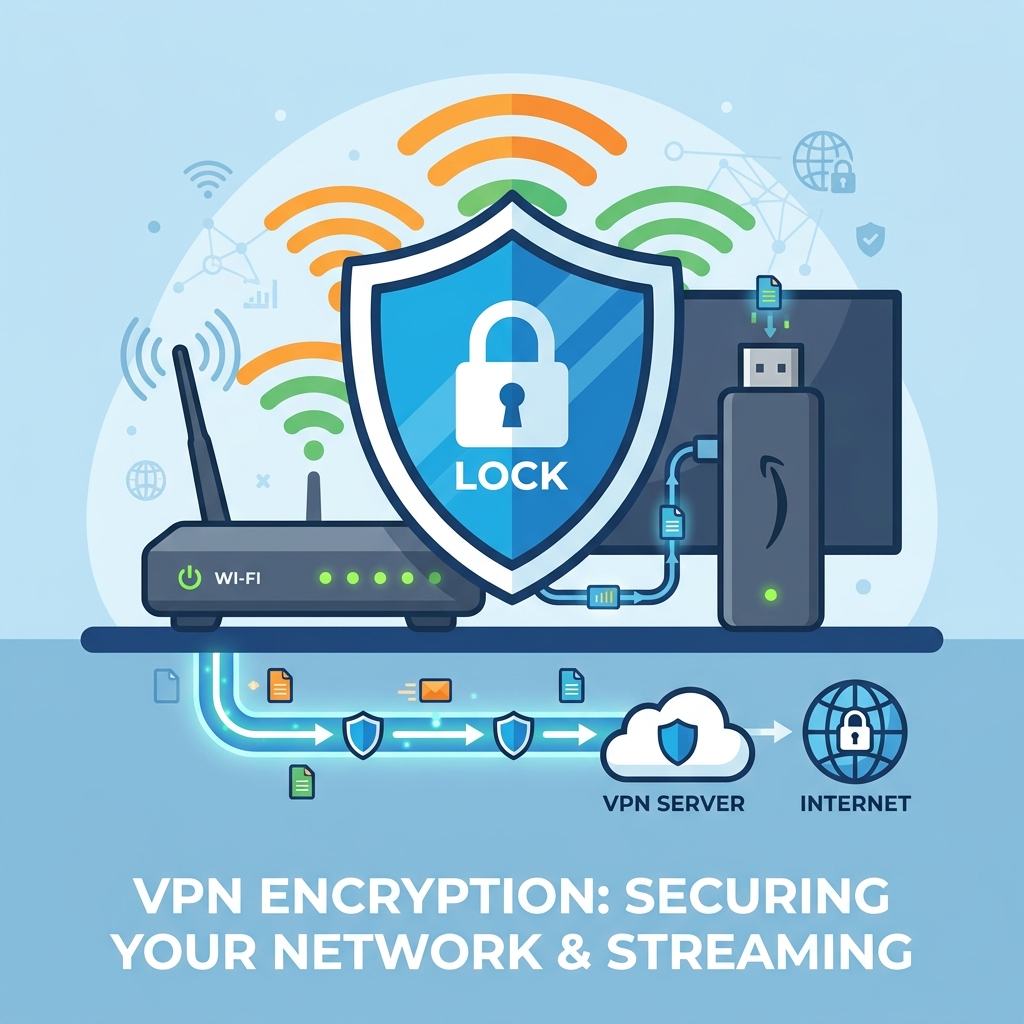
Come risolvere il problema dell'indisponibilità di YouTube TV su Firestick
If YouTube TV is showing as unavailable or not working on your Amazon Firestick in the UK, the issue is caused by **geo-restrictions** and **regional Appstore account filters**. Resolve this immediately by installing a premium VPN connected to a US server node, changing your Amazon account Country/Region settings to the United States to reveal the app in the Appstore, or sideloading the official YouTube TV APK using the Downloader app. Ensure location services are disabled on Fire OS and update your ‘Home Area’ using a mobile device connected to the same VPN.
Imagine settling down on your couch, ready to binge-watch your favourite live sports or US television programmes on YouTube TV, only to find that the app is unavailable or refusing to play. You might search the Amazon Appstore and find that the YouTube TV app is completely missing, or you might open the app only to be blocked by a message stating the service is unavailable in your region. For UK streaming enthusiasts, these geographical roadblocks can be incredibly frustrating.
Because YouTube TV is a live TV streaming service restricted strictly to the United States, accessing it from the UK requires bypassing multiple layers of location checks and digital store filters. As a streaming diagnostics expert with over 5 years of experience in regional network bypasses, I have helped hundreds of UK users access American streaming services. In this comprehensive UK guide, we will analyze why YouTube TV is showing as unavailable on your Firestick and detail 7 step-by-step solutions to bypass geo-blocks and restore your high-definition streams.
Why is YouTube TV Unavailable on Firestick in the UK?
Unlike standard YouTube, which is globally accessible, YouTube TV functions as a virtual cable provider operating under strict territorial licensing agreements. To enforce these agreements, Google implements dual filtering systems:
- Geographical IP Blocks: YouTube TV scans your public IP address. If it detects a UK ISP (like BT, Virgin Media, or Sky), it blocks the connection immediately, showing a geo-restricted screen.
- Regional Storefront Restrictions: The Amazon Appstore reads your Amazon account region. If your account is registered in the UK, the storefront hides the YouTube TV app, preventing you from downloading it.
- GPS Location Audits: The YouTube TV app cross-references your IP address location with your Google account’s designated “Home Area.” If the coordinates do not align, it restricts local channels or blocks the account entirely.
YouTube TV Troubleshooting Checklist
Refer to this diagnostic table to prioritize your troubleshooting steps based on complexity and success rate:
7 Ways to Fix YouTube TV on Firestick in the UK
Step 1: Connect to a Premium US VPN Server
The single most important step for UK users is routing their network traffic through a virtual private network (VPN). YouTube TV detects the geographic origin of your connection. If your connection originates from a UK IP address, the server will block access. Running a VPN overrides your physical location.
Install a premium VPN on your Firestick. Open the VPN app, log in, and select a server located in the United States (preferably a major city like New York, Los Angeles, or Miami). Once connected, the VPN will encrypt your data packets and route them through the US server. When you open the YouTube TV app, the server will see your virtual US IP address and grant access. For high-speed, secure streaming, consider using a specialized service like GuardianTV per evitare il buffering.
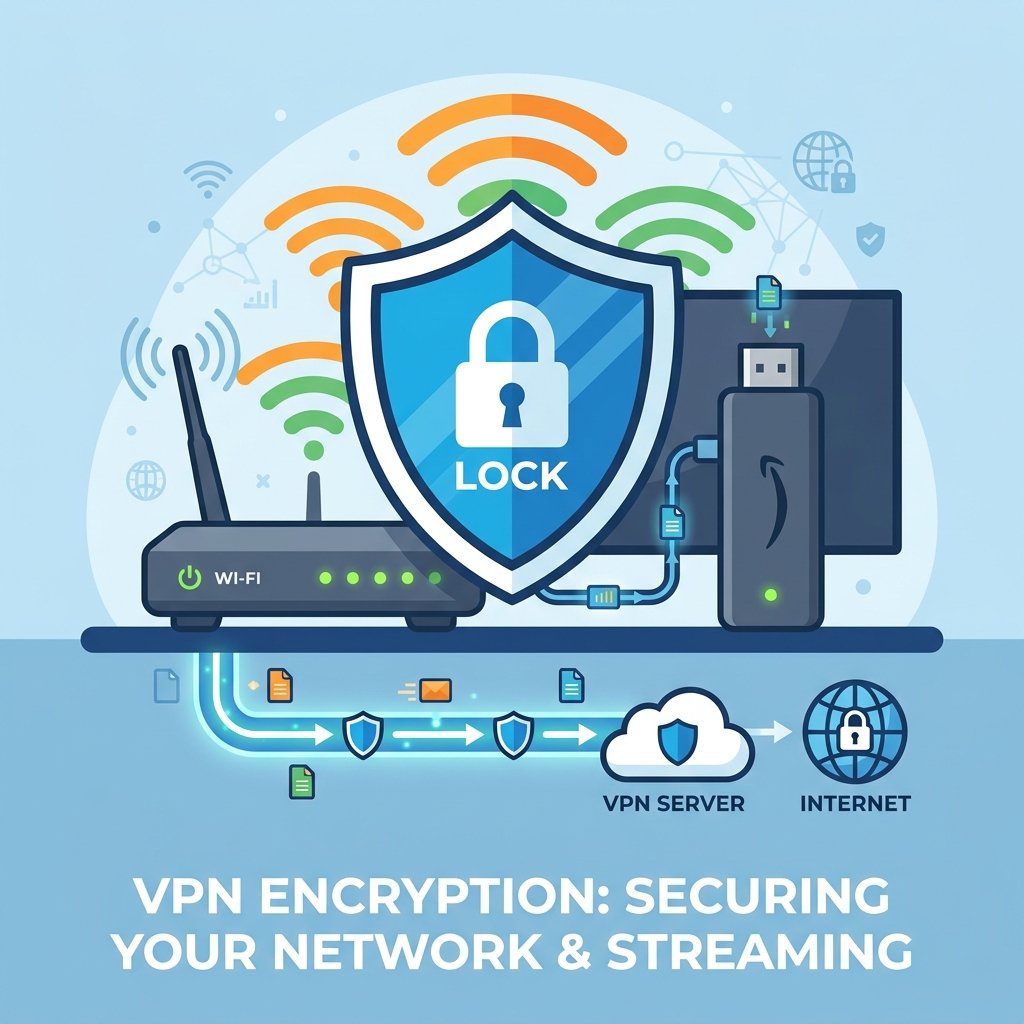
Diagram: Activating a secure VPN connection on Fire OS to bypass regional filters.
Step 2: Change Your Amazon Account Region to the United States
If you search for YouTube TV on the UK storefront, the Appstore will show no results. This is because the storefront filters apps based on the country settings of your Amazon account. You can bypass this by temporarily changing your digital storefront region to the United States.
Open a browser on your phone or computer and log in to Amazon. Go to Gestisci i tuoi contenuti e dispositivi, select the Impostazioni tab, and click Impostazioni Paese/Regione. Change your country to the United States, input a valid US address and zip code (you can use a US hotel address), and click update. Next, go to your Firestick, navigate to Impostazioni > Il mio account, quindi clicca su Deregister. Re-register using the same account details, and the US storefront will load, allowing you to download YouTube TV directly.
Step 3: Sideload the YouTube TV APK Manually
If you do not want to alter your Amazon account region, you can sideload the YouTube TV application. Sideloading involves bypassing the Appstore entirely and installing the Android APK file manually. This is a standard procedure on Fire OS devices.
First, enable installation permissions. Go to Settings > My Fire TV > Developer Options. Toggle App da fonti sconosciute to ON. (On newer FireOS versions, click ‘About’ and click the main ‘Fire TV’ title 7 times to reveal this menu). Download the **Downloader** app from the Appstore. Launch Downloader, enter a trusted APK repository web address (like APKMirror) in the URL bar, search for **YouTube TV (Android TV version)**, download the APK, and click **Install**.
Step 4: Force Stop the App and Clear Cache Files
If you have installed the app but it freezes on launch or displays connection glitches, the application’s local cache files may be corrupted. This occurs when the app retains obsolete network tokens after a connection drop or when switching between VPN servers.
Vai a Settings > Applications > Manage Installed Applications > YouTube TV. Clicca Forza chiusura per terminare i thread in background attivi. Successivamente, scorri verso il basso e clicca su Svuota la cache. Restart the app. This wipes temporary data while keeping your login information active, restoring streaming stability.
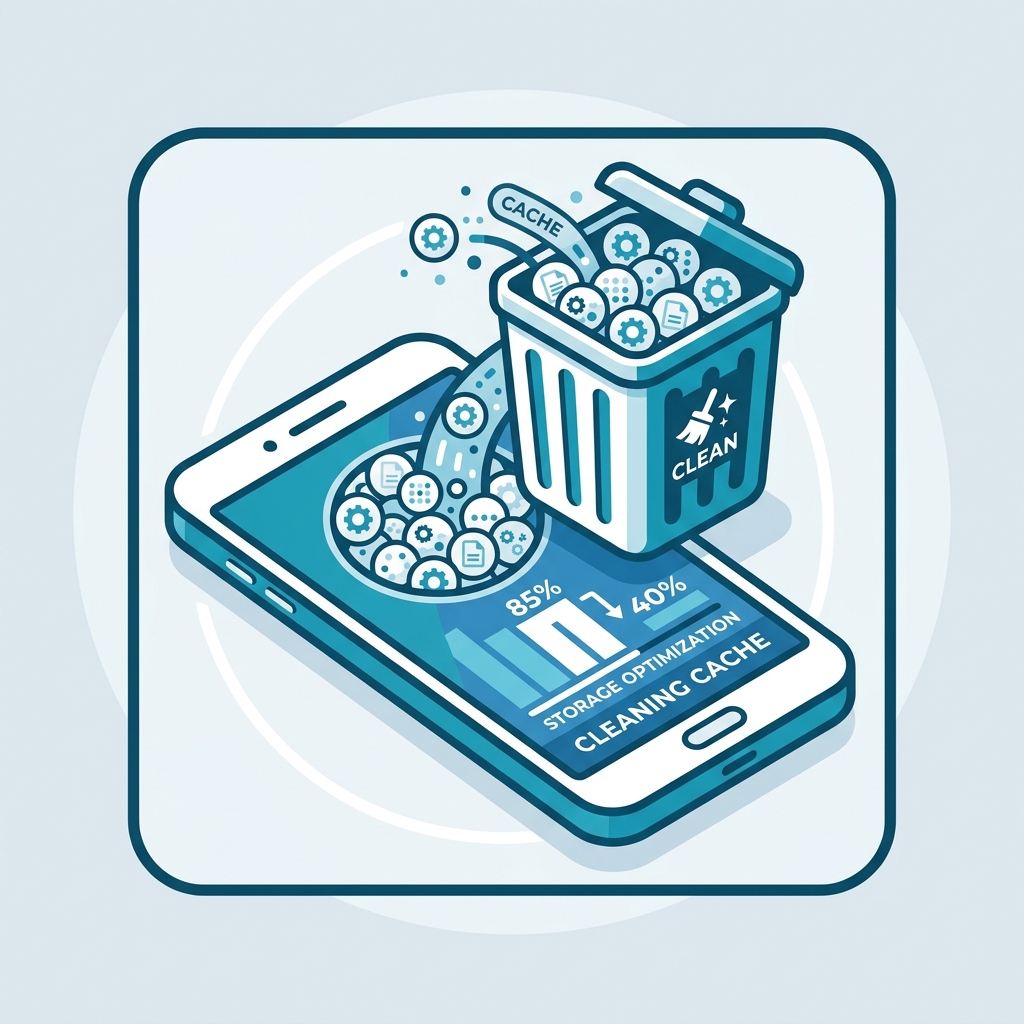
Diagram: Wiping the cached database of YouTube TV to resolve startup freezes.
Step 5: Disable Location Services on Fire OS
Modern Amazon Fire TV devices feature built-in location tracking. If the YouTube TV app requests your location and Fire OS broadcasts your physical UK coordinates, the servers will block your account even if you are using a VPN. You must disable this data leak.
Vai a Settings > Preferences > Location. Turn Location Services to OFF. This prevents the Firestick from sharing your local UK router coordinates with the streaming app, forcing YouTube TV to rely solely on the IP location provided by your US VPN server.
Step 6: Update Home Area Location Settings
YouTube TV requires users to log in from their designated “Home Area” (US zip code) at least once every 90 days. If the system detects that you have been outside your home area for too long, it will lock your account, displaying an “Outside Home Area” error loop.
To resolve this, connect your phone or tablet to the exact same US VPN server. Open a browser on your mobile device, log in to YouTube TV, tap your profile picture, and navigate to Location > Home Area. Clicca Update. The system will read your phone’s VPN-assigned coordinates, verify that you are “home,” and lift the block on your Firestick.
Passaggio 7: spegnere e riaccendere l'alimentazione di rete
Sometimes, local network DNS caching tables can block connections. If you have recently changed settings, the network stack requires a physical reboot. Unplug the Firestick and router from the mains wall sockets. Wait 60 seconds, reconnect the power, and test YouTube TV again.
Deep Dive: Bypassing YouTube TV Location Blocks
YouTube TV uses advanced geo-location tools to prevent users from sharing accounts outside their home cities. Aside from checking IP addresses, it checks your browser’s geographic API and mobile GPS coordinates. When accessing the service in the UK, maintaining a consistent virtual location is vital. Changing VPN servers frequently will trigger security alerts, placing your account in a verification loop.
To avoid this, use a VPN that provides a **Dedicated Static IP** in the US. This ensures that you log in with the exact same IP address every time, mimicking a residential connection. Routing your internet traffic through a premium streaming provider like GuardianTV garantisce un'elevata larghezza di banda, una bassa latenza e un instradamento stabile della connessione, evitando così controlli di verifica della posizione.
Tired of Geo-Blocks and Video Stuttering?
Once you have configured your regional and location settings, upgrade your entertainment setup with GuardianTV. GuardianTV offre flussi in streaming ultraveloci e stabili che aggirano le limitazioni di banda imposte dagli ISP locali e i blocchi DNS, garantendo una riproduzione fluida e senza interruzioni dei tuoi programmi in alta definizione e delle dirette sportive preferite.
Domande frequenti (FAQ)
YouTube TV is a geo-restricted US cable service. If you are located in the UK, the Amazon Appstore will hide the app, and the servers will block your IP address from streaming.
Log in to Amazon, go to Manage Your Content and Devices > Preferences > Country/Region Settings. Change your country to the United States with a valid US zip code, then sync your Firestick settings by deregistering and re-registering.
No. YouTube TV scans your public IP address before authorizing playback. Attempting to stream in the UK without a VPN will trigger a geo-block screen.
Open YouTube TV on a mobile device connected to a US VPN, tap your profile picture > Location > Home Area, and select Update. This resynchronizes your virtual location with the server.
Navigate to Settings > Applications > Manage Installed Applications > YouTube TV. Select Force Stop, then click Clear Cache to wipe temporary database entries.
Yes. Sideloading is simply downloading an Android APK file manually. However, you still need a valid subscription and a VPN to access the service.
Yes, by routing your connection through a US server, a premium service redirects your virtual location, allowing you to access YouTube TV channels smoothly.
Conclusione
Fixing YouTube TV unavailability on your Firestick is a straightforward matter of setting up a premium US VPN and adjusting your storefront region. By ensuring your IP coordinates and Amazon account settings align with US parameters, you can bypass geographical filters and stream live US channels. If your Firestick continues to experience lag or freezing issues, consult our guide on Perché il tuo Firestick continua a bloccarsi to optimize performance. For fast, buffer-free connectivity and a superior streaming experience across all applications, try upgrading to GuardianTV per proteggere il tuo impianto di intrattenimento domestico.

 English (UK)
  العربية
  Deutsch
  Ελληνικά
  Suomi
Suomi  Magyar
  Italiano
  Українська
  Svenska
  Română