
How to Prolong the Battery Life of Your Firestick Remote
To prolong your Amazon Firestick remote’s battery life, **minimise voice search usage** (which keeps the microphone and Bluetooth transmitter active), **unpair unused controllers** or secondary remotes, **position your Firestick away from metal chassis** using the HDMI extender, and **configure the Firestick to go to sleep** when not in use. Always invest in premium AAA alkaline batteries rather than zinc-carbon or rechargeable cells.
Do you find yourself replacing the AAA batteries in your Amazon Fire TV remote control every few weeks? A standard Fire TV remote control should easily last between 3 to 6 months on a single pair of batteries. However, because modern remotes use active wireless connections rather than basic light sensors, managing their power consumption requires specific habits and adjustments.
Tired of having your streaming sessions interrupted by a dead remote? As a digital home entertainment specialist and device developer with over 5 years of hardware experience, I have analyzed Fire TV power management in detail. In this comprehensive UK guide, we will explore why these remotes draw so much power and provide 9 expert tips to prolong your Firestick remote’s battery life and customise your settings for peak efficiency.
Video Guide: Actionable steps to optimize and extend Firestick remote battery life.
Why Do Fire TV Remotes Consume More Power Than Standard Remotes?
Traditional television remotes use Infrared (IR) technology. They function by flashing an invisible light bulb at your TV screen when a button is physically pressed, drawing power for only a microsecond. Because they remain completely powered down between button presses, their batteries can last for years.
In contrast, the Amazon Firestick remote (including the Alexa Voice Remote) uses a **Bluetooth Low Energy (BLE)** radio connection. Bluetooth allows you to control your Firestick without a direct line-of-sight and supports advanced voice recognition features. However, it requires the remote control’s internal micro-chip to remain powered up to listen for button triggers and manage wireless connections. When voice search is activated, the remote must power its microphone, compress your audio voice stream, and broadcast the digital data over Bluetooth, which causes a significant draw on battery voltage.
Firestick Remote Power Management Checklist
Refer to this summary checklist to understand the battery saving impact of each tip:
9 Tips to Prolong Firestick Remote Battery Life
1. Minimise the Use of the Alexa Voice Search Button
The Alexa voice search feature is the single largest battery drain on the remote control. Holding down the microphone key activates the physical microphone, turns on the voice processing microchip, and opens a high-bandwidth Bluetooth streaming link to send your voice data to the Firestick. If you frequently use voice commands to search for television shows, input passwords, or open applications, your battery life will be significantly reduced. Try using the on-screen keyboard for simple inputs, or reserve voice commands for complex searches to conserve battery.
2. Always Use the HDMI Extender Cable in the Box
Most Firesticks are plugged directly into the back of a television. The television’s glass, chassis, and metal circuits act as a shield, blocking the remote control’s Bluetooth signal. Because of this blockage, the remote control must increase its transmission power to maintain connection, which quickly drains the battery. Using the flexible HDMI extender cable included in your box allows the Firestick to hang away from the TV body, improving range, stabilizing the connection, and saving remote battery power.
3. Unpair Unused Remotes and Game Controllers
If you have paired multiple remotes, gaming pads, or keyboards to your Firestick, the Bluetooth receiver may remain in an active search loop, continuously polling for accessories and draining your active remote. Go to: Settings > Controllers & Bluetooth Devices > Amazon Fire TV Remotes. Highlight any old, broken, or unused remotes, and press the Menu button to unpair them. Clean up your controllers list to ensure only your active remote is communicating with the device.
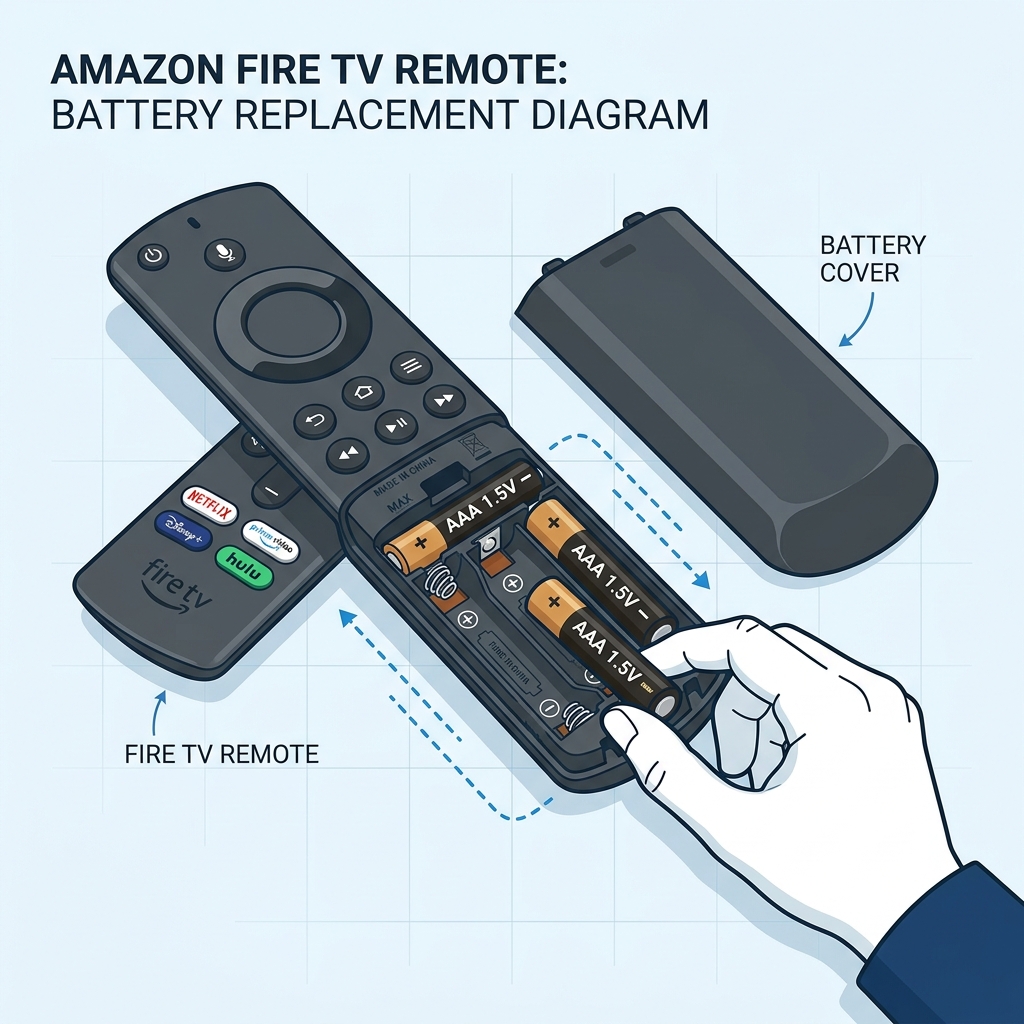
4. Install High-Quality Alkaline or Lithium AAA Batteries
Many discount shops sell cheap zinc-carbon batteries. While these batteries work fine in simple wall clocks, they lack the capacity to power a wireless Bluetooth device like the Alexa Voice Remote, draining in a matter of weeks. Always use high-quality **alkaline** AAA batteries from reputable brands (such as Duracell Ultra Power, Energizer Max, or GP Super Alkaline). Alkaline batteries use a potassium hydroxide electrolyte which provides a much flatter discharge slope, keeping the nominal cell voltage above the 1.2V Bluetooth drop-off threshold for several months. Additionally, premium brands feature leak guards that protect the remote’s metal contacts from acid erosion.
Alternatively, you can purchase premium **Lithium** AAA batteries (such as Energizer Ultimate Lithium). Lithium batteries are dry cells that provide a very flat 1.5V output throughout their lifecycle and are less sensitive to temperature fluctuations. They also weigh less and are chemically sealed, preventing leaks that ruin the remote’s contacts.
In addition, standard NiMH rechargeable batteries are not recommended for these remotes. Rechargeable cells output a nominal voltage of 1.2V, whereas standard alkaline batteries output 1.5V. Since Bluetooth remote chips require a steady 1.5V to function, rechargeable batteries will trigger low battery warnings almost immediately, forcing the remote into high-power search loops.
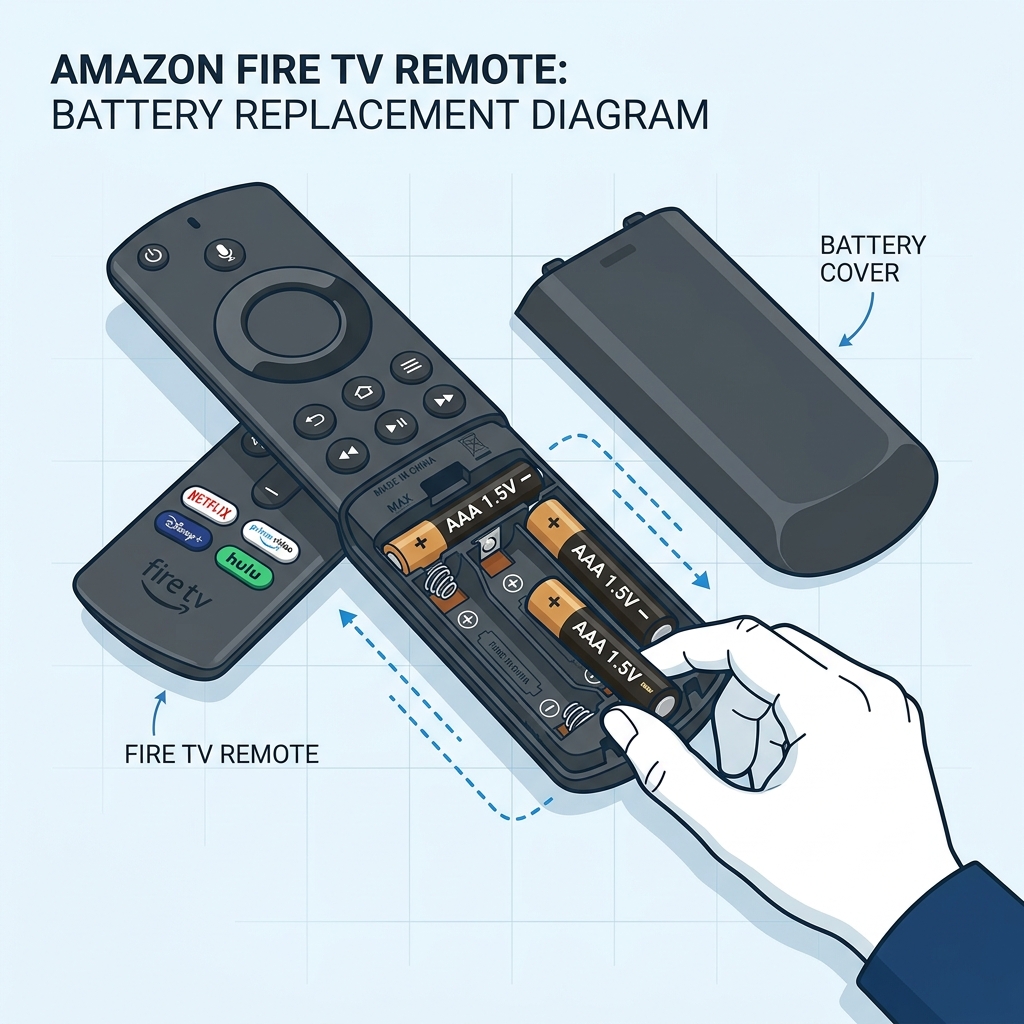
Diagram: Replacing low-voltage batteries with premium AAA alkaline cells.
5. Manually Put Your Firestick to Sleep
When you turn off your television, your Firestick does not always enter sleep mode immediately. It may continue running background applications or scanning for network updates, keeping your remote in an active tracking state. To force the Firestick and the remote’s Bluetooth chip into a low-power standby mode: press and hold the Home button on your remote control for 3 seconds, select Sleep from the menu, and then turn off your TV screen.
6. Prevent Stuck Buttons and Clean Internals
Dust, sticky drink spills, or skin oils can accumulate in the gaps around the remote control buttons. If a button remains partially pressed down, it will prevent the remote control from entering sleep mode, keeping the Bluetooth transmitter active 24/7. To fix this: remove the batteries, and use a toothpick or a cotton swab lightly dipped in isopropyl alcohol to clean the edges of all buttons. Press all buttons repeatedly to ensure they bounce back cleanly.
7. Limit IR TV Equipment Control Settings
Many Alexa Voice Remotes are programmed to control your TV volume, mute, and power. This feature uses a dual IR transmitter built into the top of the remote. If you frequently adjust the volume, the remote control will emit high-intensity IR light signals alongside Bluetooth signals. The IR blaster circuit relies on a dedicated capacitor that pulls a high amount of electrical energy from your AAA batteries to flash intense light pulses. If you want to maximize your remote’s battery life, you can disable equipment control under Settings > Equipment Control > Manage Equipment and use your TV’s original remote control for volume and power adjustments.
To turn this off, navigate to the settings menu, select **Equipment Control**, and change **Equipment Control** to **Manual**. This prevents the remote from firing the high-energy IR blaster every time you use the volume buttons, keeping the drain minimal.
8. Keep Your Remote Away from Direct Heat
High temperatures degrade battery cells. Avoid leaving your remote control on top of hot electronics (such as AV receivers, cable boxes, or game consoles), in direct sunlight on a window sill, or near a radiator. Store the remote in a cool, dry place when not in use to preserve the chemical lifespan of the alkaline cells.
9. Update Your Fire TV and Remote Controller Firmware
Amazon regularly updates the drivers for its hardware peripherals. If there is a power management bug in your remote’s firmware, updating it will resolve the drain. Go to Settings > My Fire TV > About > Check for Updates and install any pending updates. Once the Firestick is updated, keep the remote close to the screen; if a remote update is available, it will install automatically in the background. If a firmware update fails or freezes mid-way, it can cause the remote’s processor to loop indefinitely; resetting the remote as detailed below will clear the loop.
Alternative Battery-Free Control Methods
If you are tired of managing remote batteries altogether, you can use these alternative control methods to operate your Fire TV Stick:
- The Fire TV Mobile App: Download the official Amazon Fire TV app on any iOS or Android smartphone to control the interface over your home Wi-Fi network. This app is completely battery-free and provides an integrated keyboard for easy typing.
- HDMI-CEC: Many modern TVs allow you to control connected HDMI devices using your standard television remote. Enable **HDMI-CEC** (or Anynet+, Bravia Sync, Simplink) in both your TV settings and Firestick settings to navigate the menus.
Frequently Asked Questions (FAQs)
Rechargeable NiMH batteries are not recommended for Fire TV remotes. They output a nominal voltage of 1.2V, which is lower than the 1.5V output of standard alkaline cells. This lower voltage triggers low battery warnings and connection loops.
A blinking yellow light on your Amazon remote control is the system’s official warning that the battery charge is critical. Replace the AAA cells immediately to prevent connection drops.
Under standard household usage, high-quality AAA alkaline batteries should last between 3 to 6 months. If your batteries are draining in a week or less, there is a connection loop or hardware fault.
Yes. Voice control requires the remote to open an active audio recording channel and stream audio data over Bluetooth to the Firestick. Using voice search frequently will reduce battery life faster than standard button navigation.
Yes, absolute physical impact can cause cracks in the internal printed circuit board (PCB) or damage surface-mounted capacitors. This physical damage can trigger a slow, continuous short-circuit (leakage current) that drains the batteries even when the remote is completely inactive. If this is suspected, the remote should be replaced.
Conclusion
Prolonging the battery life of your Firestick remote is a matter of adopting smart usage habits and optimizing your system settings. By minimizing voice search, using premium alkaline cells, and ensuring a strong Bluetooth connection, you can significantly extend the lifespan of your remote’s batteries. If you notice that your streaming applications are lagging or freezing along with your remote problems, check out our guide on why your Firestick keeps freezing to fully optimize your television entertainment setup.


 English (UK)
  العربية
  Deutsch
  Ελληνικά
  Suomi
Suomi  Magyar
  Italiano
  Українська
  Svenska
  Română