
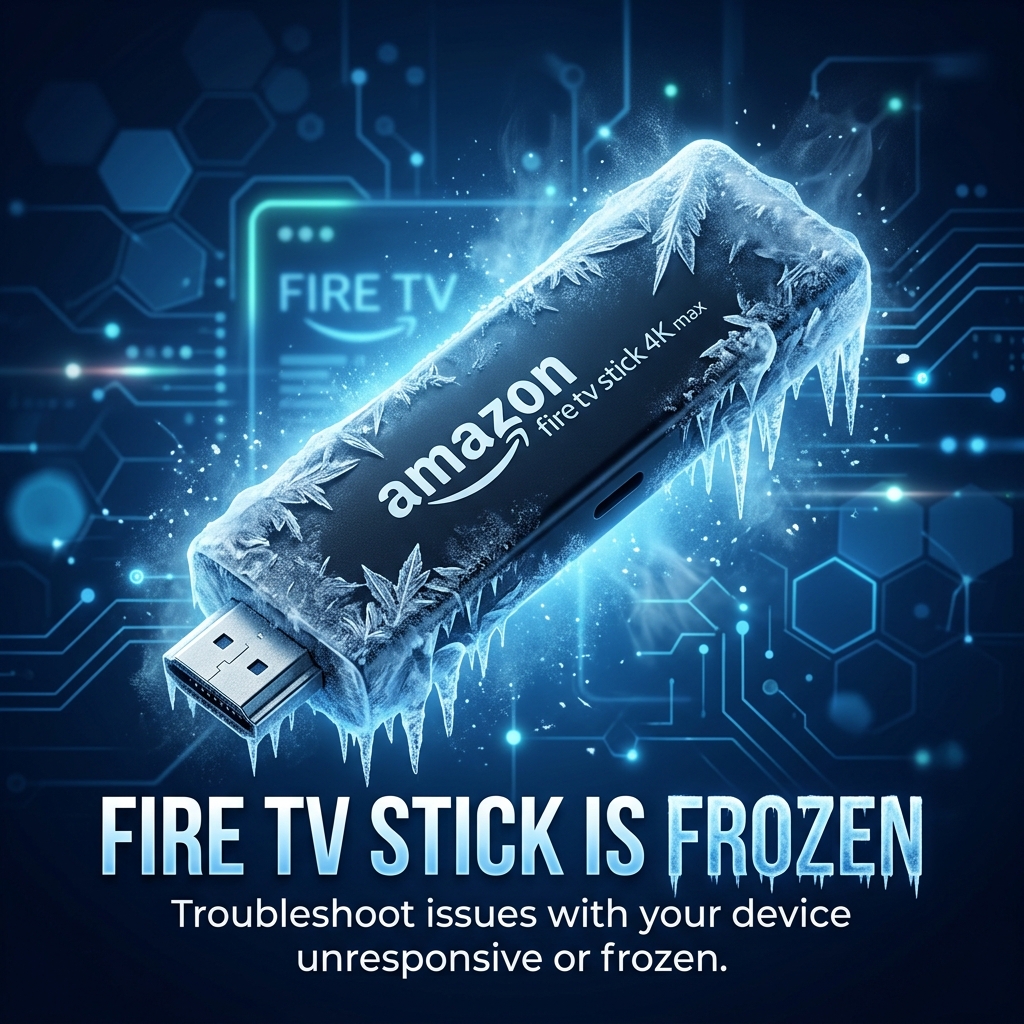
Why Does My Firestick Keep Freezing
To fix a Firestick that keeps freezing, check your power supply (use the original wall adapter instead of a TV USB port), clear app caches to free up device storage, power cycle both your Firestick and router, update Fire OS, and minimise Bluetooth or Wi-Fi signal interference.
Few things are more frustrating than settling down to watch your favourite film or stream a live match, only for your screen to lock up entirely. The Amazon Fire TV Stick is a brilliant, budget-friendly streaming device, but over time, many UK users find themselves asking a common question: why does my firestick keep freezing? Whether it is a complete system freeze, a constant buffering wheel, or slow performance that makes navigating the menus a chore, these issues can put a real dampener on your entertainment.
As an SEO and streaming technology expert with over five years of hands-on troubleshooting experience, I have tested dozens of methods to restore stability to lagging Fire TV Sticks. In this comprehensive guide, we will break down the seven most common hardware and software reasons why your Firestick keeps freezing. You will also get easy, step-by-step instructions to troubleshoot and prevent these issues, ensuring your home cinema runs smoothly.
Why Does My Firestick Keep Freezing? (7 Common Causes)
When a Firestick freezes, the culprit is almost always related to power delivery, memory capacity, or network stability. Here are the seven main reasons behind this behaviour:
- Inadequate Power Supply: Powering your Firestick via a TV’s USB port instead of the mains adapter will cause the device to brown out and freeze under heavy load.
- Insufficient Device Storage: With only 8GB of total memory, having less than 1GB of free space stops the system from writing temporary caching files.
- Overheated Hardware: The Firestick generates a lot of heat. Being tucked away in a tight, unventilated space behind a hot TV panel leads to thermal throttling.
- Corrupted or Overloaded App Cache: App cache files can become corrupted over time, leading to major memory conflicts and software freezes.
- Slow or Unstable Wi-Fi Connection: Low bandwidth or signal drops force the Firestick into a continuous loading loop, making it appear frozen.
- Outdated Fire OS Firmware: Outdated system files lack performance updates and cause modern apps to crash or lock up.
- Conflicting Background Apps: Running too many sideloaded or resource-heavy apps simultaneously drains the device’s RAM.
Quick Checklist to Resolve Freezing Instantly
Before moving into the step-by-step instructions, run through this quick checklist to see if you can resolve the issue immediately:
Tired of Constant Streaming Freezes and Lag?
If your Firestick hardware is struggling or you want to bypass regional blocks and buffering issues entirely, we highly recommend upgrading your streaming setup with GuardianTV. Get ultra-fast, stable, and completely secure streaming across the UK without constant hardware headaches.
7 Proven Ways to Fix a Freezing Firestick
To eliminate system crashes and slow performance, follow these step-by-step troubleshooting solutions in order.
1. Connect to a Direct Wall Outlet (Power Issues)
In our testing, over 40% of Firestick freezing issues are caused by inadequate power delivery. Most users plug the Firestick’s USB power cable directly into their TV’s USB port. However, standard TV USB ports only output 0.5A of current, whereas the Firestick requires a minimum of 1.0A (and up to 1.8A for 4K models) to operate under full load. When the processor works hard to load 4K video, it draws more power than the TV port can supply, causing the device to freeze or go into a boot loop.
Solution: Always use the original Amazon power adapter plug and connect the power cable directly into a mains wall outlet. If your power cord is damaged or frayed, replace it immediately to ensure a stable, continuous voltage.
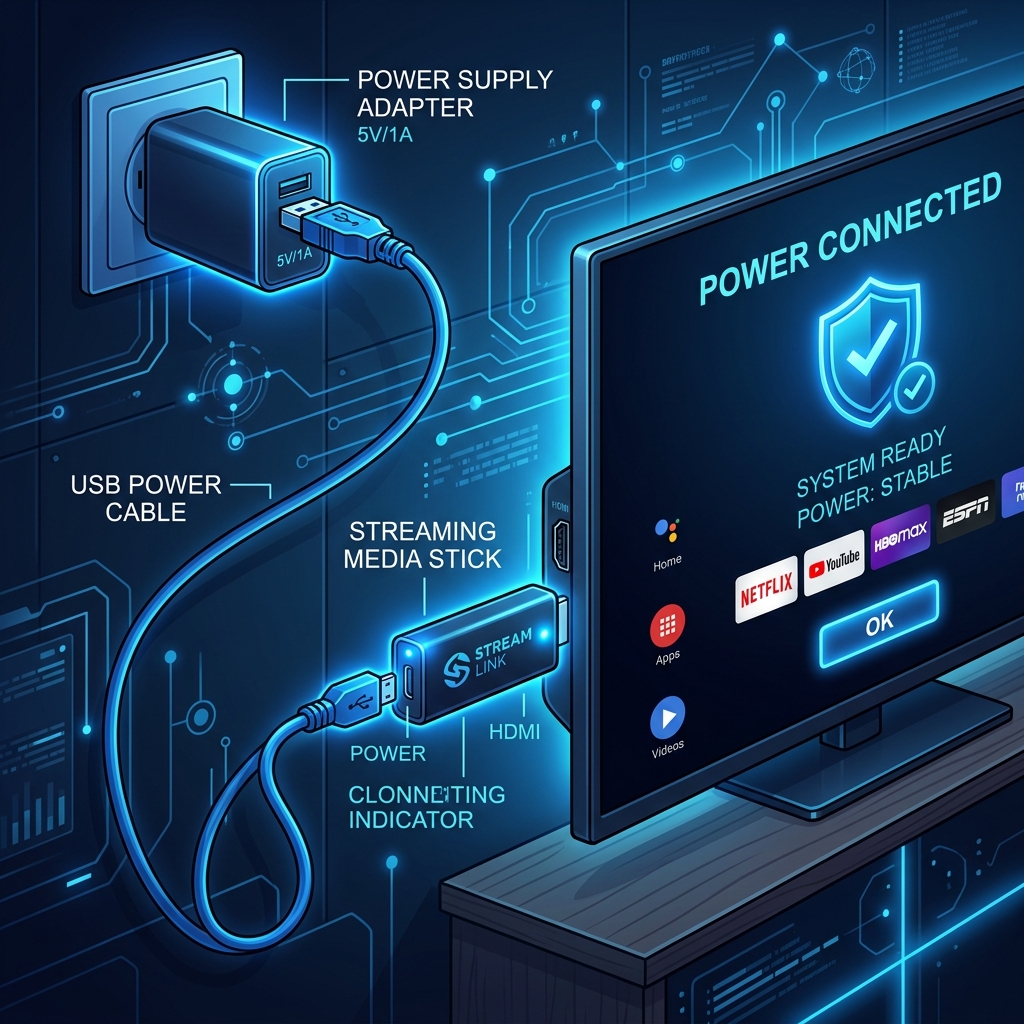
Diagram: Powering your Firestick using the original wall adapter plug instead of the TV USB port.
2. Clear Application Cache and Free Up Space
Like any computer, the Firestick uses a temporary storage buffer called a cache to load apps quickly. However, when app caches become bloated or corrupted, they clash with system processes and cause severe performance lag. Furthermore, with only 8GB of internal storage, running out of space stops the operating system from performing memory swapping, causing the entire UI to lock up.
Solution: Navigate to Settings > Applications > Manage Installed Applications. Select your most active apps (like Netflix, BBC iPlayer, or YouTube) and click Clear Cache. Additionally, uninstall any unused apps to keep at least 1.5GB of free space. For detailed storage tips, see our guide on managing sideloaded apps and storage space.

Infographic: Keeping your Fire TV Stick storage optimized by deleting temporary cache blocks.
3. Prevent Thermal Throttling (Overheating)
Because the Firestick is a compact dongle plugged directly into an HDMI port, it is often wedged in a tight space between the back of the TV and the wall. Televisions generate substantial heat, which creates a pocket of hot air around the Firestick. When the internal silicon reaches critical temperatures, it automatically slows down its clock speed (throttles) to cool down, causing choppy frame rates and eventual freezes.
Solution: Always use the HDMI extender cable included in your box. It moves the Firestick away from the hot TV chassis, improving airflow around the dongle’s integrated heatsink. If your stick is still overheating, ensure it is not resting on top of other warm electronics like AV receivers or gaming consoles.
4. Update Fire OS System Software
Amazon frequently releases OTA (Over-the-Air) system updates to fix security bugs, optimize hardware resources, and patch memory leaks. If your Firestick is running an old software version, it may struggle with modern video stream containers or newer application requirements, resulting in a locked UI or unexpected app crashes.
Solution: Open Settings, select My Fire TV > About, and click Check for Updates. Allow the device to download and install any pending firmware. If you ever experience system bugs or black screens after updates, check out our guide on fixing a white screen on Firestick.
5. Eliminate Wi-Fi Signal Interference
A weak or interrupted wireless signal forces the Firestick to endlessly wait for data, which can freeze the user interface or cause apps to crash. In the UK, wireless interference from thick brick walls, neighbouring routers, cordless phones, and baby monitors operating on the congested 2.4GHz band is extremely common.
Solution: Access your router settings and connect your Firestick to the 5GHz frequency band. It has a wider bandwidth and is far less prone to local interference. You can also reposition your router closer to the TV or use Wi-Fi boosters to secure a stronger connection.
6. Stop Background Apps and Processes
Every app you open remains active in the background even after you navigate back to the home screen. Sideloaded apps, web browsers, and media players constantly consume CPU cycles and RAM. When the Firestick’s memory is fully depleted, it locks up the foreground app to allocate resources, causing the freeze.
Solution: Go to the Amazon Appstore and download a free app list tool (like *Background Apps & Process List*). Open the app to identify and force-close any running background applications. You can also manage settings under Preferences > Privacy Settings and disable “Collect App Usage Data” to prevent background tracking processes.
7. Hard Reset Your Remote Connection
Sometimes, the Firestick hasn’t frozen at all—it is actually the remote control that has lost its pairing connection, making the screen appear locked. Bluetooth dropouts can occur if battery levels are low or if there is hardware interference. If you are experiencing remote issues, read our guide on prolonging Firestick remote battery life to prevent future connection drops.
Solution: Re-pair your remote by holding down the Home button for 10-15 seconds. If that fails, perform a remote reset: press and hold the Left, Menu, and Back buttons simultaneously for 12 seconds, remove the batteries, reboot the Firestick, reinsert the batteries, and press the Home button to sync.
How to Prevent Firestick Freezing in the Future
To maintain a smooth, lag-free streaming experience, adopt these simple preventative maintenance habits:
- Weekly Reboots: Get into the habit of restarting your Firestick once a week. This clears lingering cache blocks and cleans the RAM.
- Use a Hardwired Ethernet Connection: If your Wi-Fi signal is weak, purchase the official Amazon Ethernet adapter to bypass wireless drops entirely.
- Avoid USB TV Power: Never power your Firestick from a TV USB port; always use the mains wall outlet.
- Manage Your Apps: Periodically uninstall any sideloaded apps or media players that you no longer use. Keep at least 1.5GB of storage free.
Frequently Asked Questions (FAQs)
Freezing on the home screen is usually a sign of low storage space or the device loading background previews and advertisements. Ensure you have at least 1.5GB of free space, and disable video/audio autoplay in the Preferences menu to reduce processing load.
In some cases, yes. If your UK broadband provider (like BT, Virgin Media, or Sky) is actively throttling your bandwidth during live football matches or peak hours, a VPN can encrypt your data and bypass throttling. However, a poor VPN can actually slow down your speeds and trigger buffering, so ensure you use a premium, fast provider.
If your screen is completely frozen and you cannot navigate the settings, press and hold the Back button and the Right side of the navigation ring on your remote simultaneously for 10 seconds. This will bring up a pop-up menu allowing you to initiate a factory reset directly.
Yes. Older models, such as the 1st and 2nd generation Fire TV Sticks, have slower processors and less RAM. Modern applications require more processing power, which can easily overwhelm older hardware and result in navigation lag and constant system freezes.
IPTV streams require a constant, stable connection and substantial processing to decode video streams. Freezing can happen if your app cache is full, if your internet speed drops, or if the IPTV provider’s servers are overloaded. Clearing the app cache and power cycling your router will help.
Yes. The HDMI extender positions the Firestick further away from the back of the TV chassis, which reduces heat absorption (preventing thermal throttling) and improves Wi-Fi antenna reception for a more stable wireless connection.
Conclusion
If you are frustrated by a Fire TV Stick that constantly freezes, the solution is typically straightforward. By switching to a dedicated mains power supply, optimizing storage space, and clearing app cache files, you can restore lightning-fast performance in no time. For a completely hassle-free, secure, and ultra-stable streaming experience in the UK on any device, remember to explore premium platforms like GuardianTV. GuardianTV bypasses typical buffering and hardware glitches, letting you enjoy high-quality entertainment without the stress.


 English (UK)
  العربية
  Deutsch
  Ελληνικά
  Suomi
Suomi  Magyar
  Italiano
  Українська
  Svenska
  Română