
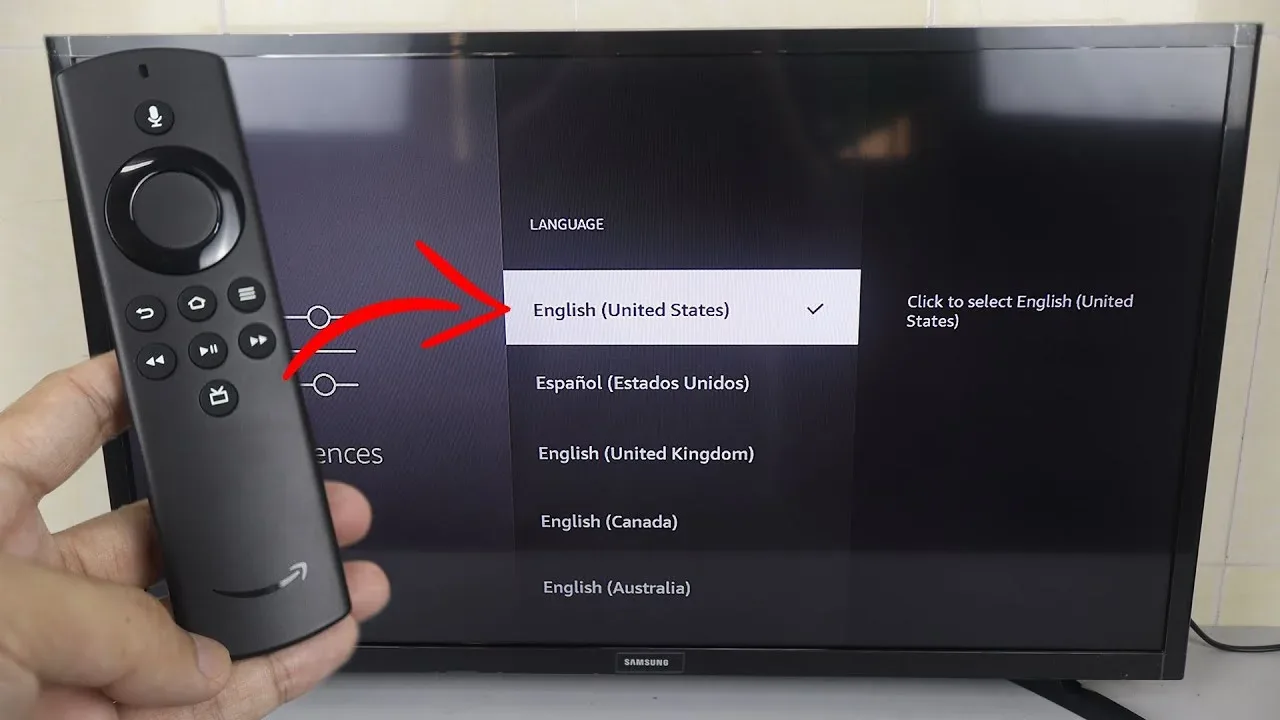
Why is my Firestick displaying in Spanish?
If your Amazon Firestick suddenly starts displaying in Spanish, you can change it back to English immediately by navigating to the gear icon (**Configuración**) on the far right of the home menu, selecting **Preferencias** (represented by a circle with adjustment sliders), scrolling down to **Idioma** (globe icon), and selecting **English (United Kingdom)**. If only certain apps or search results show in Spanish, log in to your Amazon account and verify your country/region is set to the United Kingdom under “Manage Your Content and Devices.”
You turn on your television, grab your remote control, and prepare to browse your streaming library—only to find that all the menus, icons, and labels are written in Spanish. “Home” has become “Inicio”, “Settings” is now “Configuración”, and you have no idea how to navigate this foreign layout. When your Amazon Firestick changes languages unexpectedly, it can make simple navigation feel like a guessing game.
Language resets and regional configuration glitches are common on Fire TV devices, particularly after firmware updates or when sharing Amazon accounts across different profiles. As an operating systems and smart TV diagnostics expert with over 5 years of experience, I have resolved countless language and interface bugs. In this comprehensive UK guide, we will analyze why your Firestick is displaying in Spanish and outline 7 easy, step-by-step methods to change the menus back to English.
What Causes a Firestick to Display in Spanish?
To fix this layout permanently, we must identify why the Firestick changed its default language setting. Like any Android-based operating system, Fire OS reads configuration variables from your Amazon account profile and local settings. The primary causes of a language shift are:
- Accidental Remote Control Inputs: It is incredibly easy to accidentally change device settings while sitting on the remote control or when children play with the buttons. A few random D-pad clicks can navigate into Preferences and change the system language.
- Amazon Account Region Glitches: If your Amazon account region is set incorrectly under your digital preferences, or if you logged in to a local Amazon store in Spain, Amazon’s servers can push a regional language profile to your Firestick.
- Interrupted Firmware Updates: When Fire OS downloads system updates, it restarts its localization caches. If the download is interrupted by a power cut or network drop, the OS can default to a random backup locale (often Spanish or German).
- VPN Server Node Location Shifts: If your Firestick is routed through a VPN server in a Spanish-speaking country, location-sensitive applications (such as Netflix or Prime Video) will automatically display interfaces and subtitles in Spanish.
Firestick Language Diagnostic Checklist
Refer to this guide table to prioritize your troubleshooting actions based on execution time and success rate:
7 Ways to Change Firestick from Spanish to English
Step 1: Navigate to the Language Settings Menu (Idioma)
If your entire Firestick menu system is displaying in Spanish, you must navigate the settings menu blindly. Even though you cannot read the words, the icons and positions of the menu items remain identical. Follow these visual steps to return to English:
Scroll to the far right of the Firestick home screen and highlight the gear icon (labeled Configuración). Press Select. Scroll down and locate the icon represented by a circle containing adjustments sliders, labeled Preferencias. Click it. Next, scroll down to the option represented by a speech bubbles or globe icon, labeled Idioma. Select it, and scroll through the languages list to find and click English (United Kingdom). The system will immediately switch back to British English.
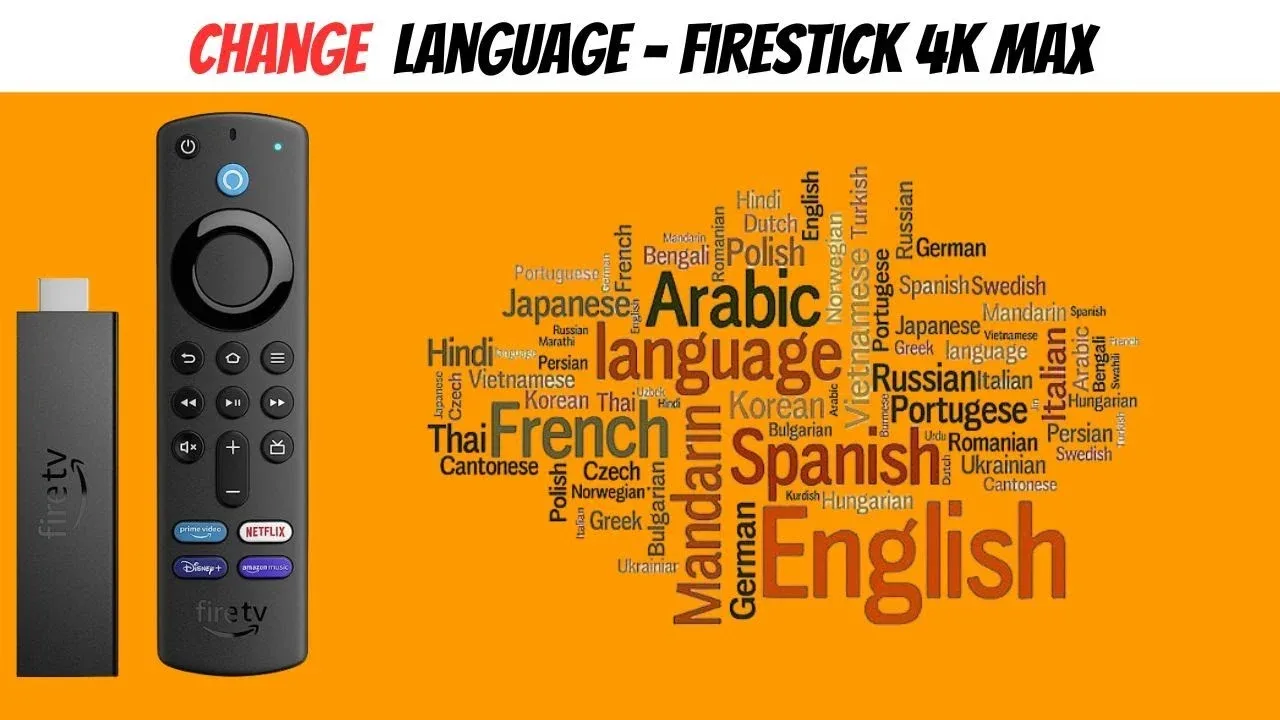
Diagram: Locating Preferencias and Idioma icons to reset menu language.
Step 2: Check and Update Amazon Marketplace Region Settings
If you have reset your Firestick preferences but the device reverts to Spanish after a reboot, the problem is server-side. Your Amazon account marketplace country has likely desynchronized, telling the Fire OS nodes that you are located in Spain or Mexico. You must fix this in your Amazon account dashboard.
Open a web browser on your phone or computer, log in to Amazon.co.uk, and go to Manage Your Content and Devices. Select the Preferences tab, scroll down, and click Country/Region Settings. If your country is set to Spain or Mexico, click Change. Input a valid UK address and postcode, and click Update. On your Firestick, go to Settings > My Account, sync your content, or deregister and re-register your profile to update your location profile.
Step 3: Update Prime Video Profile Language Settings
Sometimes, only your Prime Video application displays in Spanish, while the main Firestick interface remains in English. This is because Prime Video allows you to configure language settings on a profile-specific basis, overriding the operating system’s settings.
Launch the **Prime Video** app. Go to the menu options on the left-hand side, scroll down, and select the gear icon (labeled Configuración). Scroll through the settings to find Idioma (Language). Select it, choose English from the list, and click save. This forces your Prime profile to align with your Fire OS default language.
Step 4: Check Your VPN Connection Location Node
If you run a VPN on your Firestick, your traffic is routed through a virtual server. If your VPN is configured to automatically connect to the fastest node and chooses a server in Spain or South America, location-sensitive streaming apps will automatically switch their default language to Spanish.
Launch your VPN application on your Firestick. Take note of the active server location. If it shows a Spanish-speaking country, disconnect and search for a server located in the United Kingdom or the United States. Reconnect to the server, force-close and clear the cache of your streaming app, and open it again. The app should now default back to English.
Step 5: Disable Prime Video Subtitle Overrides
If your menus are in English but the audio tracks or subtitles default to Spanish during video playback, the media playback parameters need to be adjusted. This is a common bug on older Firestick models.
While playing a film or TV show, press the **options (three lines)** button on your remote control. Select **Subtitles & Audio** from the overlay menu. Under Subtitles, check if the toggle is set to Spanish. Switch the language to English UK and confirm. The system will save this setting as your default preference.
Step 6: Reset Your Firestick to Factory Defaults
If your language settings refuse to update or keep reverting to Spanish after updates, your device likely has corrupted system localization files. Performing a factory reset wipes all local files, allowing you to select your preferred language fresh during the initial setup.
Navigate to Settings > My Fire TV > Reset to Factory Defaults (or Configuración > Mi Fire TV > Restablecer a los valores predeterminados). Confirm the prompt. The reset process takes about 5 to 10 minutes. Once booted, the device will prompt you to select your language. Choose English (United Kingdom) to complete the setup.
Step 7: Perform a Mains Power Cycle
If you encounter a network verification error when attempting to sync account details, perform a physical mains power cycle. Unplug the Firestick from the wall socket for 60 seconds, reconnect the power, and test language settings again.
Deep Dive: Managing Account Region Syncing in the UK
Bypassing region locks and maintaining consistent language profiles requires keeping your Amazon account marketplace synced with your local network. Many UK users accidentally change their account region when shopping on Amazon.com (US) or Amazon.es (Spain) instead of Amazon.co.uk. When your account region shifts, the Amazon servers push regional locale profiles to all registered devices, automatically changing menu languages.
To prevent this, ensure that your billing address, 1-Click settings, and preferred country match your physical UK location in your Amazon account dashboard. Furthermore, if you route your internet traffic through a premium streaming provider like GuardianTV, you can ensure stable connection speeds and secure, high-bandwidth streams across all UK channels without triggering location-sensitive language shifts.
Tired of Language Glitches and Audio Buffering?
Once you have restored your Firestick’s language settings to English, upgrade your entertainment setup with GuardianTV. GuardianTV delivers ultra-fast, stable streaming feeds that bypass local ISP bandwidth throttling and DNS blocks, ensuring your favourite high-definition shows and sports streams play smoothly with zero buffering.
Frequently Asked Questions (FAQs)
This occurs because the device language settings were accidentally changed, the Prime Video profile is set to a foreign language, or your Amazon account region is set to Spain or Mexico.
Settings is represented by the gear icon on the far right of the home navigation bar and is labeled ‘Configuración’. Select it to access preferences.
This usually happens after a system update restarts region variables, or if you share your Amazon account with someone who changed their profile language settings.
While playing a video, press the Options button (three horizontal lines), select Subtitles, and switch the language back to English.
Yes. Resetting to factory defaults wipes all custom configurations and allows you to select your preferred language (e.g. English UK) during the boot setup.
Log in to Amazon.co.uk, navigate to Manage Your Content and Devices > Preferences > Country/Region, change your address to the UK, and sync your Firestick.
Sometimes. If a streaming app reads your VPN IP address (e.g., connected to Spain), it may automatically default its content and interface language to Spanish. Always run your VPN on UK/US nodes to prevent this.
Conclusion
Changing your Firestick language back to English from Spanish is a simple matter of navigating the settings icons blindly or updating your account region settings on the web. By ensuring your account preferences and language settings match your target language, you can enjoy seamless navigation. If your Firestick continues to experience freezing or lag issues, consult our guide on why your Firestick keeps freezing to optimize performance. To secure stable, buffer-free connectivity for all your streaming applications, try upgrading to GuardianTV to secure your home entertainment setup.
 English (UK)
  العربية
  Deutsch
  Ελληνικά
  Suomi
Suomi  Magyar
  Italiano
  Українська
  Svenska
  Română