

Why can’t I find the app on Firestick?
If you cannot find a specific application on your Amazon Firestick search, the issue is typically caused by **regional Appstore filters**, **parental control blocks**, or **search index database lag**. Fix this immediately by changing your Amazon account region to the United States (or target country) under Manage Your Content and Devices, using Alexa Voice Search to bypass index errors, checking preferences to disable parental filters, or sideloading the APK file manually via the Downloader app.
You turn on your Amazon Firestick, head over to the Search menu, type in the name of a popular streaming application or utility—and are met with a screen of unrelated results. You try retyping, checking the spelling, and scrolling through categories, but the app you are looking for is nowhere to be found. For UK streaming fans looking for US-only channels or third-party tools, this “Can’t Find App” bug is a constant annoyance.
When an application fails to show up in search results, it does not necessarily mean the app has been discontinued. More often than not, it points to local storefront database blocks, parental control restrictions, or regional license filters. As a home streaming hardware specialist with over 5 years of experience in system overrides, I have resolved countless storefront search glitches. In this comprehensive UK guide, we will analyze why you can’t find apps on your Firestick and outline 7 easy, step-by-step methods to bypass these filters and download any application.
What Causes an App to Be Missing from Firestick Search?
To resolve search issues, we must first understand why the Appstore hides certain search results. When you type in a query, the Fire OS search engine indexes results based on your current account profiles and hardware compatibilities. The primary reasons you can’t find an app are:
- Storefront Geographical Restrictions: Applications designed for specific regions (such as HBO Max, Hulu, or YouTube TV) are filtered out of search results for accounts registered outside the target country. If your Amazon account is set in the UK, these apps will remain invisible.
- Parental Controls and Viewing Filters: If parental controls are active on your Fire TV profile, the system will filter out applications that exceed set age ratings, hiding adult streaming platforms or third-party players from search queries.
- Search Database Index Bloat: The local Fire TV Home shell cache can become desynchronized after updates, preventing the search bar from querying the live Appstore directory.
- Hardware Generation Filters: If an application requires system specifications that your Firestick model cannot support (e.g. demanding 2 GB of RAM or 64-bit architecture), the Appstore will hide the app from your search results to prevent crash reports.
Missing App Diagnostic Checklist
Refer to this diagnostic checklist table to prioritize your troubleshooting steps based on execution time and success rate:
7 Ways to Find and Download Missing Apps on Firestick
Step 1: Shift Your Amazon Account Region to the US/Target Country
If the app you are searching for is geo-restricted (such as HBO Max, Peacock, or Hulu), it will not appear in the UK Appstore. The Appstore reads the storefront region associated with your Amazon account. You must change your region settings to reveal these apps.
Open a web browser on your computer or smartphone, log in to your Amazon account, and navigate to Manage Your Content and Devices. Go to the Preferences tab and click Country/Region Settings. Update your location to the United States (using a local address and zip code, which you can find via a hotel or directory). Save the changes. On your Firestick, navigate to Settings > My Account, sync your content, or deregister and re-register your profile. The Appstore will refresh, and typing the app name will now yield results.
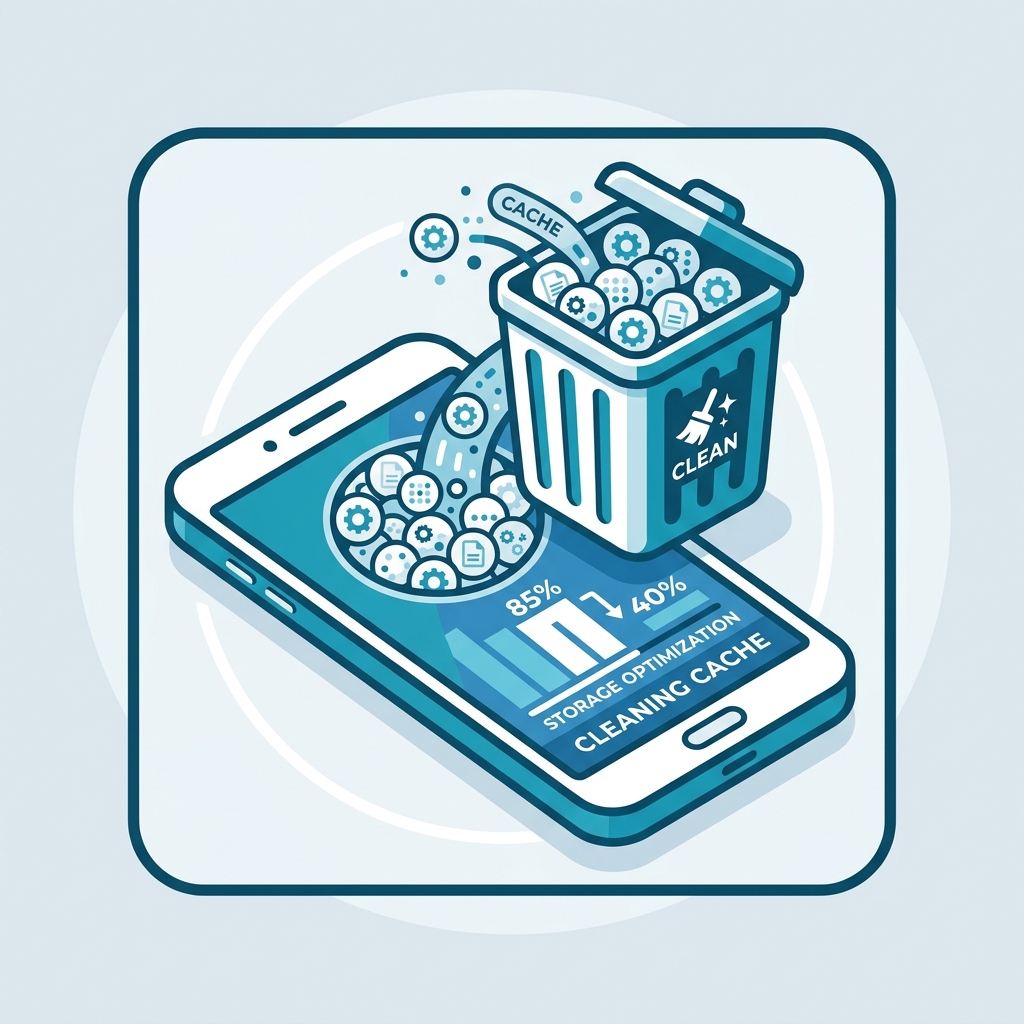
Diagram: Deregistering and re-registering your Amazon account on Fire TV forces a storefront database refresh.
Step 2: Bypass Text Search Using Alexa Voice Commands
Occasionally, the text-based search index on Fire OS can fail to sync with the Amazon Appstore catalog, causing it to display empty results for newly launched apps. Alexa voice commands use a different search pipeline, querying Amazon’s live cloud index directly.
Press and hold the **Alexa Voice (microphone)** button on your remote control and speak the app name clearly (e.g. “Alexa, search for Spotify”). Keep the button held down until you finish speaking. Alexa will bypass the local text index and search the live cloud catalog, displaying the app page immediately if it exists.
Step 3: Disable Parental Control Content Filters
If parental controls are active on your Fire TV profile, the operating system filters out applications that exceed set age ratings. Adult streaming platforms or third-party players can be hidden from search queries entirely without any warning prompt.
To check this, navigate to Settings > Preferences > Parental Controls. If prompted, input your PIN. Under Viewing Restrictions, ensure the category toggles are set to allow all ratings, or temporarily turn **Parental Controls** to **OFF**. Once deactivated, perform a text search again to verify if the missing app appears.
Step 4: Deliver the App from the Amazon Desktop Website
If you cannot find the app on the Firestick device itself, you can search for and push the app to your device using Amazon’s official web portal. This bypasses any local search database bugs on the Firestick.
Open a web browser on your phone or computer and log in to the Amazon site. Search for the app name in the Amazon search bar. If the app is available, select your Firestick name from the **Deliver to** drop-down menu on the right-hand side, and click **Get App** or **Deliver**. The Amazon servers will push the installation package directly to your Firestick over Wi-Fi within minutes.
Step 5: Sideload the App Manually via the Downloader App
If the app has been discontinued or is restricted from the storefront entirely, sideloading is the ultimate solution. This allows you to install the Android APK file manually, bypassing Amazon’s filters.
First, enable developer options: go to Settings > My Fire TV > About and click the main **Fire TV** title 7 times. Go back to Developer Options and toggle **Apps from Unknown Sources** to **ON**. Download the **Downloader** app from the Appstore. Launch Downloader, type in the direct APK URL from a trusted source (such as APKMirror), download the file, and click **Install**.
Step 6: Clear Cache on Fire TV Home Screen App
If the search interface is behaving erratically (e.g. failing to input text or displaying blank screens), the system search app’s cache has likely become corrupted. You must clear the system cache to reset the indexer.
Go to Settings > Applications > Manage Installed Applications. Scroll down and click **Show System Applications**. Locate **Fire TV Home** or **Search**. Select the app, click **Force Stop**, and click **Clear Cache**. Relaunch the search bar to test queries.
Step 7: Perform a Mains Power Cycle
If you encounter database sync errors, perform a physical reboot. Unplug the Firestick and router from the wall mains sockets for 60 seconds, reconnect the power, and test search again.
Deep Dive: Bypassing Regional Search Filters on Fire TV
Bypassing regional storefront blocks requires aligning your account preferences and your physical IP address. While changing your Amazon region to the US will reveal American apps in the search results, launching these apps (like Hulu or YouTube TV) will still trigger geo-blocks if the app detects a UK IP address. A two-step process is required:
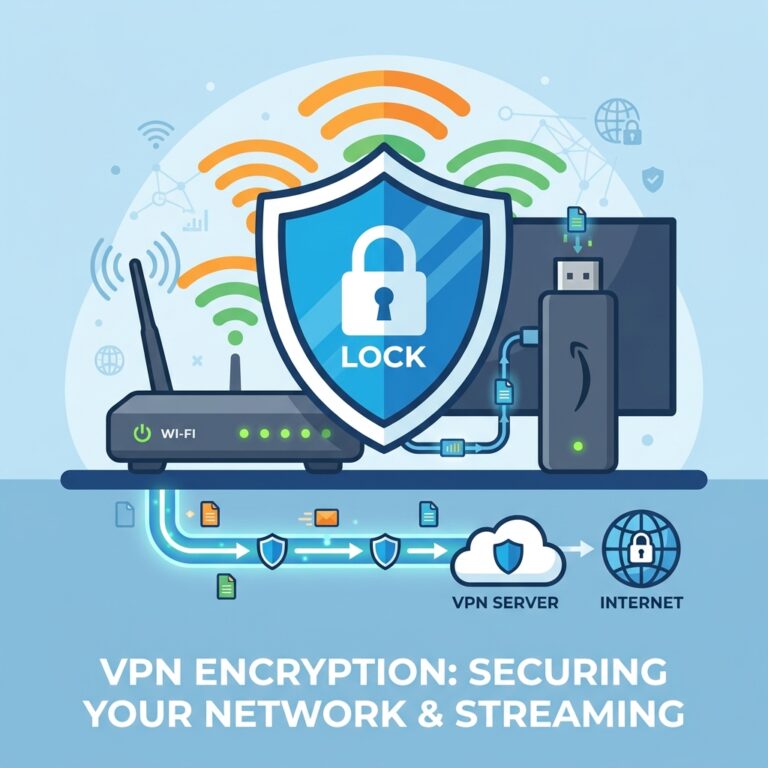
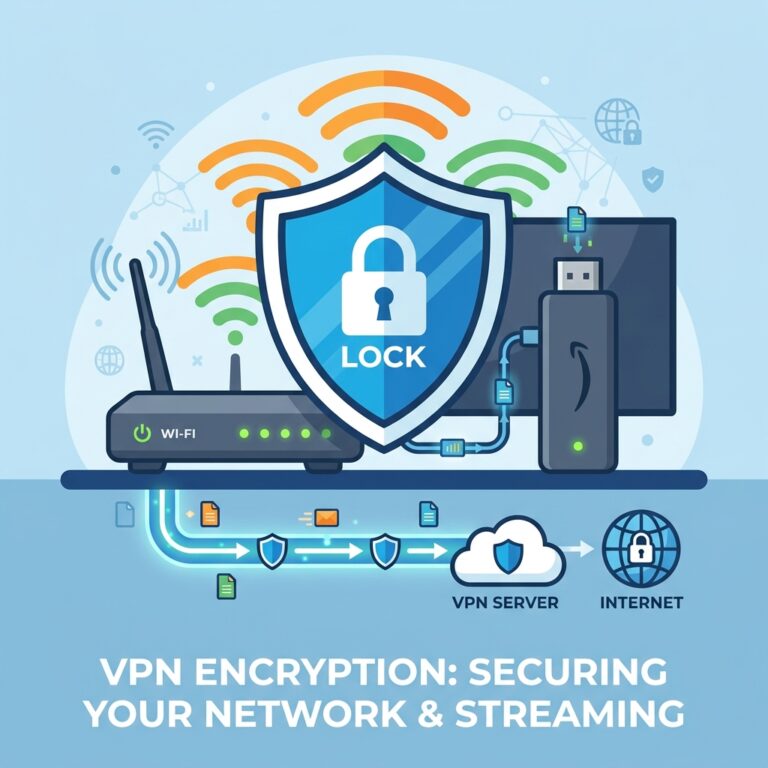
First, shift your Amazon account region to the target country to download the app. Second, run a premium VPN connected to a US server node to bypass the app’s location tracking blocks upon launch. Routing your traffic through a high-speed service like GuardianTV ensures high bandwidth, low latency, and stable connection routing, preventing location verification audits.
Tired of Regional Search Blocks and Missing Apps?
Once you have bypassed the Appstore blocks, upgrade your entertainment setup with GuardianTV. GuardianTV delivers ultra-fast, stable streaming feeds that bypass local ISP bandwidth throttling and DNS blocks, ensuring your favourite high-definition shows and sports streams play smoothly with zero buffering.
Frequently Asked Questions (FAQs)
Certain apps are geo-restricted and only listed on the US Amazon storefront. If your Amazon account is registered in the UK, they will not appear in local search results.
Go to Settings > Applications > Manage Installed Applications. Toggle Show System Applications, select Fire TV Home, and click Force Stop followed by Clear Cache to reset search indexes.
Downloader is sometimes temporarily removed due to copyright disputes. If missing, ensure your account country setting is correct, or search for alternative browser utilities.
Yes. Log in to the Amazon site, search for the app name, select your Firestick from the ‘Deliver to’ drop-down menu, and click Get App to push it over Wi-Fi.
If the developer pulled the app, it will not appear in the store. You can search third-party APK archive sites using the Downloader app to find and install the last compiled build.
Go to Settings > Preferences > Parental Controls > Viewing Restrictions, and disable content filters that hide adult streaming platforms.
A VPN changes your public IP address. While a VPN is crucial to stream the content once the app is open, you must also change your Amazon account country settings to download the app.
Conclusion
Bypassing search filters to find missing apps on your Firestick is a straightforward matter of adjusting your Amazon account region or sideloading the APK manually. By resolving storefront configuration conflicts, you can access any application and optimize your entertainment library. If your Firestick continues to experience lags or crashes, consult our guide on why your Firestick keeps freezing to optimize performance. To secure stable, buffer-free connectivity for all your streaming applications, try upgrading to GuardianTV to secure your home entertainment setup.
 English (UK)
  العربية
  Deutsch
  Ελληνικά
  Suomi
Suomi  Magyar
  Italiano
  Українська
  Svenska
  Română