
Why does my Firestick keep requiring unplugging?
If your Amazon Firestick keeps freezing, showing a black screen, or getting stuck in boot loops that require you to unplug the device from the power supply, the issue is usually caused by **current starvation (powering via the TV’s USB port)**, **thermal throttling (overheating behind the television)**, or **volatile RAM depletion (system memory leaks)**. Fix this instantly by plugging the Firestick into a dedicated UK mains wall socket using the original 5V power adapter, freeing up at least 1.5 GB of internal storage, using the HDMI extender cable, and disabling HDMI-CEC Device Control in the system settings.
Few things are more annoying than settling down on the sofa to watch your favourite television programmes, only to find that your screen is completely frozen. You press the buttons on your remote control, but nothing happens. In desperation, you walk over to the TV, pull the power cord out of the side of your Amazon Firestick, wait a few seconds, plug it back in, and wait for the system to reboot. Initially, everything works perfectly—until a few days later when you find yourself forced to repeat the exact same routine.
If your Amazon Firestick keeps requiring unplugging to recover from freezes, boot loops, or blank displays, you are dealing with a symptom of hardware instability or operating system resource exhaustion. Unplugging the power cable executes a hard hardware restart, which clears the clogged system RAM and interrupts processor lockups. However, resorting to this physical reset constantly is bad for your device’s internal eMMC flash memory and can eventually lead to permanent corruption.
As a home theatre hardware specialist and streaming diagnostic expert with over 5 years of experience, I have helped thousands of UK users stabilise their Fire TV setups. In this comprehensive guide, we will examine the underlying engineering flaws that force these system lockups and outline 7 simple, step-by-step methods to permanently stop the unplugging cycle.
Why Does a Firestick Require Unplugging?
To fix the issue permanently, we must first understand why the Firestick freezes in the first place. A computer system (which the Firestick is) only freezes when its processor encounters an instruction it cannot execute, when it runs out of memory (RAM) to handle background processes, or when it experiences physical voltage drops. Here are the primary culprits causing your Firestick to lock up:
- USB Port Power Starvation: Powering your Firestick via a TV USB port instead of a mains wall socket limits current to 0.5A. Under heavy graphics loads or system updates, the CPU spikes, voltage drops, and the device freezes, requiring you to unplug it to reset.
- Thermal Throttling & GPU Crashes: Firesticks are small, fanless devices. Tucked behind hot TV panels with minimal airflow, they easily overheat. When the processor exceeds safe temperatures, it shuts down the video output, locking up the device.
- Memory Leaks from Heavy Background Apps: Popular streaming apps like Kodi, Plex, or IPTV players can run background processes that consume system memory. Once the Firestick’s small 1.5 GB or 2 GB RAM is exhausted, Fire OS crashes, leaving you with a non-responsive screen.
- HDMI-CEC Handshake Glitches: HDMI Consumer Electronics Control (HDMI-CEC) allows your TV remote to control the Firestick. When the TV goes into standby, it can send corrupted sleep signals, placing the Firestick in a deep freeze from which it cannot wake up.
The Firestick Unplugging Diagnostic Checklist
Before modifying any system settings, review this diagnostic table to prioritize your troubleshooting steps based on execution time and effectiveness:
Video Guide: General Firestick freezing troubleshooting steps.
7 Ways to Stop Your Firestick from Requiring Unplugging
Step 1: Connect Your Firestick to a Dedicated UK Mains Socket
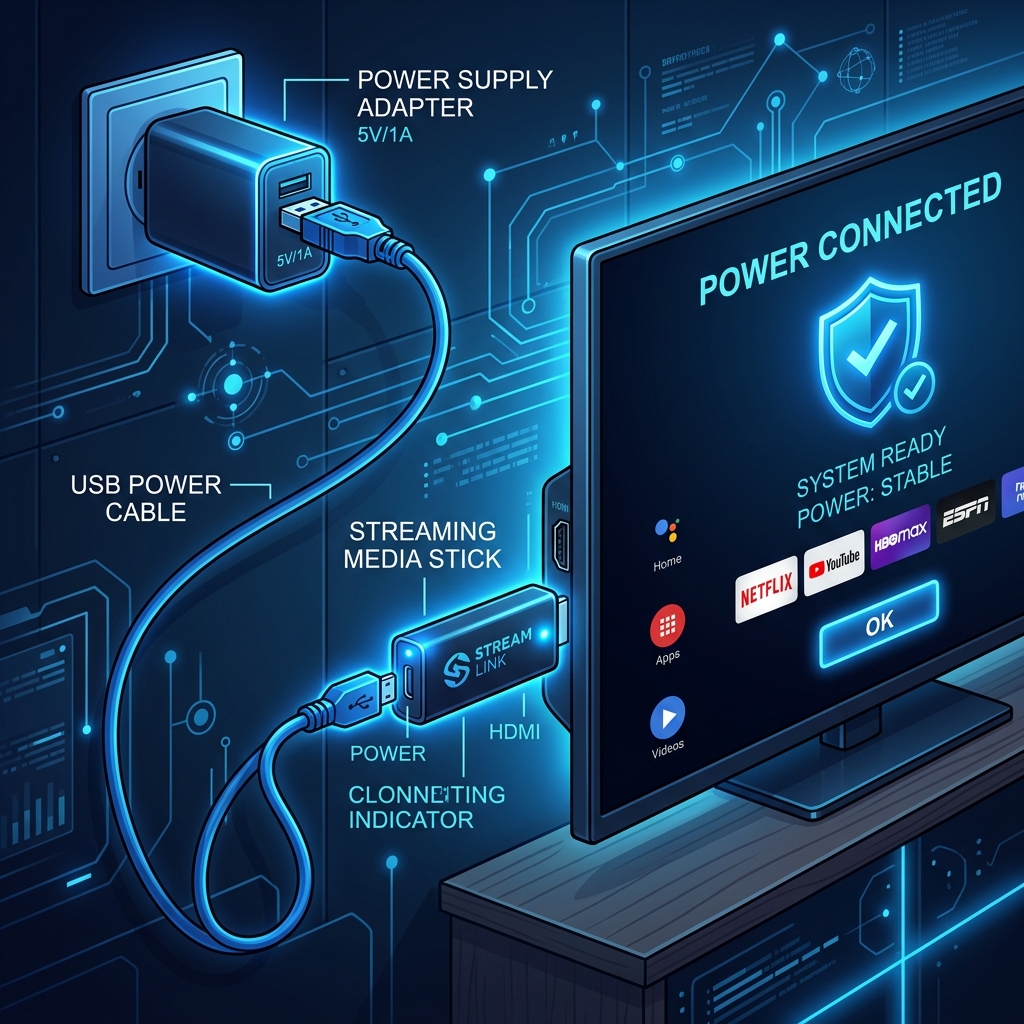
The single most common reason why a Firestick freezes and requires unplugging is power starvation. When a Firestick is connected to a TV USB port, it receives only 5V and 0.5A. While this may suffice for simple navigation menus, launching a resource-heavy HD video or executing background updates will cause the CPU core clock to spike.
This spike demands more electrical current than the TV’s USB port can output. The voltage drops, causing the processor’s graphics engine to stall and freeze the screen. To resolve this, unplug the USB power cord from the TV’s USB port. Connect the cord to the official Amazon 5V/1.0A mains power brick and plug it directly into a wall mains socket. This guarantees a steady power flow, stopping hardware lockups immediately.
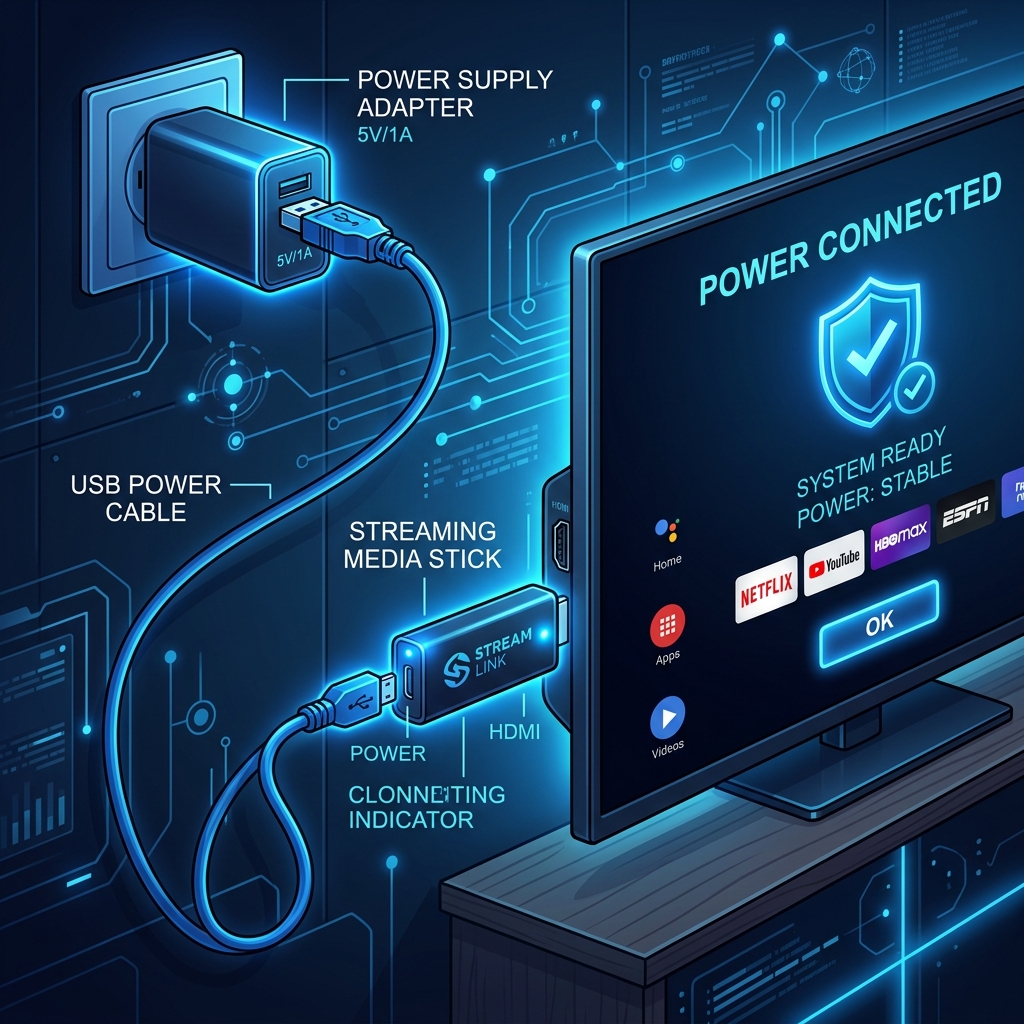
Diagram: Powering your Firestick via a dedicated mains plug prevents power starvation.
Step 2: Free Up System Storage (Target 1.5 GB+ Free Space)
Your Firestick relies on a small amount of flash memory to store the operating system and user applications. When your storage is nearly full (less than 500 MB remaining), the Android-based Fire OS cannot compile runtime caches or allocate virtual swap space (pagefile memory). Without this virtual memory buffer, the device slows down drastically and eventually freezes under load.
To check and clean your storage space, navigate to Settings > Applications > Managed Installed Applications. Take note of the available space shown in the bottom right corner. If it is under 1.5 GB, select heavy, unused applications (such as pre-installed games or bloated streaming apps) and click Uninstall. Restoring this storage buffer allows the operating system to allocate resources smoothly, avoiding freezing loops.
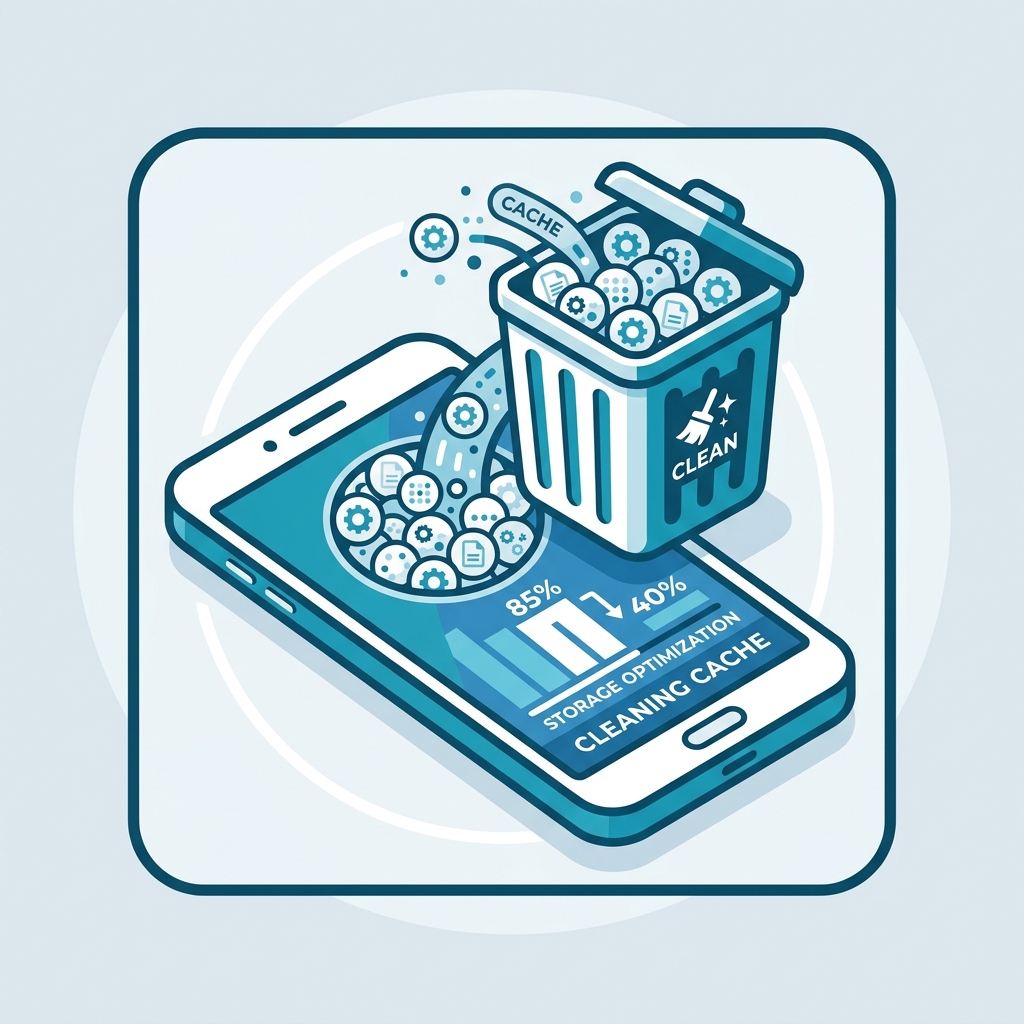
Diagram: Freeing up system storage on the Fire TV settings menu.
Step 3: Clear Cache and Force Stop Memory-Leaking Applications
Many streaming applications (like Kodi, Plex, and even regional catch-up players like BBC iPlayer) continue to run active processes in the background after you press the Home button. Over time, these background tasks consume volatile RAM, creating “memory leaks.” Once the system memory is exhausted, the Firestick will freeze, requiring a hard reboot.
To resolve this without unplugging the device, navigate to Settings > Applications > Managed Installed Applications. Scroll down to your most-used streaming apps. Select each application, click Force Stop to kill active background threads, and then click Clear Cache to wipe temp database items. Clearing the cache on these resource-hungry apps immediately frees up system RAM.
Step 4: Use the Flexible HDMI Extender to Manage Heat Buildup
The space directly behind your television panel gets extremely hot due to the display backlight and poor ventilation. If the Firestick is plugged directly into the TV’s HDMI port, it sits in this thermal pocket. As the Firestick’s processor operates, it generates internal heat. Lacking a cooling fan, the device will quickly exceed its maximum safe temperature (approx. 70°C).
To prevent melting internal circuits, the CPU triggers a safety shutdown, resulting in a frozen screen. To fix this, connect the short, flexible HDMI extender cable included in your Firestick packaging. This cable acts as a physical thermal buffer, allowing the Firestick to hang away from the hot television chassis. This improves air circulation and stops thermal freezes.
Step 5: Disable HDMI-CEC Device Control
HDMI Consumer Electronics Control (HDMI-CEC) is a feature that allows devices connected via HDMI to communicate with each other. For example, turning on your Firestick can automatically turn on your TV. However, communication conflicts between Fire OS and older TV firmware can trigger a system crash. When the TV goes into standby, it sends a command that can freeze the Firestick’s video driver.
To disable this feature, navigate to Settings > Display & Sounds > HDMI CEC Device Control on your Firestick. Toggle the setting to OFF. While you will no longer be able to control your TV’s power using your Firestick remote, you will prevent the communication conflicts that cause sleep-mode freezes.
Step 6: Update Fire OS to the Latest Stable Version
Operating system bugs and outdated display drivers can cause the Fire OS system shell to crash under load. Amazon regularly pushes software updates that include patches for known freezing and HDMI compatibility issues. Running outdated firmware makes your device more vulnerable to software crashes.
To check for updates, go to Settings > My Fire TV > About > Check for Updates. If an update is available, click Install Update. Make sure your Firestick remains connected to the mains power supply during this process; interrupting an update can corrupt the system firmware permanently.
Step 7: Execute a Clean Factory Reset
If you have tried all the steps above and your Firestick still requires frequent unplugging, the system likely has corrupted core operating system files. This corruption can occur over years of usage or from interrupted system updates. The only way to resolve this is to perform a factory reset, which formats the storage and reinstall a fresh copy of Fire OS.
Navigate to Settings > My Fire TV > Reset to Factory Defaults. Confirm the prompt to begin the process. The reset takes about 5 to 10 minutes to complete. Once finished, you will need to re-register the device to your Amazon account and download your streaming applications. This is the ultimate software fix for persistent freezing.
Deep Dive: Managing Memory Leaks on Fire TV Devices
Modern streaming applications are designed to cache data to ensure smooth playback. However, many third-party apps and IPTV players are poorly optimized, failing to release system memory when they are closed. This creates a “memory leak,” where background processes slowly consume the Firestick’s RAM until none is left for the operating system’s core tasks. Once RAM usage hits 100%, the system shell freezes, leaving you with a non-responsive screen that forces you to pull the power plug.
To prevent this, you should regularly clear the RAM on your device. Aside from manually force-stopping apps in the settings menu, you can download memory management tools from the Amazon Appstore. These applications close idle background processes and keep your RAM usage low, ensuring the operating system has the resources it needs to run smoothly without requiring physical reboots.
Tired of System Freezes and Streaming Glitches?
Once you have stabilized your Firestick’s power supply and cleared the RAM, upgrade your entertainment setup with GuardianTV (guardiantv.net). GuardianTV is the UK’s leading IPTV provider, offering thousands of channels and high-definition sports streams. Their premium, high-speed servers are optimized for Fire OS, delivering stable, buffer-free playback with zero system lag.
Frequently Asked Questions (FAQs)
This occurs because of system memory leaks, thermal throttling (overheating), or current starvation from using a TV USB port instead of a dedicated wall mains outlet. Unplugging cuts power, which acts as a hard hardware reset.
No. Most TV USB ports output only 0.5 Amps, whereas the Firestick needs 1.0 to 1.4 Amps. Power starvation causes the CPU and display drivers to crash during high-load tasks, forcing you to reboot it.
Use the official flexible HDMI extender cable included in the box. It moves the Firestick away from the hot TV chassis, allowing air to circulate around the device and cool its components.
Yes. Wiping the cached data of heavy background applications (like Kodi, Plex, or BBC iPlayer) frees up system RAM, which stops the operating system from locking up and requiring a physical reset.
HDMI-CEC allows your TV remote to control the Firestick. However, compatibility issues between certain TV manufacturers and Fire OS display drivers can trigger a system freeze when the TV goes into sleep mode.
Yes, it restores the device to its original factory state. You will need to log back into your Amazon account and re-download your streaming apps, but it is highly effective at resolving permanent software bugs.
You can download third-party diagnostic apps like AIDA64 to inspect the hardware power parameters, or look out for the low power warning message displayed on boot by Fire OS.
Conclusion
Fixing a Firestick that keeps requiring unplugging is usually a simple matter of connecting it to direct mains power or optimizing its system memory. By ensuring the device receives a stable current and has adequate ventilation, you can stop hardware locks and enjoy seamless streaming. If your Firestick continues to crash or lag during playback, consult our guide on why your Firestick keeps freezing to optimize system performance. To eliminate buffer issues completely on live UK channels, try upgrading to GuardianTV to elevate your digital entertainment setup.
 English (UK)
  العربية
  Deutsch
  Ελληνικά
  Suomi
Suomi  Magyar
  Italiano
  Українська
  Svenska
  Română