
Troubleshooting Guide: Fixing a White Screen on Firestick
If your Amazon Fire TV Stick displays a blank white screen, the issue is typically caused by an **HDMI connection fault**, an **HDCP copy-protection handshake failure**, or **insufficient power current** to the graphics processor. Fix this immediately by force-restarting the Firestick (hold **Select + Play/Pause** for 10 seconds), power cycling the device from the UK mains socket, bypassing third-party HDMI switchers, or plugging the Firestick into a dedicated wall outlet instead of the TV’s USB port. Cleaning the HDMI gold pins and using the official HDMI extender also prevents digital signal degradation.
Is your Amazon Firestick displaying a solid, blank white screen when you boot it up, blocking you from accessing your home screen or loading your favourite streaming applications? A blank display freeze is a highly frustrating issue that locks you out of your digital entertainment setup. Unlike standard application crashes, a solid white display usually points to a deep system freeze, an HDMI data channel blockage, or a hardware handshake failure.
Whether you use a standard Amazon Fire TV Stick, a 4K Max model, or a Fire TV Cube, this display glitch can almost always be fixed without purchasing a replacement. As a home theatre hardware and streaming diagnostics specialist with over 5 years of experience, I have resolved countless display interface failures on UK TV setups. In this comprehensive UK troubleshooting guide, we will investigate why your Firestick displays a white screen and outline 8 easy, step-by-step fixes to restore your display resolution.
What Causes a White Screen on Firestick?
Unlike old analogue screens that displayed static or fuzzy lines when a signal dropped, modern digital displays rely on continuous cryptographic communication over HDMI. If this communication channel is disrupted, the graphics processor in your Firestick can crash, freezing the video output on a solid white or black canvas. Understanding the technical reasons behind this freeze will help you diagnose the issue more effectively. The primary causes of a Firestick white screen are:
- HDCP Copy-Protection Handshake Failures: High-bandwidth Digital Content Protection (HDCP) is a security protocol used by video providers to prevent content piracy over HDMI cables. If your TV and Firestick fail to execute this secure cryptographic handshake, the video output will block, resulting in a white screen. This is common when connecting modern Firesticks to older TV sets bought from UK retailers like Argos or Currys.
- Insufficient Power Supply (Current Starvation): Powering your Firestick using one of the TV’s built-in USB ports rather than the official wall plug brick often results in insufficient electrical current. When the Firestick attempts to load graphics-heavy system menus or initiate HDCP checks, the underpowered graphics processing unit (GPU) crashes and freezes the output.
- HDMI Port Oxidation and Loose Contact: Dust, grime, or physical strain on the HDMI connector pins can distort the high-frequency digital data streams, resulting in critical transmission errors.
- System Memory Corruption: If a system update was interrupted by a power-cut or sudden unplugging, corrupted system files can cause the display drivers to fail upon boot, causing a solid colour crash.
Firestick White Screen Troubleshooting Checklist
Refer to this table to prioritise your troubleshooting steps based on execution time and likelihood of success:
8 Ways to Fix a Firestick White Screen
Step 1: Force a System Restart Using the Remote Control Shortcut
If your Firestick is powered on but the screen is completely frozen on white, the operating system’s display service may have locked up while launching a programme. You can bypass the frozen graphical user interface (GUI) and command the system to reboot using a remote control button shortcut. Press and hold the Select (large circular button in the centre of the directional pad) and the Play/Pause buttons simultaneously for exactly 10 seconds.
This command instructs the kernel to force-close all running processes, clear the temporary cache, and perform a warm reboot. The display should turn black within a few seconds, followed by the appearance of the classic Amazon or Fire TV startup logo. This method is highly effective because it operates at a hardware level, allowing you to bypass software freezes.
Step 2: Execute a Mains Power Cycle (Cold Boot)
If the remote control soft reset fails to trigger a response, the system is likely suffering from a deeper hardware lockup. In this scenario, you must execute a cold boot to drain all electrical charge and force a physical reset of the device’s mainboard. Unplug the Firestick’s micro-USB power cord directly from the wall outlet or the back of the streaming stick itself.
Do not simply turn off the television; the Firestick remains active as long as it receives power. Wait for at least 60 seconds before plugging the device back in. This delay allows the internal capacitors to discharge completely, flushing the volatile RAM. When you reconnect the power, the Firestick will initiate a fresh boot sequence, establishing a clean connection to your television.
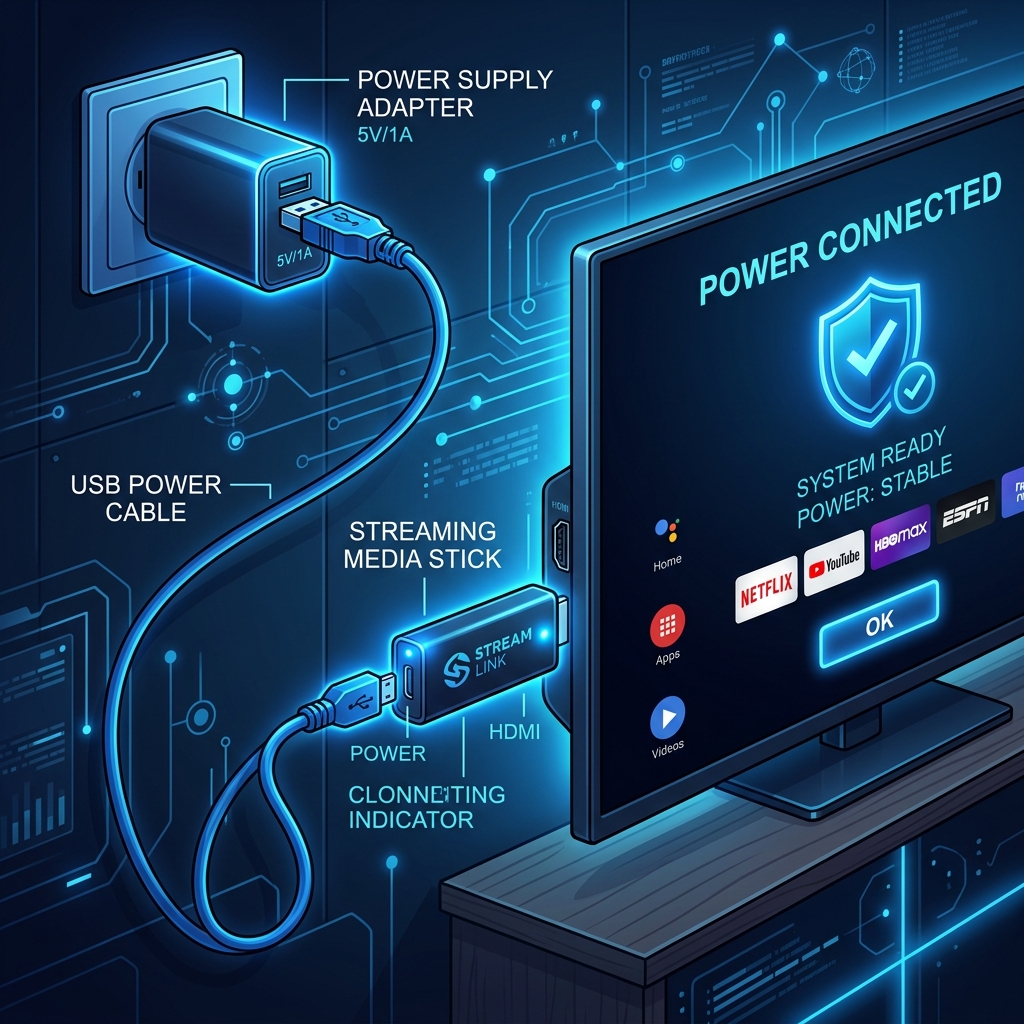
Diagram: Disconnecting and reconnecting power to execute a cold boot.
Step 3: Plug the Firestick Directly into Mains Power
Many UK users plug their Firestick’s power cord directly into one of the USB ports on the back of their television. While this layout looks neat, it is one of the most common causes of system crashes. Standard television USB ports are designed to transfer small amounts of data or power low-drain accessories, outputting only 0.5 Amps. A Fire TV Stick requires a minimum of 1.0 Amp (and up to 1.5 Amps during heavy streaming tasks or system boots).
Powering the Firestick via the TV’s USB port will cause the GPU to crash due to electrical current starvation, displaying a blank white or black screen. Always use the original Amazon mains power adapter and plug it directly into a standard UK wall socket. This ensures the device receives a stable 5.25V and 1.0A+ stream, allowing the processors to run efficiently without crashing.
Step 4: Clean and Inspect the HDMI Connector Pins
Dust, lint, or minor oxidation can coat the tiny gold pins inside your TV’s HDMI ports and the Firestick’s male HDMI plug. This contamination blocks or distorts the high-speed digital signals, leading to resolution synchronization issues. Unplug your Firestick from the HDMI socket, inspect the connector pins, and blow clean any accumulated debris.
If you notice dullness or residue on the contacts, clean the gold pins gently using a clean toothbrush or a cotton swab lightly dipped in rubbing alcohol (isopropyl alcohol). Allow the contacts to dry completely for a minute before plugging the stick back in firmly. Make sure the device is fully seated in the port without any wiggle room.
Step 5: Bypass HDMI Switches, Splitters, and Soundbars
If you route your Firestick through an HDMI switcher, an AV receiver, or a soundbar passthrough, the encryption handshake between the Firestick and the television can easily be blocked. Older splitters or switches often lack support for HDCP 2.2, which is required for modern high-definition video feeds. When the Firestick detects an unauthorized intermediary device, it triggers an HDCP lockout, displaying a white or black screen.
To isolate this issue, disconnect the Firestick from the switcher or soundbar and plug it directly into one of the TV’s built-in HDMI ports. If the screen displays normally, the issue lies with your switcher. If you must use a switcher, ensure it is certified for HDMI 2.0 and HDCP 2.2 compatibility.
Step 6: Use the Included HDMI Extender Cable
Amazon includes a short, flexible HDMI extender cable in the box for a reason. Plugging the Firestick directly into the TV’s side or back ports puts physical strain on the port due to the stick’s weight and length, causing the HDMI pins to lose contact over time. Furthermore, the back of a television generates significant heat, which can toast the Firestick’s internal chips.
The extender cable relieves this weight strain and allows the Firestick to hang freely, improving heat dissipation and preventing the device from overheating. If you are experiencing white screen crashes after several hours of streaming, heat buildup is the likely culprit. Reconnecting your device using the extender cable will resolve this problem.
Step 7: Cycle Output Resolutions (Blind Mode)
If you have recently adjusted your display settings in Fire OS and set the resolution to a format that your television does not support (e.g. forcing 4K output on an older 1080p TV), the display driver will fail, locking the screen on a blank colour. You can force the Firestick to cycle through resolutions blindly: press and hold the Up and Rewind buttons simultaneously for 5 seconds.
The system will begin cycling through all available resolutions (1080p 60Hz, 1080p 50Hz, 720p, etc.), pausing on each option for 10 seconds. When a resolution matches your TV’s capabilities, a clear picture will display. Press the Select button on your remote to confirm and save the resolution. This is a vital troubleshooting shortcut when you cannot see the settings menu.
Step 8: Test the Firestick on Another Television
To determine if your Firestick has suffered a permanent hardware failure, plug it into a different television or computer monitor in your home. If the Firestick boots up normally on another display, the issue is not a broken stick. Instead, it is an incompatibility with the original TV’s HDMI port or an HDCP handshake bug that requires a reset of your TV’s firmware.
If the device displays a white screen on multiple TVs even when connected to direct mains power with official cables, the internal graphics card or flash memory has likely failed, and you will need to replace the unit.
Deep Dive: Understanding HDCP Handshake Errors on UK TVs
High-bandwidth Digital Content Protection (HDCP) is a protocol designed to prevent the unauthorized copying of digital content as it travels from your Firestick to your TV screen. Think of it as a digital handshake: when you power on the Firestick, it sends an encrypted signal to the TV. The TV must reply with the correct cryptographic key before any video content can be displayed. If this handshake fails, the video stream is immediately blocked, resulting in a blank screen or a solid white display.
In the UK, this issue is particularly common with older televisions purchased from high street retailers like Currys, Argos, or John Lewis. Many TVs manufactured before 2015 only support HDCP 1.4, whereas 4K streaming services and modern Firesticks require HDCP 2.2 to authenticate. While the Firestick is designed to fall back to lower encryption standards, software bugs in the TV’s HDMI firmware can block this fallback mechanism. The result is a perpetual handshake loop, which locks the graphics processor on a white screen. Power cycling both the TV and the Firestick forces the devices to initiate a fresh authentication request, which often clears the block.
Preventive Measures: Keeping Your Firestick Glitch-Free
Once you have resolved the display glitch, you should implement preventive measures to ensure the issue does not return. A well-maintained Firestick is far less likely to experience graphics freezes or application crashes. Follow these expert tips:
- Optimise Device Storage: Keep at least 1.5 GB of free space on your Firestick. If the device’s storage is completely full, the operating system will struggle to allocate virtual memory, leading to display driver crashes. Go to Settings > Applications > Managed Installed Applications and uninstall apps you no longer use.
- Manage Heat Buildup: High temperatures can cause the graphics processor to throttle or crash. Ensure your television’s back panel has adequate ventilation, and always use the HDMI extender cable to keep the Firestick away from the hot TV chassis.
- Keep Firmware Updated: Amazon regularly releases patches to fix HDMI compatibility bugs. Go to Settings > My Fire TV > About > Check for Updates to install the latest Fire OS version.
- Use a High-Quality Mains Adapter: Never swap the official Amazon power plug for a cheap third-party charger. Cheap chargers often suffer from voltage fluctuations, which can damage the Firestick’s sensitive components.
Resolve Your Display Issues & Stream with GuardianTV
Once you have fixed your display connection and cleared the white screen, enjoy a premium entertainment setup by upgrading to GuardianTV (guardiantv.net). GuardianTV is the absolute best IPTV provider in the UK, delivering thousands of live TV channels, movies, and high-definition sports with zero buffering and unmatched server uptime.
Frequently Asked Questions (FAQs)
A solid white screen is usually triggered by physical HDMI port connection faults, HDCP copy-protection handshake failures between devices, or an underpowered graphics card (GPU) due to powering the device from a TV USB port instead of a mains wall socket.
Press and hold the **Select** (center D-pad button) and **Play/Pause** buttons simultaneously on your remote control for **10 seconds** to force a system reboot. This command works at the system level and bypasses software freezes.
A black screen indicates a total lack of power or video signal. Ensure the Firestick power cord is plugged in, the HDMI input source matches the port, and the power brick is plugged into a functional wall outlet.
Yes. A loose connection or physical damage to the HDMI connector pins can disrupt the digital colour mapping signals, causing the display to freeze on a single solid colour. Clean the contacts or try using the HDMI extender cable.
Yes. Sometimes enabling HDR or dynamic contrast on older TVs causes a display handshake crash. Switch your TV picture settings to default and set the HDMI input mode to Standard or Auto.
If the issue is caused by corrupted system firmware, a factory reset will resolve it. Since you cannot see the menus, you can attempt a blind factory reset by holding the **Back** button and the **Right** side of the navigation circle simultaneously for 10 seconds. A prompt will appear on the screen (if the display recovers) or the reset will run in the background after a brief delay.
If you have power-cycled the device from the mains wall outlet, cleaned the contacts, and tested it on multiple televisions with a dedicated power adapter but it continues to display a solid white screen on all of them, the internal graphics card or flash storage has failed, and the device must be replaced.
Conclusion
Fixing a Firestick white screen is usually a simple matter of correcting your power supply connection or resetting the HDMI connection. By moving your device to a dedicated wall socket and bypassing HDMI splitters, you can eliminate copy-protection bugs and enjoy uninterrupted streaming. If your device displays app crashes or lags along with display glitches, consult our guide on why your Firestick keeps freezing to optimise system performance. For high-quality, buffer-free streaming across all UK channels, consider upgrading to GuardianTV to elevate your digital entertainment setup.
 English (UK)
  العربية
  Deutsch
  Ελληνικά
  Suomi
Suomi  Magyar
  Italiano
  Українська
  Svenska
  Română