
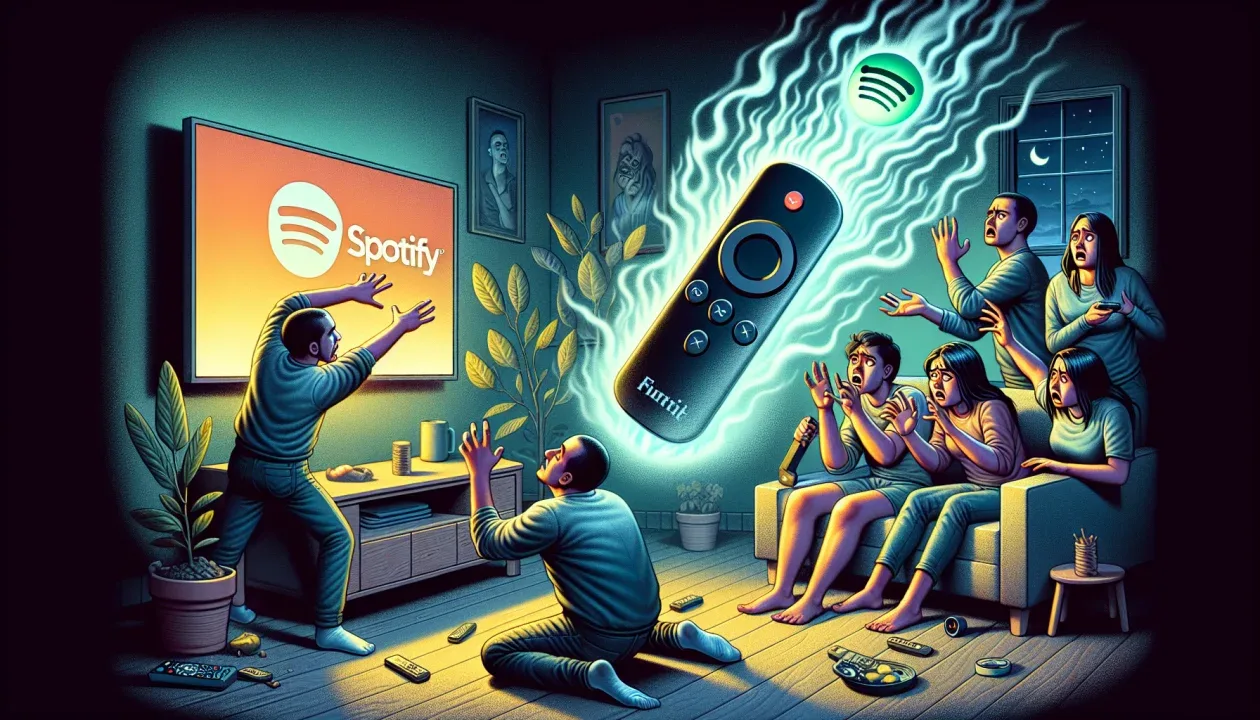
Troubleshooting: Spotify Not Playing on Firestick
If Spotify is not playing on your Amazon Firestick—freezing on launch, dropping connection over Spotify Connect, or displaying a playback error—the issue is typically caused by **corrupted application cache**, **local network band mismatch**, or **low system storage space**. Fix this immediately by force-stopping the Spotify app and clearing its cache, power cycling your Firestick from the mains plug, verifying both devices are on the exact same Wi-Fi SSID and band, or reinstalling the application from the Amazon Appstore.
There is nothing quite like filling your living room with your favourite music, podcasts, or streaming radio stations. However, it can be extremely frustrating when you launch the Spotify app on your Amazon Firestick and it refuses to load, gets stuck on a blank black screen, or fails to play audio through your TV speakers. When Spotify Connect fails to find your device, your music session comes to an abrupt halt.
Music streaming issues on Fire TV are common and are usually caused by local network pairing conflicts, corrupted system registry files, or memory limits on older Firestick models. As a home audio networks specialist with over 5 years of experience, I have resolved countless media playback bugs. In this comprehensive UK guide, we will investigate why Spotify stops playing on your Firestick and detail 8 easy, step-by-step fixes to get your tunes flowing again in pristine audio quality.
What Causes Spotify to Stop Playing on Firestick?
Unlike video apps that stream content directly, Spotify on Firestick is designed to function both as a standalone application and as a “Spotify Connect” receiver. This dual functionality means it relies heavily on local network handshake protocols. The most common causes of Spotify playback errors on Fire OS include:
- Corrupted App Cache & Database: Spotify caches songs and artwork to reduce loading times. If this database files become bloated or corrupted, the app will freeze on launch or refuse to parse new tracks.
- Wi-Fi Band Mismatch: Spotify Connect relies on local network multicast protocols to locate devices. If your phone is connected to your router’s 5GHz band while your Firestick is on the 2.4GHz band, the devices may not communicate, preventing playback.
- Session Token Corruption: Spotify security protocols require regular session checks. If the security token stored on the Firestick becomes corrupted, the server will reject playback commands.
- Access Point (AP) Isolation: Many UK broadband routers (especially from BT, Plusnet, or Virgin) have AP Isolation turned on by default, which blocks wireless devices on the same network from communicating with one another.
Spotify Troubleshooting Checklist
Refer to this table to prioritize your troubleshooting actions based on execution time and success rate:
Video Guide: Troubleshooting Spotify audio playback issues on Firestick.
8 Ways to Fix Spotify on Firestick
Step 1: Force Stop Spotify and Clear App Cache
The Spotify application caches album artwork, lyric files, and pre-buffered audio tracks to ensure lag-free playback. However, if these cached files become corrupted or if the application runs out of virtual memory, the app will freeze on launch. Clearing the app cache is the first and most effective diagnostic step.
Go to Settings > Applications > Manage Installed Applications > Spotify. Click on Force Stop to kill active background threads. Next, scroll down and click Clear Cache. Relaunch Spotify to see if it boots up normally. Avoid clicking ‘Clear Data’ unless you are happy to log back into your account.
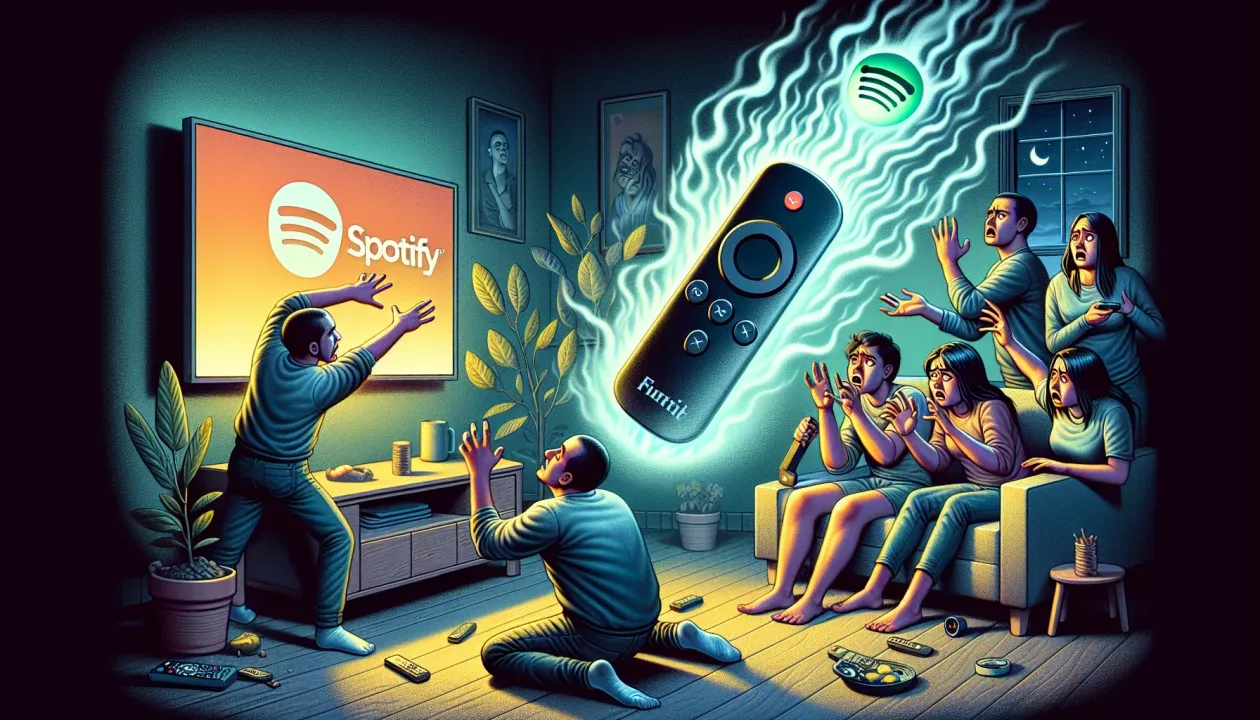
Diagram: Wiping the cached database of Spotify to restore startup stability.
Step 2: Align Wi-Fi SSIDs and Bands for Spotify Connect
Spotify Connect relies on local network discovery protocols to route audio control from your phone to the Firestick. If your broadband router broadcasts separate 2.4GHz and 5GHz networks with identical or different names (SSIDs), your phone and Firestick can easily end up on different bands. This mismatch prevents Spotify Connect from discovering the Firestick.
Navigate to Settings > Network on your Firestick and verify the name of your Wi-Fi network. Next, open the Wi-Fi settings on your smartphone or control device and verify that it is connected to the exact same network name. If your router has a “smart setup” feature that splits bands, try connecting both devices to the 2.4GHz band specifically to improve discovery stability.
Step 3: Check and Install Spotify Updates
Spotify regularly updates its API protocols to improve security and audio streaming compression. If you are running an outdated version of Spotify on your Firestick, the Spotify servers will reject connection requests, resulting in playlist loading failures.
Go to the Amazon Appstore, search for Spotify, and select the app icon. If an update is available, click the Update button. If it only displays “Open”, you are already running the latest version. Keeping the app updated ensures compatibility with Spotify’s servers.
Step 4: Execute a Clean Spotify Reinstallation
If Spotify’s core database files are corrupted, updating the app or clearing the cache will not solve the issue. You must execute a clean reinstallation. This wipes all database references from the Fire OS registry, allowing the app to install cleanly.
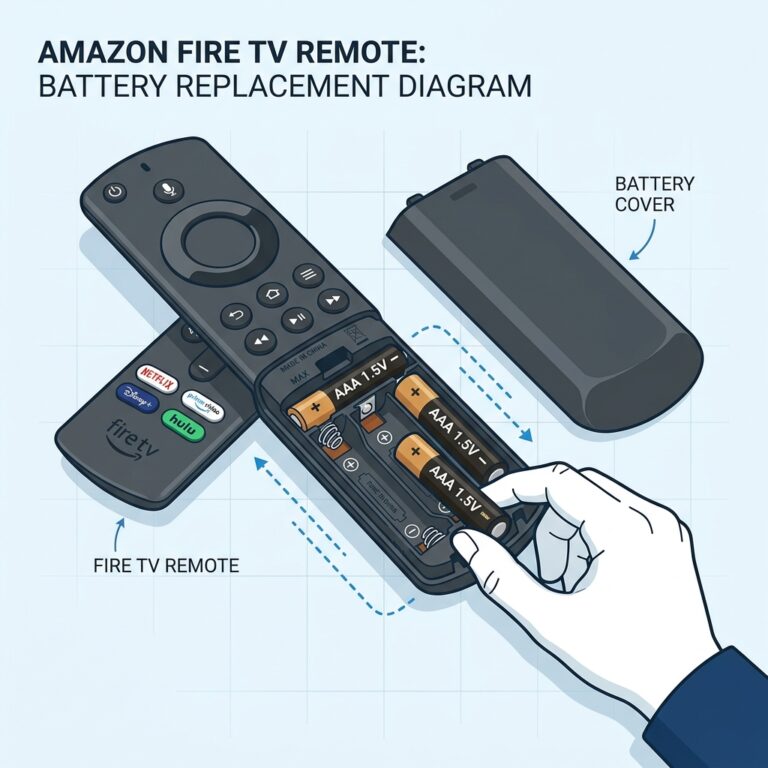
Navigate to Settings > Applications > Manage Installed Applications > Spotify. Click Uninstall and confirm. Next, restart the Firestick by holding down the **Select** and **Play/Pause** buttons for 10 seconds. Once booted, download Spotify fresh from the Appstore and log back in.
Step 5: Sign Out of All Devices and Clear Session Tokens
Sometimes, the Spotify backend database gets confused about the number of active streams on your account, especially if you share your account. When the maximum stream limit is reached, launching Spotify on a new device will block playback silently.
To resolve this, open a web browser on your computer or phone and log in to your **Spotify Account Dashboard**. Under the Account Overview section, scroll down to the bottom and click Sign Out Everywhere. This kills all active sessions. Relaunch Spotify on your Firestick, log in using your PIN, and check if playback is restored.
Step 6: Free Up Storage for Audio Buffering
Although audio files are smaller than video streams, Spotify still requires at least 1 GB of free space on your Firestick to buffer tracks. If your Firestick’s internal storage is completely full, the Spotify app will buffer indefinitely or crash after a few seconds of playback.
Go to Settings > Applications > Manage Installed Applications. Take note of the available space shown in the bottom right corner. If it is under 1 GB, uninstall unused applications or clear the cache of bloated video apps to restore a buffer space.
Step 7: Disable AP Isolation on Your UK Router
Access Point (AP) Isolation (sometimes called Client Isolation or WLAN Partition) is a security setting on some UK broadband routers. When active, it prevents wireless devices connected to the router from communicating with each other. This blocks Spotify Connect from pairing your phone and TV.
Log in to your router’s administration page (e.g., 192.168.1.1) using the password on the router label. Go to the Advanced Wireless settings, search for **AP Isolation** or **WLAN Partition**, and toggle it to **Disabled**. Save the settings and restart your router to allow local device discovery.
Step 8: Perform a Mains Power Cycle
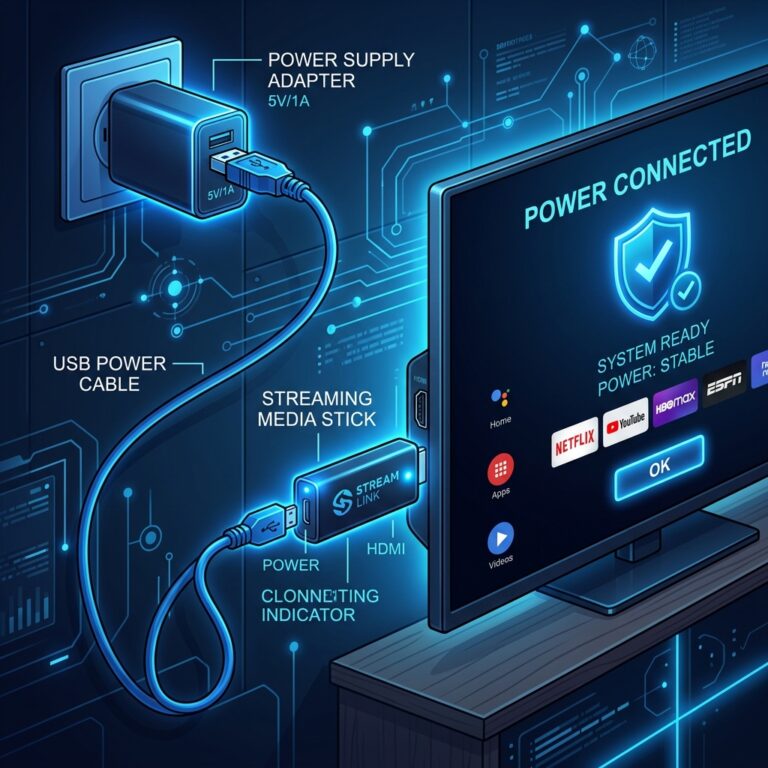
If all software configurations fail, your Firestick or TV audio processor may have suffered a digital lockup. Unplugging the Firestick from the wall socket drains the capacitors, clearing any low-level hardware freezes.
Unplug the Firestick’s power adapter from the mains outlet and disconnect the television. Wait 60 seconds before reconnecting the power cords. Boot the devices and launch Spotify to test playback.
Deep Dive: Optimising Audio Output Settings on Fire OS
To enjoy Spotify in the highest possible quality on your home theatre system, you must configure your Firestick’s audio output settings correctly. By default, Fire OS attempts to output the “best available” format, which is often a surround sound format like Dolby Digital Plus. However, Spotify tracks are encoded in standard two-channel stereo (PCM).
If your Firestick is forcing a stereo audio stream through a Dolby Digital encoder, it can introduce processing lag or sound distortion. To prevent this, go to Settings > Display & Sounds > Audio > Surround Sound and select Stereo or PCM. This instructs the Firestick to pass the audio stream directly to your TV or soundbar without transcoding, ensuring low latency and clean audio reproduction.
Tired of Connection Drops and Audio Buffering?
Once you have optimized your audio output settings, upgrade your entertainment setup with GuardianTV. GuardianTV delivers ultra-fast, stable streaming feeds that bypass local ISP bandwidth throttling and DNS blocks, ensuring your favourite high-definition shows, movies, and music play smoothly with zero buffering.
Frequently Asked Questions (FAQs)
This usually occurs due to corrupted database cache files within the app, dynamic IP address mismatch over Spotify Connect, low internal system storage, or outdated application files.
Go to Settings > Applications > Manage Installed Applications > Spotify. Select Force Stop, then click Clear Cache to wipe temporary database items and free up RAM.
This happens when your control device (phone) and Firestick are on different Wi-Fi bands (e.g., one on 2.4GHz and the other on 5GHz) or when AP Isolation is active on your UK broadband router.
No. Your playlists, library items, and user profile are saved on Spotify’s servers in the cloud, not on the Firestick storage. A reinstall is completely safe.
No. You can use Spotify on Firestick with a Free account, though you will hear advertisements and be limited to standard audio quality. Spotify Connect works for both Free and Premium users.
Crashing on boot points to corrupted login credentials or low system resources. Wiping app data or executing a clean reinstallation resolves this crash.
Select ‘Log In with Pin’ on your Firestick screen. Open a browser on your phone/computer, visit spotify.com/pair, log in, and enter the code shown on the TV.
Conclusion
Fixing Spotify when it is not playing on your Firestick is usually a simple matter of clearing the cache or aligning your Wi-Fi connections. By resolving local network conflicts and disabling AP Isolation, you can restore Spotify Connect discovery and enjoy seamless audio streaming. If your Firestick continues to crash or lag during media playback, consult our guide on why your Firestick keeps freezing to optimize system performance. To ensure stable, buffer-free connectivity for all your streaming applications, try upgrading to GuardianTV to elevate your home entertainment setup.

 English (UK)
  العربية
  Deutsch
  Ελληνικά
  Suomi
Suomi  Magyar
  Italiano
  Українська
  Svenska
  Română