
Firestick Privacy Settings Reset? How to Stop Data Collection
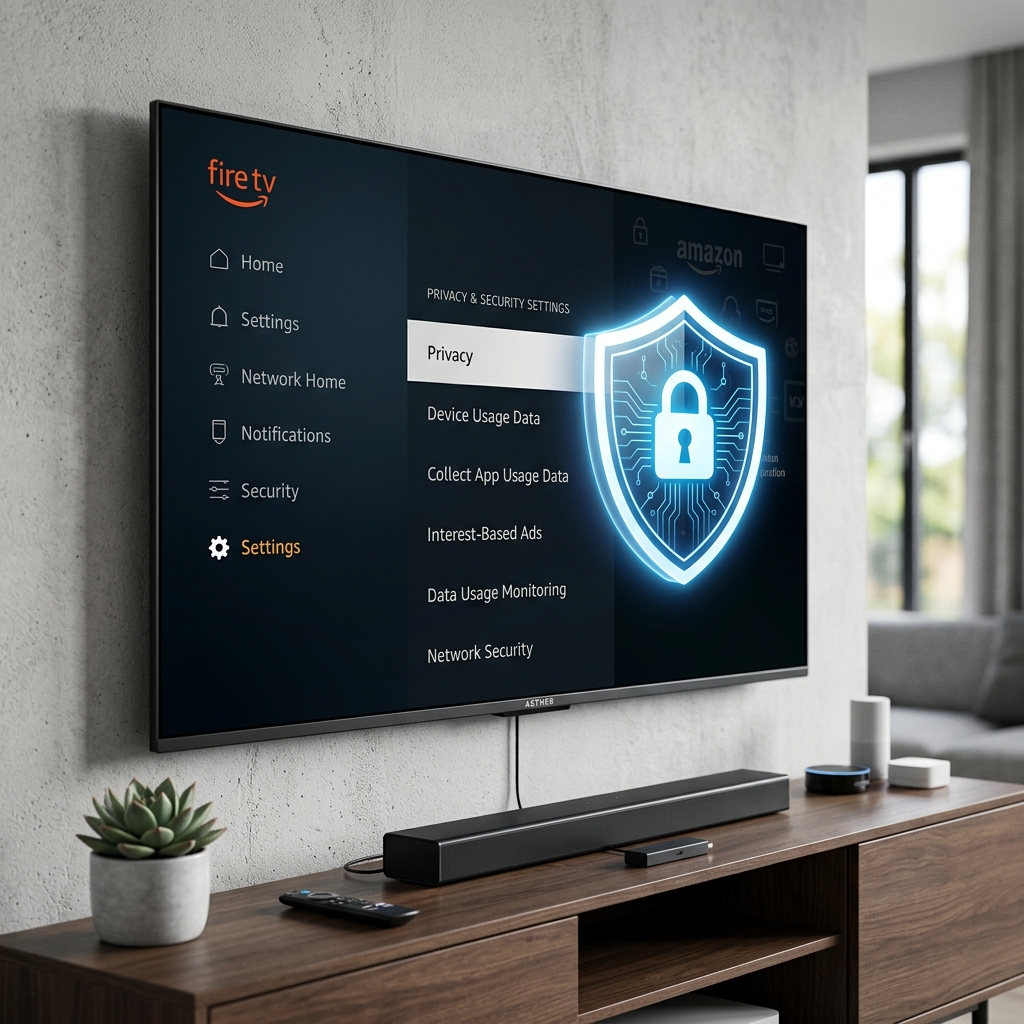
If a recent Fire OS update reset your privacy configurations, you can disable all data collection in under two minutes. Navigate to Settings > Preferences > Privacy Settings. Turn off **Device Usage Data**, **Collect App Usage Data**, and **Interest-Based Ads**. Next, go back to the Preferences menu, select **Data Monitoring**, and toggle it to **Off**. Finally, navigate to **Featured Content** and disable **Video Autoplay** to stop unsolicited trailers from streaming on your home panel.
Following a recent Amazon Fire OS system update, many UK users have noticed a sudden increase in targeted advertisements and home screen video pop-ups. In many cases, these changes happen because the firmware installation process overwrites customized user profiles, resetting telemetry, usage tracking, and advertising parameters back to their factory-default settings. If you value your privacy, seeing these data-sharing options reactivated without your explicit consent is a significant concern.
When you discover your firestick privacy settings reset after update issues, taking immediate action is crucial to lock down your personal data and prevent background profiling. As a network security specialist and streaming system architect with over 5 years of experience configuring Fire OS platforms, I have investigated how Amazon’s latest firmware builds structure telemetry logs. In this guide, we will explore why these settings reset and detail step-by-step instructions to turn off data tracking, manage app permissions, and keep your Firestick completely private.
Why Do Firestick Privacy Settings Reset After an Update?
When Amazon pushes system upgrades (for instance, moving to a new version of Fire OS 7 or 8), the installer must rebuild the core registry tables. During this process, default configuration templates are applied. Because Amazon’s business model relies heavily on targeted advertisement revenue and usage telemetry to optimize Fire OS features, these default templates have all data sharing options toggled to “On” by default. The primary settings affected by updates are:
- Device Usage Data Telemetry: This logs physical hardware performance, including network connections, crash reports, and system temperatures, and uploads them to Amazon’s diagnostic servers.
- App Usage Data Logging: Logs every time you open a streaming application, how long you stream, and which catch-up features you navigate.
- Interest-Based Ad Profiling: Builds a digital marketing index of your household’s viewing habits, pushing targeted commercials into your Firestick menus.
- Data Monitoring: Constantly monitors the byte traffic consumed by your Fire TV. It is intended to help users on restricted mobile data caps, but it logs system-wide internet activity in the background.
Privacy Settings Checklist for Fire OS Updates
Refer to this quick-reference table to audit your Firestick’s privacy status after any firmware updates:
Concerned About ISP Snooping and Geoblocking Checks?
While locking down your Firestick settings prevents local telemetry collections, your ISP (such as Virgin Media, BT, or Sky Broadband) can still log every server connection and stream request you make, throttling your speeds during peak hours. If you want a completely secure, anonymous, and buffer-free streaming configuration, upgrade your entertainment setup with GuardianTV. GuardianTV operates optimized media routing designed for smooth playback, bypassing typical geoblocking errors.
Step-by-Step Guide to Disabling Data Tracking on Firestick
Step 1: Disable Telemetry (Device and App Usage Data)
Wiping out background diagnostic logs is the most important step to secure your device from data collection.
- Return to the main Firestick dashboard and select the **Settings** gear icon on the far right.
- Scroll down the grid and click on **Preferences**.
- Select **Privacy Settings**.
- Locate **Device Usage Data** and toggle it to **Off**.
- Scroll down to **Collect App Usage Data** and toggle it to **Off**.
This blocks the background process from compiling diagnostic reports and sending them to Amazon.
Step 2: Stop Interest-Based Ads
Disabling advertising profiling prevents third-party services from building marketing profiles based on your viewing history.
Under the same **Settings > Preferences > Privacy Settings** menu, scroll down to the bottom option labeled **Interest-Based Ads**. Toggle this switch to **Off**. When disabled, your unique advertising ID is masked, blocking targeted ads from loading on your home screen menus.
Step 3: Disable Data Monitoring
Data monitoring processes run continuously to analyze internet packet streams, causing RAM consumption and logging connection metadata.
Go back to the **Settings > Preferences** main screen. Select **Data Monitoring** (located below Privacy Settings). Click on the main Data Monitoring toggle to set it to **Off**. This shuts down the background network tracking loops, freeing up system memory for streaming.
Step 4: Block Featured Content Autoplay
Amazon utilizes high-bandwidth auto-streaming on the top panel of your home dashboard. This consumes broadband data and pushes unprompted commercial content.
Under the **Settings > Preferences** menu, select the option labeled **Featured Content**. Locate **Allow Video Autoplay** and click to set it to **Off**. Do the same for **Allow Audio Autoplay**. When disabled, home screen banners will display as quiet, static images rather than active video feeds.
Step 5: Revoke App Permissions
Many pre-installed apps (like Amazon Shopping or screen mirrors) request background permissions that compromise privacy.
Navigate to **Settings > Applications > Manage Installed Applications**. Review the permissions for individual applications. For any app that does not require access to your location or personal storage directory to stream, set its permission values to **Deny**. In particular, disable location permissions for shopping and news apps.
Recommended Video Walkthrough
If you would like a step-by-step visual demonstration of securing your privacy settings and stopping background telemetry on Amazon Fire TV, watch this tutorial guide:
Securing Your Network Connection in the UK
Even with local telemetry options set to “Off,” your raw internet traffic remains exposed to monitoring at the router level. UK Internet Service Providers (ISPs) actively scan for streaming activity to enforce speed throttling policies on busy lines. To secure your streaming network, you should pair your updated privacy settings with a high-speed Firestick VPN client, routing your traffic through an encrypted tunnel. For users seeking absolute stream stability without geoblock checks, combining a secured network with a dedicated service like GuardianTV offers an optimal home streaming solution.
الأسئلة الشائعة (FAQs)
Fire OS updates overwrite user profiles with default configuration templates, which have diagnostic and advertising telemetry toggled to “On” by default to gather diagnostic information.
It prevents Amazon from assigning a custom advertising profile to your device, replacing personalized ads with generic advertisements on the dashboard.
No, disabling data monitoring will not slow down your stream. In fact, disabling background telemetry loops can slightly improve RAM performance and streaming speeds.
We recommend checking the Preferences menu after every major system firmware update to ensure Amazon has not reactivated diagnostic telemetry.
الخلاصة
Re-configuring your Amazon Firestick’s privacy settings after a system update is quick and essential to secure your personal data. By turning off Device Usage Data, Collect App Usage Data, Interest-Based Ads, and Data Monitoring, you block background diagnostic collection loops. For additional performance guides, check out our guide on fixing Firestick freezing. To experience secure, high-definition streaming without local buffer limits or ISP speed throttling, visit GuardianTV today.


 English (UK)
  العربية
  Deutsch
  Ελληνικά
  Suomi
Suomi  Magyar
  Italiano
  Українська
  Svenska
  Română