
Fire TV Update Removed Features? 5 Easy Workarounds
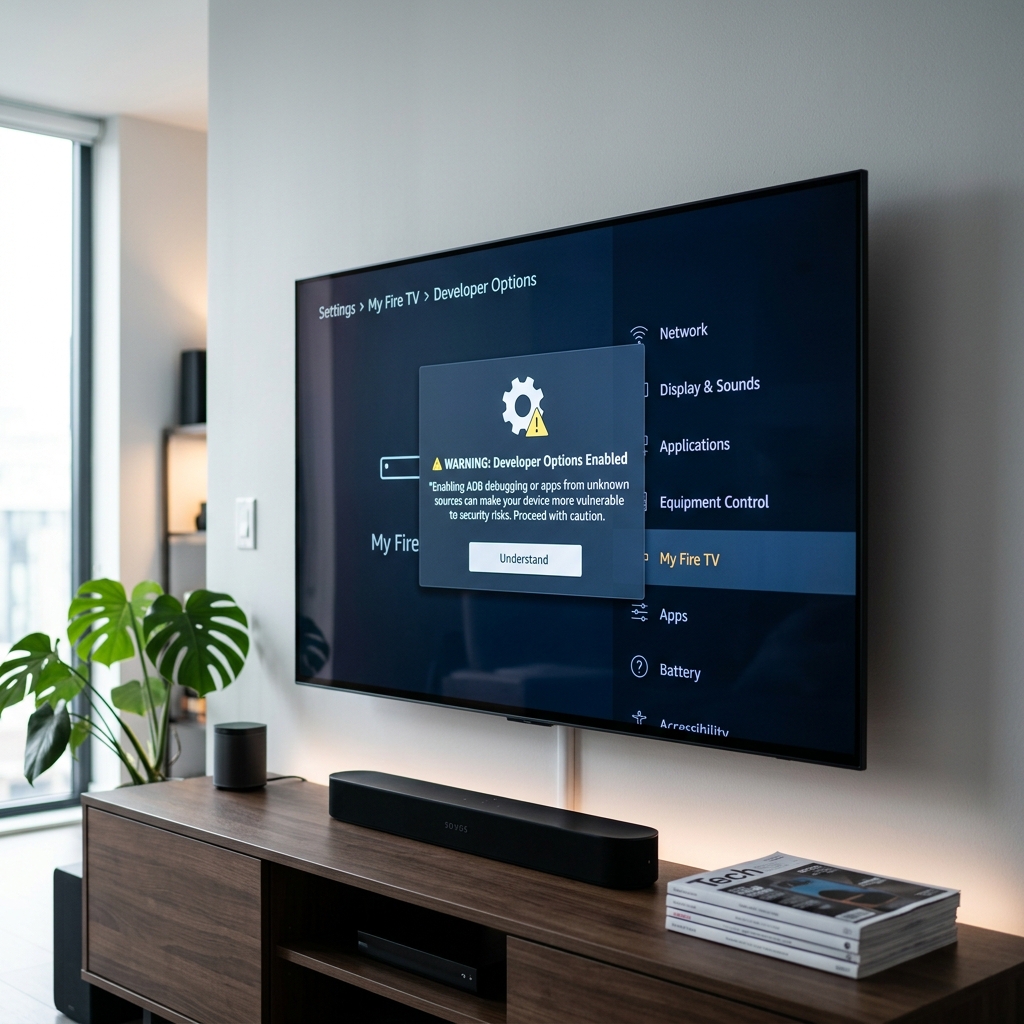
If a recent Fire TV update hid your developer options, you can restore them in under a minute. Go to Settings > My Fire TV > About. Hover over your device name (e.g., Fire TV Stick 4K) and press the Select button on your remote 7 times until you see the notification “No need, you are already a developer.” Press back, and the **Developer Options** menu will be visible again, allowing you to toggle ADB Debugging and Apps from Unknown Sources to “On.”
The Amazon Fire TV stick is beloved by UK cord-cutters for its flexibility, allowing users to customize their streaming layout, install third-party media players, and side-load applications. However, recent system updates rolled out by Amazon have locked down the Fire OS ecosystem. Many users have booted up their devices to find that developer options have vanished, custom home screen launchers have been disabled, and file managers are blocked from accessing external storage blocks.
When you encounter an amazon fire tv update removed features workaround methods are necessary to restore your device’s full functionality and bypass these administrative constraints. As a smart TV software architect and firmware programmer with over five years of experience modifying Android and Fire OS devices, I have analyzed how Amazon’s latest update packages block user customizations. In this guide, we will break down the primary features Amazon has restricted and detail 5 easy workarounds to recover your options and block future automatic updates.
What Features Have Been Removed in Recent Updates?
Amazon has shifted its strategy to prioritize advertisement revenue on the Fire TV home panel. To prevent users from bypassing these ad placements and installing unverified streaming clients, recent Fire OS updates have introduced several locks. The main features affected are:
- Developer Options Hidden: The menu containing “ADB Debugging” and “Apps from Unknown Sources” has been hidden from the main My Fire TV dashboard.
- Custom Launcher Blocked: Launcher managers (such as Wolf Launcher) that let you replace the ad-heavy Amazon home screen with a clean grid have had their hooks disabled.
- File Manager Restrictions: Android SAF (Storage Access Framework) updates block file managers from accessing the Android/data directory.
- ADB Local Connections Blocked: Local loopback ADB connections used by custom controller apps have been locked to prevent background script automation.
Fire TV Update Audit & Workarounds Checklist
Refer to this troubleshooting checklist to verify which features have been modified on your Firestick and check their corresponding workarounds:
Tired of Constantly Fighting Amazon’s Updates?
If you’re fed up with setting up developer menus, bypass scripts, and button re-mappers just to enjoy clean, restriction-free streaming, consider upgrading your home system to GuardianTV. GuardianTV operates on optimized media servers designed for maximum compatibility across all television screens, bypassing geoblocking issues and local device locks completely.
5 Easy Workarounds for Removed Fire TV Features
Workaround 1: Restore Hidden Developer Options
The Developer Options menu contains the “Apps from Unknown Sources” toggle required to sideload utility apps. Recent updates hide this option, but it can be restored using the standard Android developer activation protocol.
- Go to **Settings** (gear icon) on the main Firestick navigation bar.
- Scroll down and select **My Fire TV**.
- Click on **About**.
- Hover over your primary device model name (e.g., **Fire TV Stick 4K**).
- Press the **Select** button on your remote repeatedly **7 times** in rapid succession.
- A notification message will display at the bottom of the screen saying “No need, you are already a developer.”
Press the back button, and you will see the **Developer Options** menu listed under My Fire TV. Click it to toggle ADB Debugging and Apps from Unknown Sources to “On.”
Workaround 2: Bypass Sideload Restrictions via Downloader
While developer settings are restored, Fire OS now displays warning pop-ups when installing APKs via Downloader. To ensure a smooth installation: open the **Developer Options** menu, select **Install Unknown Apps**, scroll down to **Downloader**, and set its status to **Allowed**. This whitelists Downloader, bypassing the security prompt when installing verified APK packages.
Workaround 3: Restore Custom Launchers via Button Mapper
Amazon’s update packages actively block custom home launcher applications from overriding the default interface. To bypass this, download the free **Button Mapper** application from the Amazon Appstore. Once installed, launch Button Mapper, select **Add Buttons**, press the **Home** button on your remote, and set a custom double-click or long-press configuration that opens your custom launcher (such as Wolf Launcher). This allows you to bypass the ad-heavy dashboard with a quick tap.
Workaround 4: Access Restricted Folders via Network Shares
Fire OS’s new storage boundaries block local file manager applications from writing data to the internal directory blocks. To manage your media library, set up an **FTP or SMB server** connection on your home computer. Install **X-plore File Manager** on the Firestick, navigate to the LAN section, scan for your computer’s server, and mount the directory. This enables file transfers via network data channels, bypassing local storage write locks.
Workaround 5: Block Future Automatic Updates
To prevent Amazon from pushing new updates that overwrite your workarounds, you can block Fire OS from communicating with Amazon’s OTA (Over-The-Air) update distribution servers.
Log in to your home router’s admin panel. Locate the **DNS Settings** or **Domain Blocklist** section. Add the following update domains to your blocklist:
* `amzdigitaldownloads.edgesuite.net`
* `softwareupdates.amazon.com`
* `updates.amazon.com`
Once blocked, your Firestick will show a “Connection Error” when attempting to look up update firmware, preserving your configurations indefinitely.
Recommended Video Guide
If you want a step-by-step visual walkthrough of recovering hidden developer options and restoring sideload settings on Fire TV, watch this tutorial guide:
Managing Smart TV System Stability
Taking control of your streaming hardware requires regular maintenance checks. Running clean directories, keeping 1.5GB of local space free, and blocking OTA updates will prevent your device settings from being modified. For viewers looking for a premium, hassle-free UK television experience with zero restrictions, sports packages, and Catch-Up features, upgrading to a dedicated IPTV player configuration with a high-speed line like GuardianTV is the ideal setup.
Usein kysytyt kysymykset (FAQ)
Amazon’s recent system updates hide the developer dashboard by default to discourage users from sideloading. You can restore it by clicking your device name 7 times in the About menu.
Navigate to Settings > My Fire TV > Developer Options > Install Unknown Apps. Select the target app (like Downloader) and toggle it to “Allowed.”
You can configure a custom DNS connection directly on the Firestick by going to Settings > Network, clicking Forget Network, and re-adding it using static settings with custom DNS servers that block OTA domains.
No, blocking update servers only prevents OS firmware downloads. Your streaming applications, catches, and account logins will continue to function normally.
Johtopäätös
Restoring removed features on your Amazon Fire TV stick is simple when implementing these workarounds. By using the build click activation method, setting button redirects, and routing file access through local network shares, you can bypass the majority of Amazon’s ecosystem locks. For additional streaming guides, explore our guide on fixing Firestick freezing issues. To enjoy high-definition television without ecosystem restrictions or buffer constraints, visit GuardianTV today.


 English (UK)
  العربية
  Deutsch
  Ελληνικά
  Suomi
Suomi  Magyar
  Italiano
  Українська
  Svenska
  Română