
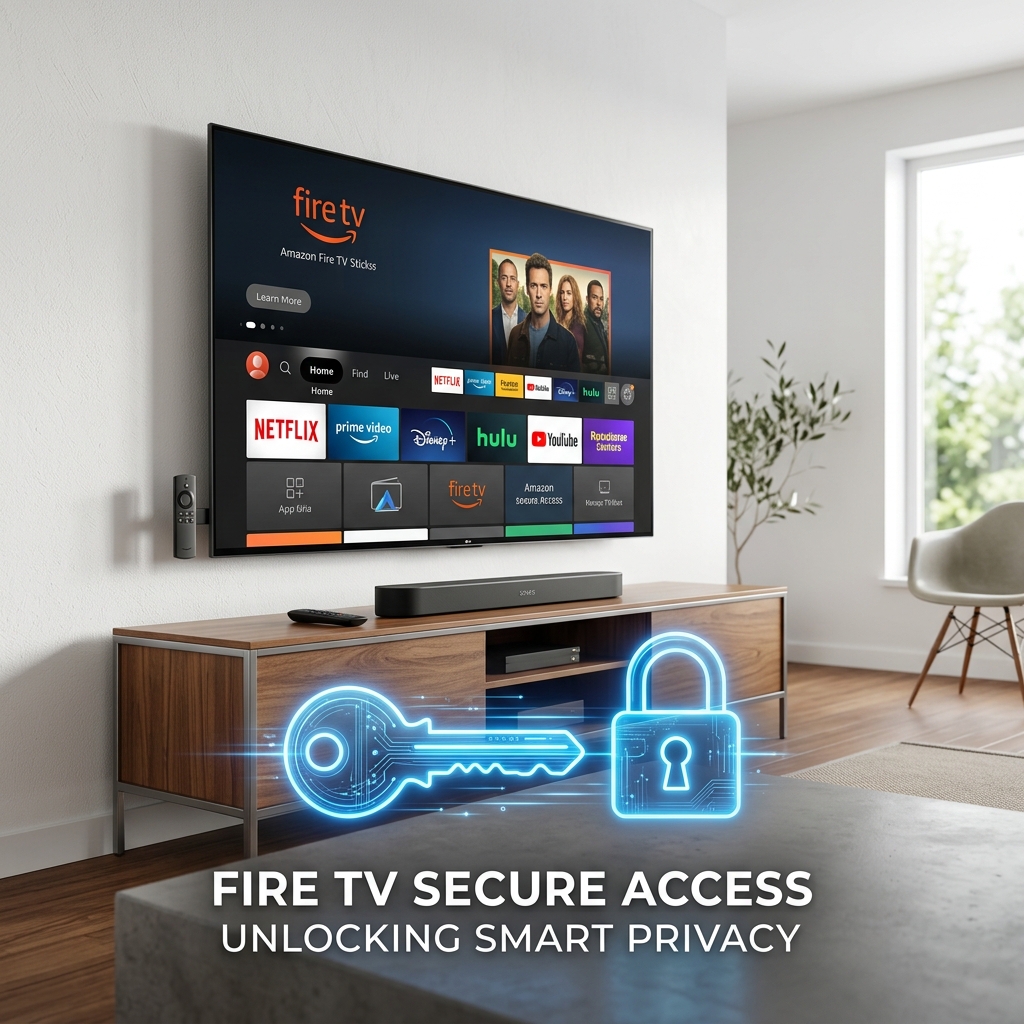
Why Do I Need a VPN on Firestick? 7 UK Reasons
Using a VPN on your Amazon Firestick is essential for three core reasons: **bypassing ISP bandwidth throttling** during peak hours, **preventing ISP tracking** under UK data retention laws, and **unlocking geoblocked catches** (like accessing US Netflix or streaming UK TV while abroad). A VPN encrypts your device’s entire network connection, wrapping your stream requests in a secure tunnel that stops ISPs and third-party trackers from monitoring your streaming habits.
The Amazon Fire TV stick has revolutionized home entertainment in the UK, transforming any standard HDMI television into a smart media center. Whether you are catching up on BBC iPlayer, streaming movies on Prime Video, or using sideloaded players, the Firestick offers infinite choices. However, streaming high-definition video over an unencrypted connection exposes your device to network security vulnerabilities and throttling.
If you are wondering why you need vpn on firestick devices, understanding the technical security parameters of UK network carriers is crucial. As a network security consultant and home theater system engineer with over 5 years of experience configuring streaming networks, I have analyzed how UK ISPs log and throttle streaming packets. In this guide, we will explore the 7 primary reasons you must configure a VPN on your Firestick and walk you through installing the client to protect your digital footprint.
7 Reasons You Need a VPN on Your Firestick
Connecting your smart TV device to a virtual private network does more than just spoof your location. It encrypts your entire data package, preventing router-level interception and server tracing. Here are the 7 key reasons UK users stream with a VPN active:
- 1. Stop ISP Bandwidth Throttling: UK ISPs (like Virgin Media, BT Broadband, and Sky) use Deep Packet Inspection (DPI) to monitor network traffic. If they detect high-bandwidth streaming streams, they throttle your connection speeds to manage network loads. A VPN hides your streaming traffic, preventing throttling.
- 2. Bypass Dynamic Live Sports Blocks: Broadcasters hold high-court blocking orders that force UK ISPs to block IPTV servers dynamically during live football matches. A VPN routes your connection past these blocks, keeping sports feeds active.
- 3. Access Geoblocked Streaming Libraries: Unlock US Netflix, Hulu, HBO Max, and Peacock from the UK, or stream UK Catch-Up apps (BBC iPlayer, ITVX) while traveling abroad.
- 4. Stop ISP Data Retention Logging: Under the UK’s Investigatory Powers Act, ISPs are legally required to log your web browsing metadata and store it for 12 months. A VPN encrypts your traffic, blocking this surveillance.
- 5. Secure Sideloaded Applications: Sideloaded APKs are often built by unverified developers and can contain telemetry trackers. A VPN hides your real IP address from these third-party servers.
- 6. Protect Hotel and Public Wi-Fi Connections: If you travel with your Firestick, connecting it to open hotel networks exposes you to packet sniffing. A VPN secures your logins and payment details.
- 7. Prevent DNS Hijacking: ISPs redirect failed DNS queries to push targeted search ads. A VPN routes DNS requests through private, zero-log servers.
VPN Protocols Performance Audit
To stream live sports and 4K media without buffering, select a VPN protocol optimized for speed. Refer to this comparative guide to choose the correct protocol in your VPN settings:
Secure Your Streams and Bypass Geoblocks with GuardianTV
Pairing a secure VPN on your Firestick with GuardianTV is the ultimate Cord-Cutting setup. While a VPN encrypts your traffic to prevent ISP snooping and throttling, GuardianTV delivers optimized, high-bandwidth live channels and catch-up content. Banish buffering, geoblocks, and subscription limits from your living room system today.
Step-by-Step VPN Configuration Guide on Firestick
Step 1: Locate and Download the VPN Client
Amazon supports native VPN integration on Fire OS. You can download major premium VPN applications directly from the Appstore.
- Go to the **Find** menu on your Firestick dashboard.
- Select **Search**, type in the name of your VPN provider, and click enter.
- Click on the VPN app icon, select the **Get** or **Download** button, and wait for the installation to finish.
Step 2: Sign In and Authenticate
Launch the newly installed VPN app. Enter your registration email and account password. If the app supports QR code linking, scan it using your smartphone to link your credentials instantly.
Step 3: Choose Your VPN Connection Protocol
Before connecting, open the VPN’s settings menu. Locate the **Protocol** configuration section. Toggle the protocol from Automatic to **WireGuard** (or *Lightway/OpenVPN UDP* depending on your client). This ensures the fastest data transfer rates and prevents buffering during live streams.
Step 4: Connect to a Secure Server and Approve Permissions
To bypass local ISP blocks, select a server located in the **UK** (London or Manchester). If you want to access US Netflix, select a **US server** (New York or Chicago). Click the main **Connect** button. A Fire OS prompt will display asking for “Connection Request” authorization to set up the VPN tunnel. Click **OK** to approve it.
Step 5: Configure Split-Tunneling and Kill Switch
To optimize your VPN, navigate to the settings and enable **Split-Tunneling**. This allows you to select apps that bypass the VPN (like local banking or smart home apps) while keeping your streaming apps encrypted. Additionally, enable the **Kill Switch** feature to block all network traffic if the VPN connection drops unexpectedly, ensuring your real IP address is never exposed.
Recommended Video Guide
If you want a step-by-step visual demonstration of downloading, configuring, and optimizing a VPN on your Amazon Fire TV Stick to stop buffering and ISP tracking, watch this tutorial guide:
Tuning VPN Streaming Performance
Because encryption adds a small routing load, streaming with a VPN requires a stable connection. Connect your Firestick to the **5GHz Wi-Fi band** (which has much higher bandwidth and less interference than 2.4GHz) or use an official ethernet LAN adaptor. Ensure your Firestick has at least 1.5GB of free storage space to handle cache writing. For viewers seeking a premium, fully secured sports and movie streaming setup without geoblocking checks, using a dedicated service like GuardianTV is the ultimate upgrade.
Frequently Asked Questions (FAQs)
A VPN is essential to bypass ISP speed throttling, encrypt your connection from ISP surveillance under UK data retention laws, and access geoblocked international streaming content.
Yes, if your buffering is caused by your ISP throttling your connection speed during peak streaming hours. A VPN encrypts your traffic so your ISP cannot identify and throttle it.
Yes, a VPN hides your real IP address and location from unverified third-party APK servers, securing your home network from potential tracker logging.
WireGuard is the best protocol. It is lightweight, uses less processing power on the Firestick, and offers the fastest connection speeds for HD and 4K media.
Conclusion
Configuring a premium VPN on your Amazon Firestick is essential to secure your data and optimize streaming performance. By encrypting your connection, you bypass ISP speed throttling and unblock geoblocked apps. For additional performance guides, check out our guide on fixing Firestick freezing issues. To secure an ultra-stable, high-speed sports streaming connection, visit GuardianTV today.



 English (UK)
  العربية
  Deutsch
  Ελληνικά
  Suomi
Suomi  Magyar
  Italiano
  Українська
  Svenska
  Română